In the previous part we learned about Terraform Modules. In this part we’ll learn about the next important topic: the Terraform Backend — a feature of Terraform that lets many people work together on one Terraform project.
The problem
When we work with Terraform, if it’s just us working alone, everything is peaceful and nothing goes wrong. But if another person joins to write Terraform configuration with us, many problems arise.
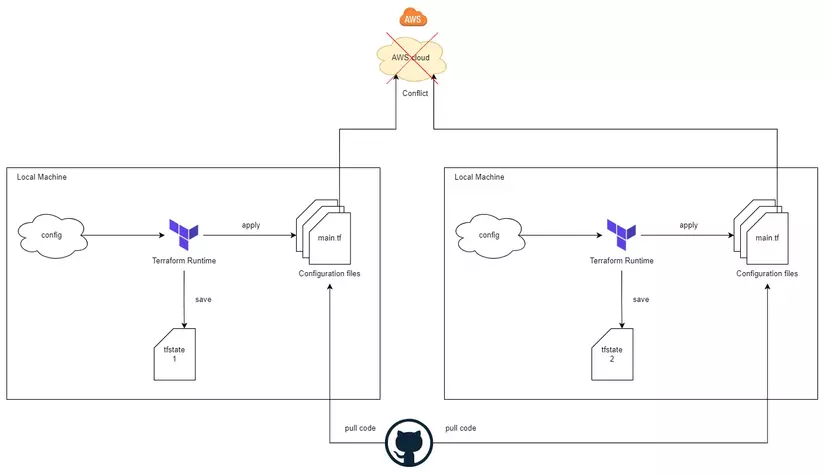
The first problem is how we share the source code with each other, and how we share the state file with each other. Remember that when we run apply, once Terraform finishes it saves our system configuration into the state file — and currently our state file is created and stored on the local machine. If someone else joins to work with us, how do we share this state file?
The way we usually do it is to push it to GitHub and let the other person pull it down. But if we use GitHub to store and share the state file, then every time we run apply and a new state file is created, we have to push it to GitHub again, and other team members have to pull it down before they run apply. Doing it this way easily causes conflicts.
The second problem is: if two people run apply at the same time, what happens to our infrastructure?
To solve these problems we use a Terraform feature called the Backend.
Terraform Backend
A backend in Terraform decides where the state file is stored and how the Terraform CLI — such as terraform plan or terraform apply — runs. Terraform has three kinds of backend:
- Local Backend
- Standard Backend
- Remote Backend (Enhanced Backend)
Local Backend
This is the default backend when we run Terraform. The Terraform runtime executes on the local machine, and after it finishes, it saves the result to the state file on local.
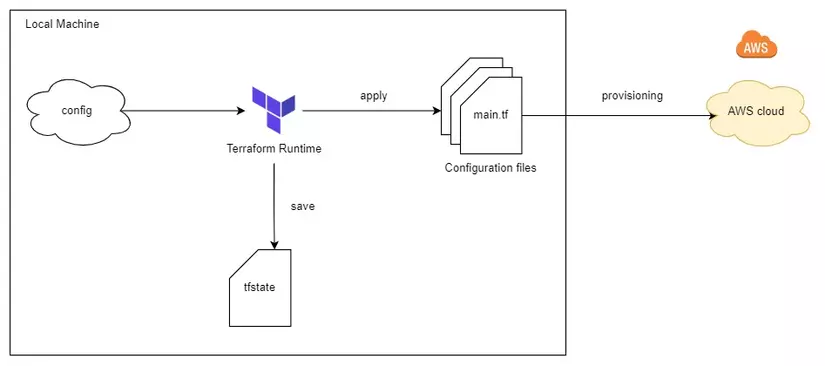
This kind of backend is suitable when we work on a project alone. But it causes the problem we mentioned above: when many people run terraform apply on the same Terraform project at the same time, our infrastructure ends up in conflict.
So for many people to work together on one Terraform project, we need the next kind of backend.
Standard Backend
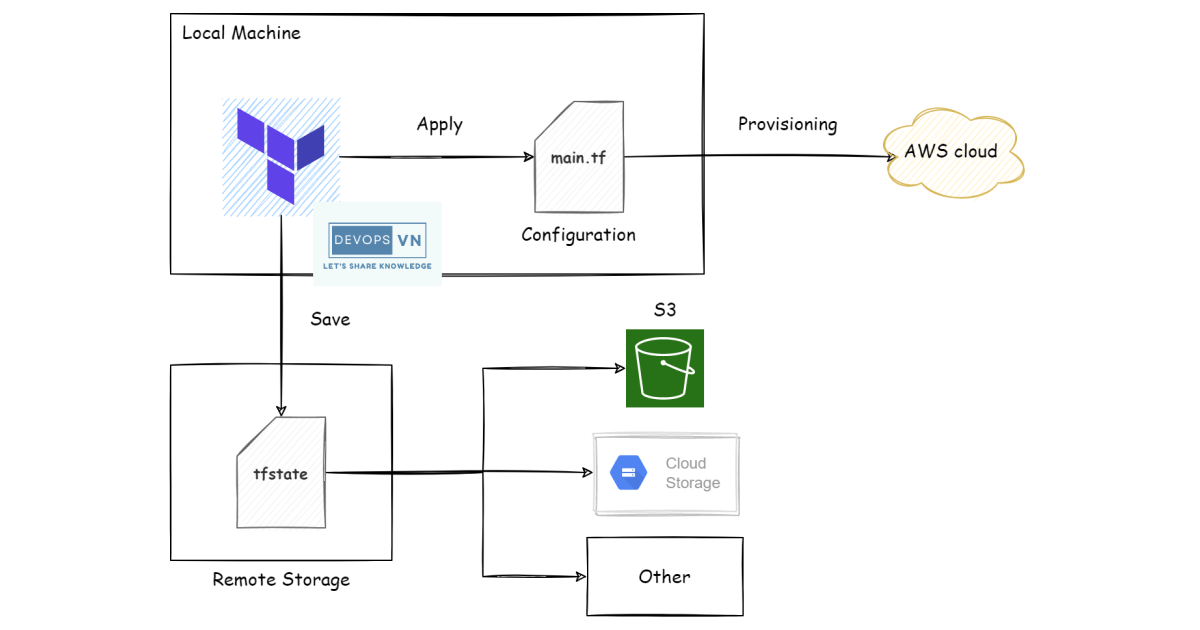
With this kind of backend, the Terraform runtime still executes on the local machine, but after it finishes, the result is stored somewhere else (a Remote State). The place we use to store the state file can be AWS S3, GCP Cloud Storage, and so on.
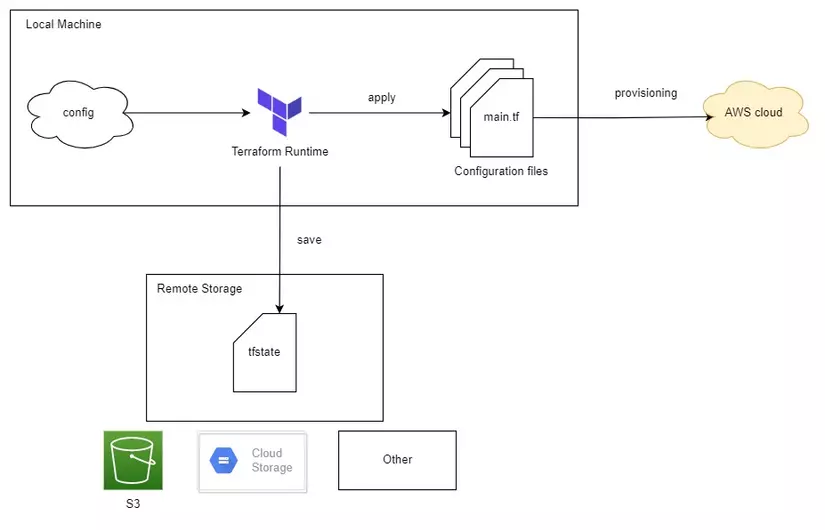
Now we can store the source code on GitHub without needing to store the state file, since it’s stored elsewhere. So if many people run Terraform commands at once, don’t we still get conflicts? Does the Standard Backend solve this for us? The answer is yes.
Besides storing the state file elsewhere, the Standard Backend also gives us a feature called Lock Remote State. When one user runs terraform apply, Terraform locks our state file; at the same time, if another user runs a Terraform command, Terraform sees that our state file is locked and rejects the second user’s terraform apply — thereby solving the problem of many people running terraform apply at the same time.
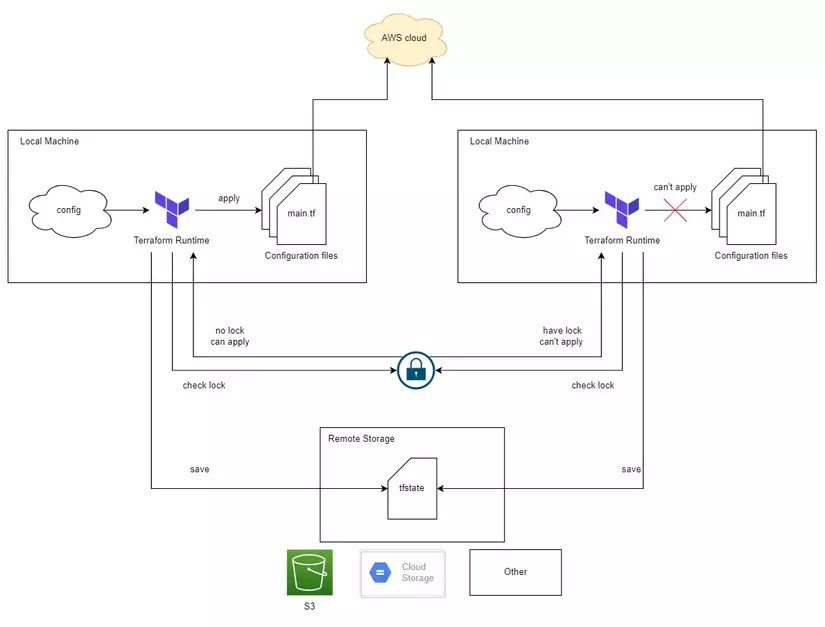
In addition, when we use the Standard Backend we can improve security a bit, because infrastructure configuration related to databases, such as passwords, is stored in the Remote State — not everyone can go into the Remote State to view it.
For example, when we use the S3 Standard Backend we configure it like so.
terraform {
  required_version = ">= 1.10"

  backend "s3" {
    bucket       = "state-bucket"
    key          = "team/rocket"
    region       = "us-west-2"
    encrypt      = true
    use_lockfile = true
  }
}
What changed since 2022? State locking used to require a separate DynamoDB table (
dynamodb_table = "..."). Since Terraform 1.10 the S3 backend supports native locking withuse_lockfile = true, which writes a small.tflockobject next to the state — no DynamoDB table to create or pay for. The olddynamodb_tableargument still works but is now legacy.
But we still run into another problem: the configuration required for us to run Terraform must still be stored on local. For example, when we run Terraform to create infrastructure on AWS, we need to configure a secret key on our local machine, and for convenience most people create an account with full AWS permissions and then store that account’s secret key on the local machine — not secure.
So to solve that problem we use the next kind of backend: the Remote Backend.
Remote Backend
With this kind of backend, our Terraform runtime executes on a Remote Server, and the Terraform CLI on our local machine only streams the output printed from the Remote Server back to our local machine. And after it finishes, our state file is also stored on the Remote Server.
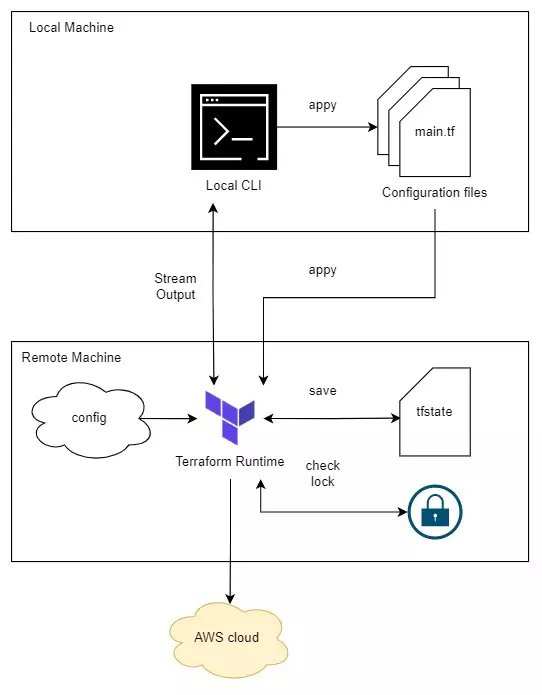
Now both the Terraform configuration and the state file are stored on the Remote Server. The Remote Backend also has a state-file locking feature to prevent many people from running apply at the same time.
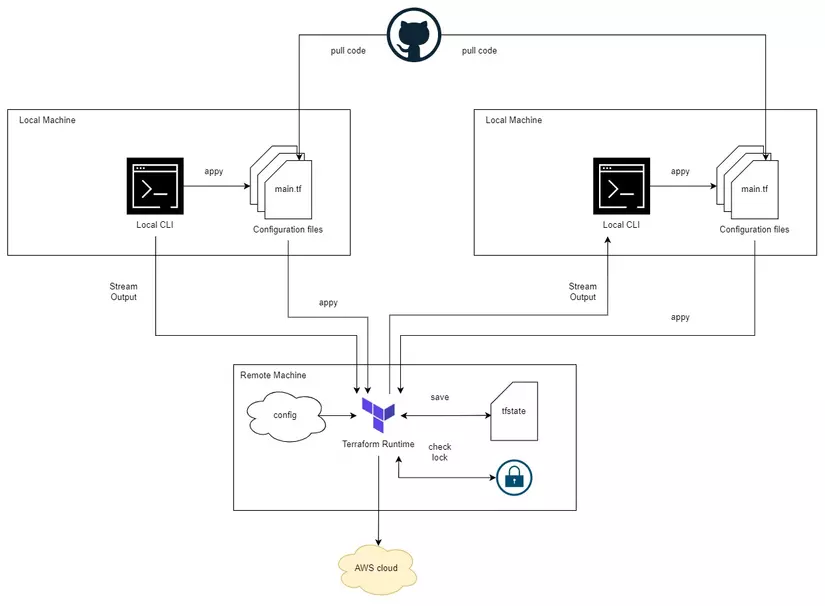
For example, when we use the Remote Backend we configure it like so. The modern form is the cloud block (it replaced the older backend "remote" block):
terraform {
  cloud {
    organization = "hpi"

    workspaces {
      name = "pro"
    }
  }
}
We use the Remote Backend when working with a team, and with it we can centralize all configuration in one place.
Besides choosing a backend for Terraform, in practice we often have to build CI/CD for a Terraform project. Building CI/CD for Terraform takes a fair amount of time, so to save time we can use an existing Terraform platform: HCP Terraform.
HCP Terraform
This is a platform built by HashiCorp (the company that develops Terraform). It helps us use Terraform very easily. (It was called Terraform Cloud until 2023, when it was renamed HCP Terraform — you’ll still see both names around.)
When using HCP Terraform, what we need to do is very simple: just write code and push it to GitHub, and HCP Terraform pulls the code down and runs it for us.
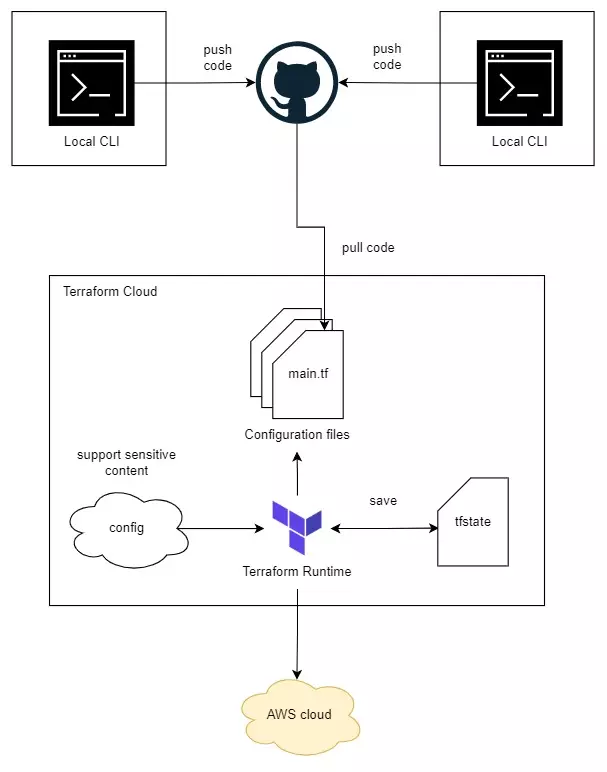
I’ll cover how to use HCP Terraform in another part.
Conclusion
So we’ve learned the theory of the Terraform Backend. Above are the three kinds of backend Terraform supported when I wrote this: the Local Backend is suitable when working on a project alone, and the Standard and Remote backends are suitable when working as a team. Depending on the situation, we use the appropriate one.