In this part we’ll learn about a very interesting topic: how to use Terraform to build a multi-cloud environment.
Terraform’s strength over other tools is that it makes it easy to create infrastructure across many different cloud environments. We’ll do an example connecting two Virtual Private Clouds — one on AWS and one on GCP.
Multi-cloud
Multi-cloud is the practice of using multiple different cloud providers to deploy applications — for example, using both AWS and GCP.
Each cloud has its own strengths and weaknesses, so the more good options we have, the more flexible our system is.
Some advantages of multi-cloud:
- Flexibility: you can choose the most suitable service for your application
- Cost savings: choose the most suitable pricing among cloud providers
- Resilience: high resilience when the system has an infrastructure incident
- Compliance: internal factors — for example, if we develop an application in China we should use AliCloud
With Terraform, creating infrastructure across many different cloud environments isn’t hard at all. Terraform provides suitable providers for each environment.
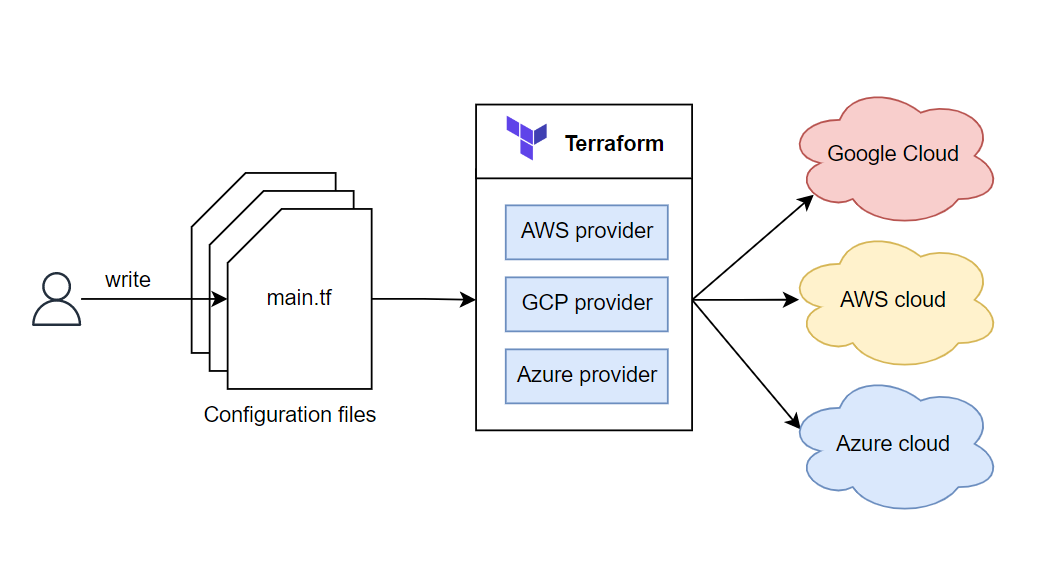
A multi-cloud example
Note: this is just a personal opinion.
The example is that we need to build a solution to collect customer actions on an e-commerce site with fairly high traffic. After collecting and aggregating all customer actions, we need a tool to process that data.
Given the requirement above, our system has two main parts: an Event Streaming system and a data analysis system. I’ll choose to build the Event Streaming system on AWS and the data analysis system on GCP.
Data analysis with GCP
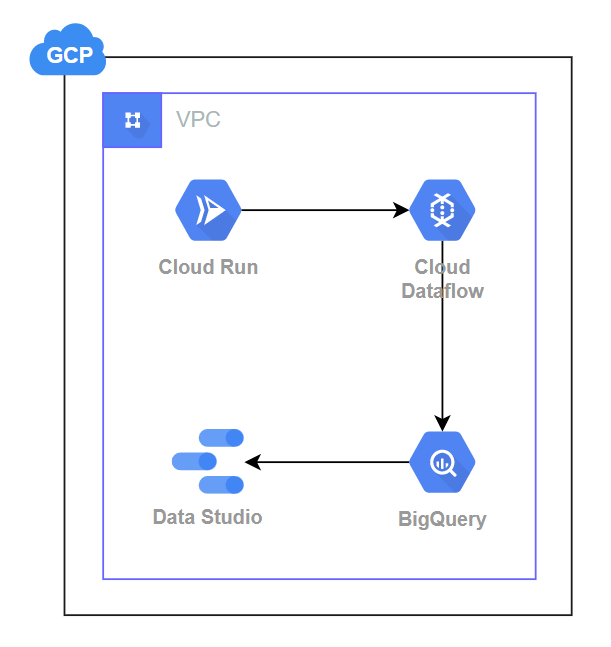
Why use Google Cloud Platform for data analysis? What does it have over AWS? My reason for choosing GCP for data analysis isn’t that GCP’s data-processing tools are faster or cheaper — I don’t have enough knowledge to judge which of AWS’s and GCP’s tools is faster. I choose GCP because it’s well suited to analyzing customer data. Google has been ahead in analyzing user data for quite a long time; Google owns ready-made services that are very easy to combine with GCP for collecting and reporting user data, such as Google Analytics, Gmail, Google Ads, YouTube, and Google Search.
In addition, Google’s data-reporting UIs are very beautiful and easy to read, suitable even for non-data specialists to understand. An example model using GCP for analyzing customer data.
Event Streaming with AWS
In contrast to GCP, AWS has been ahead in the cloud space for quite a long time. So AWS’s services for building applications are much more common, with more documentation, a large community, and ease of use with many ready-made IaC tools. That’s why I choose AWS for building the Event Streaming system. A concrete example is a Kafka Cluster for streaming. If we built it ourselves on GCP it would take a lot of effort, whereas AWS provides a service for building a Kafka Cluster easily — Amazon MSK — so why build and manage a Kafka Cluster ourselves (which is not easy)?
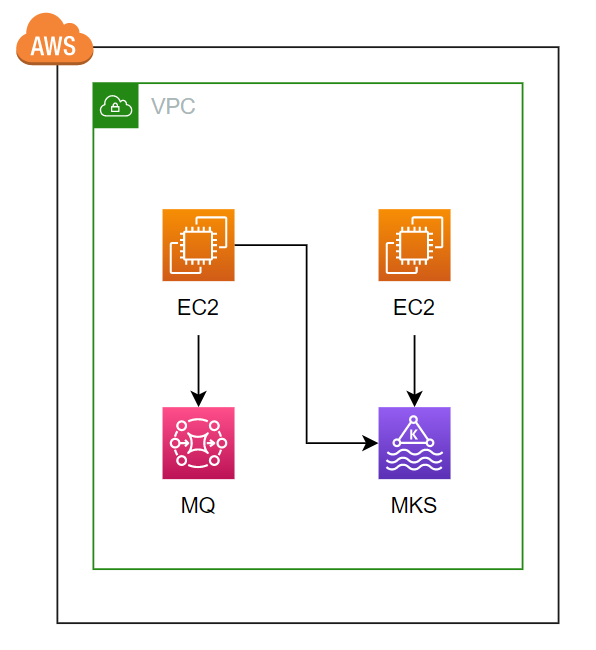
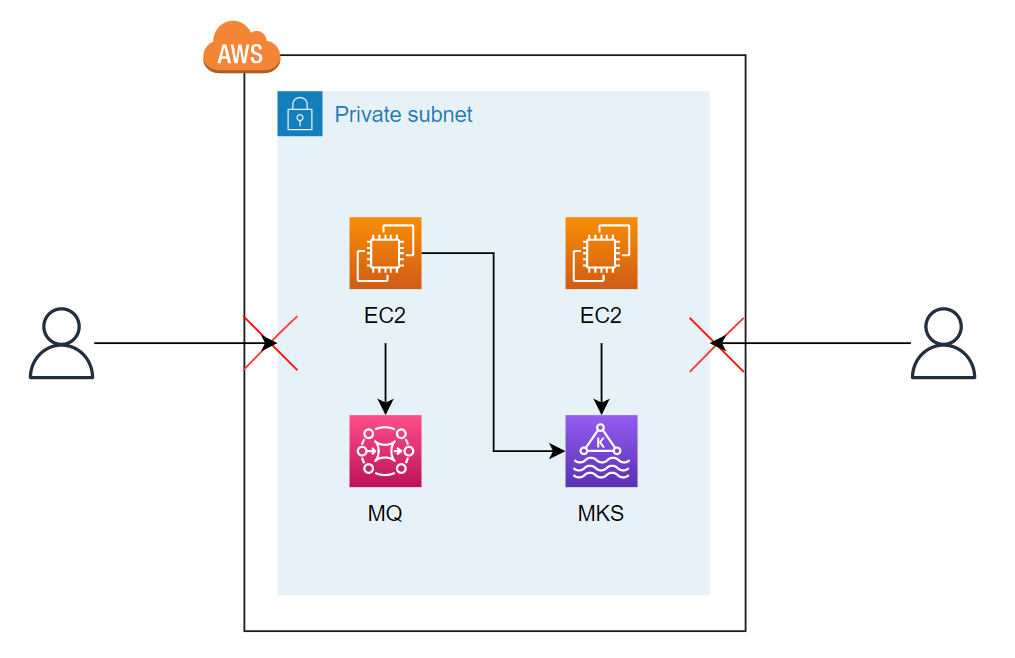
That’s why I need to use multi-cloud. But we’ll face a problem: all applications are placed in the VPC’s Private Subnet, so the outside can’t access them.
So how can the GCP application connect to AWS and vice versa?
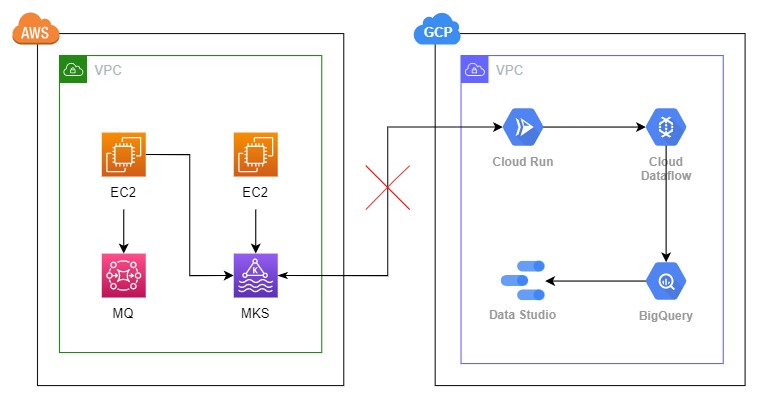
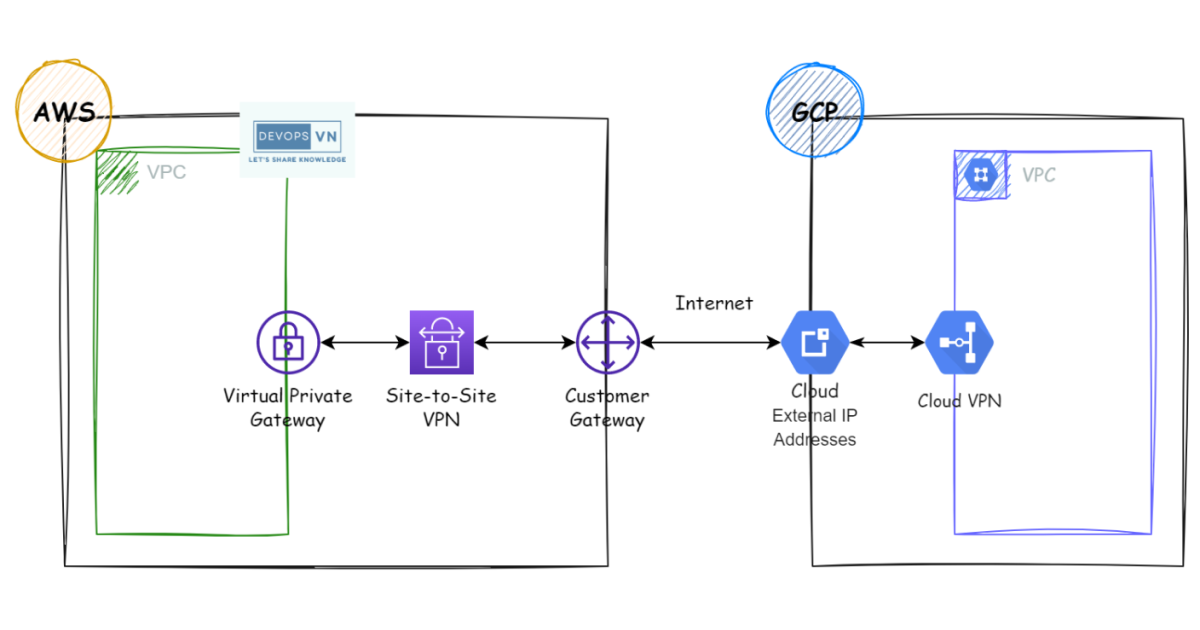
To do that, we need to connect the VPCs of the two clouds together, using AWS Site-to-Site VPN and Google Cloud VPN.
Creating the network connection between AWS and GCP
Architecture
The infrastructure we build is as follows:
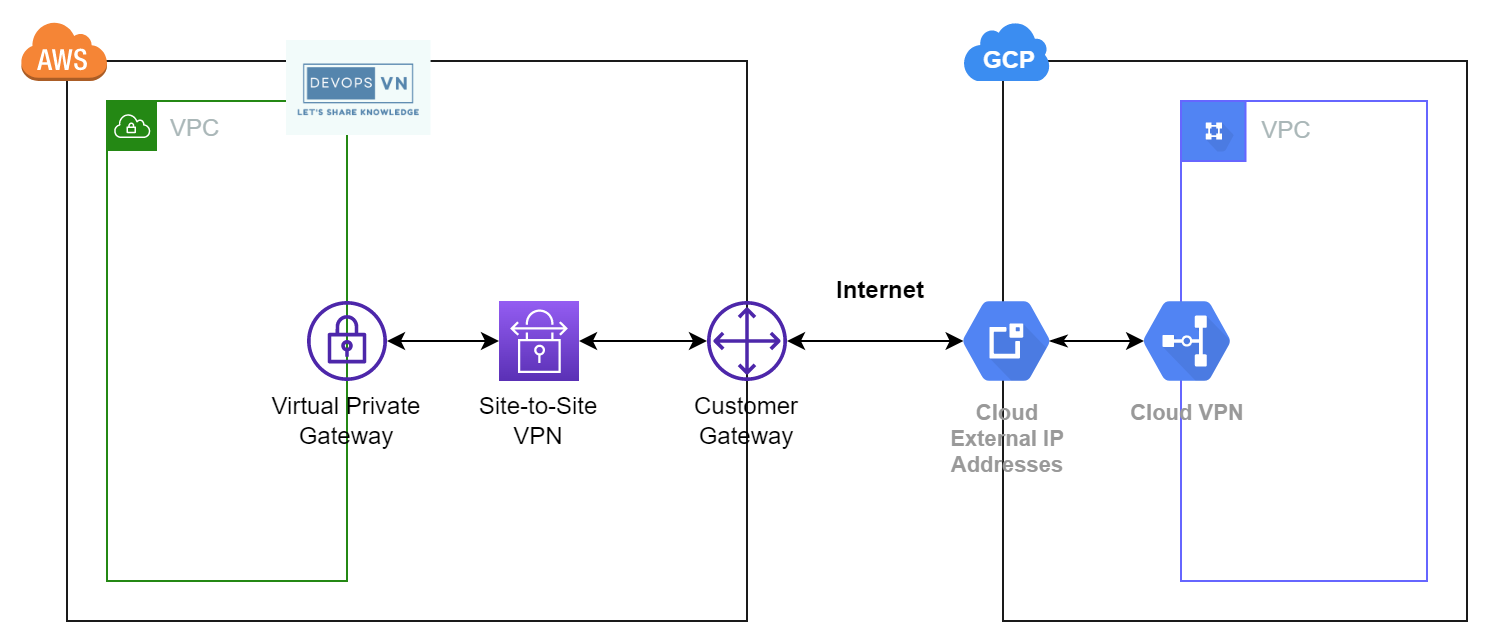
On AWS and GCP we have a VPC each. Then to connect the two VPCs, on AWS we create a Virtual Private Gateway, Site-to-Site VPN, and Customer Gateway. On GCP we create an External IP and Cloud VPN. Next we create a tunnel so the two sides can connect.
Configuring the providers
Create three files named main.tf, aws.tf, gcp.tf.
terraform {
  required_version = ">= 1.9"

  required_providers {
    aws = {
      source  = "hashicorp/aws"
      version = "~> 6.0"
    }
    google = {
      source  = "hashicorp/google"
      version = "~> 6.0"
    }
  }
}

provider "aws" {
  region = "us-west-2"
}

provider "google" {
  project = "hpi-111111"
  region  = "us-west2"
}
To use AWS we use provider aws, and to use Google Cloud we use provider google. Google’s configuration is as follows:
provider "google" {
  project     = <project-id>
  region      = <region>
}
Creating the VPCs
Next we create a GCP Virtual Private Cloud and an AWS Virtual Private Cloud.
resource "google_compute_network" "aws_gcp" {
  name = "aws-gcp"
}
data "aws_availability_zones" "available" {
  state = "available"
}

module "vpc" {
  source  = "terraform-aws-modules/vpc/aws"
  version = "~> 5.0"

  name = "aws-gcp"
  cidr = "10.0.0.0/16"
  azs  = slice(data.aws_availability_zones.available.names, 0, 3)

  private_subnets = ["10.0.1.0/24", "10.0.2.0/24", "10.0.3.0/24"]
  public_subnets  = ["10.0.101.0/24", "10.0.102.0/24", "10.0.103.0/24"]

  enable_nat_gateway = true
  single_nat_gateway = true
}
GCP External IP – AWS Customer Gateway
Then we create a GCP External IP and an AWS Customer Gateway for the two VPCs.
...

resource "google_compute_address" "aws_customer_gateway" {
  name = "aws-customer-gateway"
}
...

resource "aws_customer_gateway" "gcp_customer_gateway" {
  bgp_asn    = 65000
  ip_address = google_compute_address.aws_customer_gateway.address
  type       = "ipsec.1"

  tags = {
    Name = "gcp-customer-gateway"
  }
}
The AWS Customer Gateway’s ip_address is taken from the GCP External IP.
VPN Gateway
Next we create a VPN Gateway for the GCP VPC and the AWS VPC.
...

resource "google_compute_vpn_gateway" "aws_gcp" {
  name    = "aws-gcp"
  network = google_compute_network.aws_gcp.id
}

resource "google_compute_forwarding_rule" "fr_esp" {
  name        = "fr-esp"
  ip_protocol = "ESP"
  ip_address  = google_compute_address.aws_customer_gateway.address
  target      = google_compute_vpn_gateway.aws_gcp.id
}

resource "google_compute_forwarding_rule" "fr_udp500" {
  name        = "fr-udp500"
  ip_protocol = "UDP"
  port_range  = "500"
  ip_address  = google_compute_address.aws_customer_gateway.address
  target      = google_compute_vpn_gateway.aws_gcp.id
}

resource "google_compute_forwarding_rule" "fr_udp4500" {
  name        = "fr-udp4500"
  ip_protocol = "UDP"
  port_range  = "4500"
  ip_address  = google_compute_address.aws_customer_gateway.address
  target      = google_compute_vpn_gateway.aws_gcp.id
}
We don’t need to understand this part deeply; the important part is the google_compute_vpn_gateway resource, where we specify the GCP VPC we want to attach this VPN Gateway to via the network attribute.
...

resource "aws_vpn_gateway" "aws_gcp" {
  vpc_id = module.vpc.vpc_id

  tags = {
    Name = "AWS-GCP"
  }
}
Similarly for the AWS side.
GCP Cloud VPN – AWS Site-to-Site VPN
Next we create the VPN to connect the two VPCs.
...

resource "google_compute_vpn_tunnel" "tunnel_1" {
  name          = "tunnel-1"
  peer_ip       = aws_vpn_connection.aws_gcp.tunnel1_address
  shared_secret = aws_vpn_connection.aws_gcp.tunnel1_preshared_key

  target_vpn_gateway = google_compute_vpn_gateway.aws_gcp.id

  depends_on = [
    google_compute_forwarding_rule.fr_esp,
    google_compute_forwarding_rule.fr_udp500,
    google_compute_forwarding_rule.fr_udp4500,
  ]
}

resource "google_compute_route" "route_1" {
  name       = "route-1"
  network    = google_compute_network.aws_gcp.name
  dest_range = module.vpc.vpc_cidr_block
  priority   = 1000

  next_hop_vpn_tunnel = google_compute_vpn_tunnel.tunnel_1.id
}
On the GCP side we create a tunnel with the VPN tunnel1_address and tunnel1_preshared_key values from AWS.
...

resource "aws_vpn_connection" "aws_gcp" {
  customer_gateway_id = aws_customer_gateway.gcp_customer_gateway.id
  vpn_gateway_id      = aws_vpn_gateway.aws_gcp.id
  type                = "ipsec.1"
  static_routes_only  = true
}

resource "aws_vpn_connection_route" "office" {
  destination_cidr_block = "10.168.0.0/20" // fixed cidr block of gcp region on us-west-2
  vpn_connection_id      = aws_vpn_connection.aws_gcp.id
}
Apply
Now let’s run apply.
$ terraform apply
...
Plan: 32 to add, 0 to change, 0 to destroy.
When Terraform finishes, go to AWS and GCP to check and you’ll see the corresponding resources created. And so the two sides can easily interact, add a Security Group for both sides.
Security Group
In the AWS Console, click the VPC’s Security Group, choose default, and edit Inbound as follows:
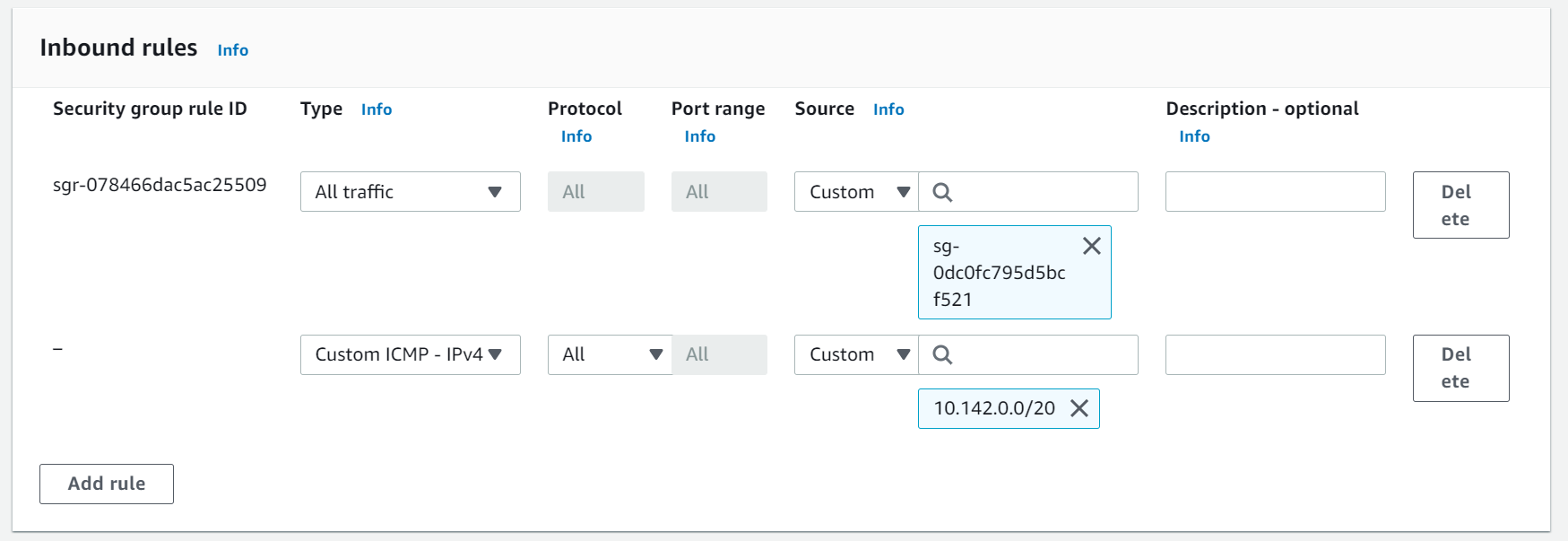
Then we update the Firewall Rule on the GCP side so AWS applications can freely access the GCP VPC. Go to the GCP Console, click the Firewall section, and choose default-allow-internal.
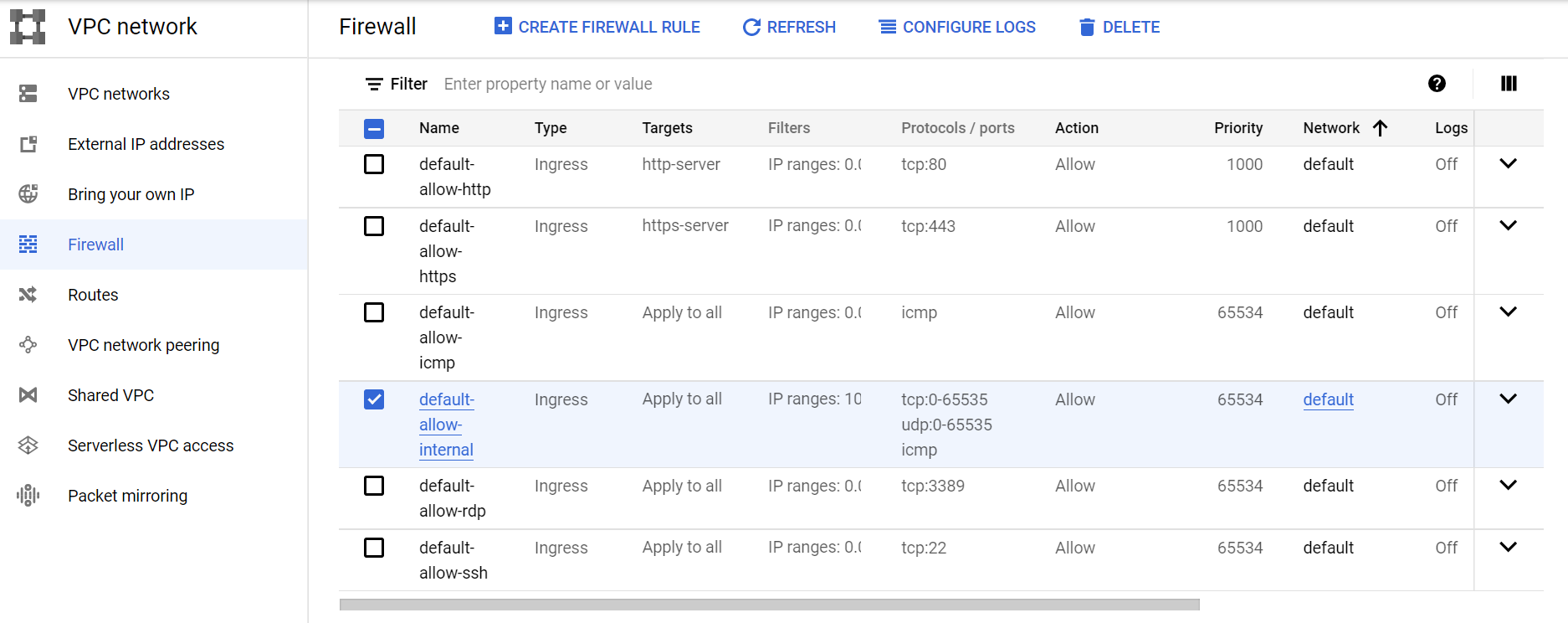
We add the AWS VPC’s CIDR block, 10.0.0.0/16. Now our AWS and GCP applications can talk to each other even though both are in private networks.
Conclusion
So we’ve learned how to use Terraform to create a multi-cloud environment.