In the previous part we learned the basics of Terraform Modules and how to use them. In this part we’ll go deeper into modules by building infrastructure for a real application consisting of an AWS Application Load Balancer + Auto Scaling Group + Relational Database Service.
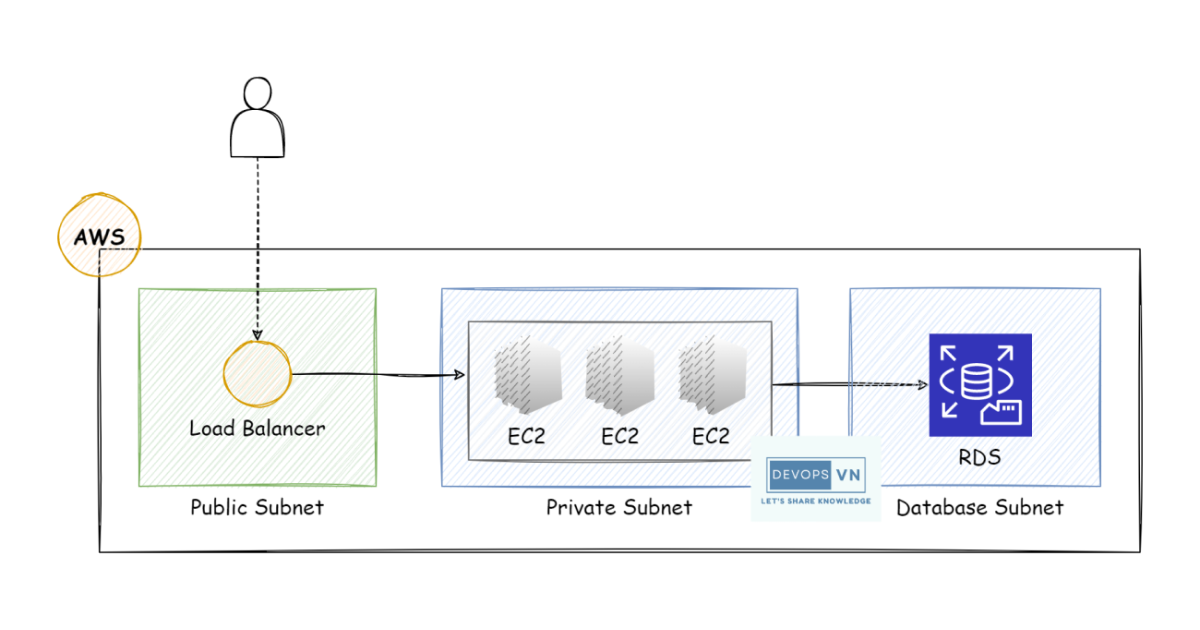
The Auto Scaling Group is used to create a group of EC2s running a web server on port 80. The Relational Database Service is used to store data. And users access our application through the Load Balancer. This is a very common pattern on AWS, illustrated as follows.
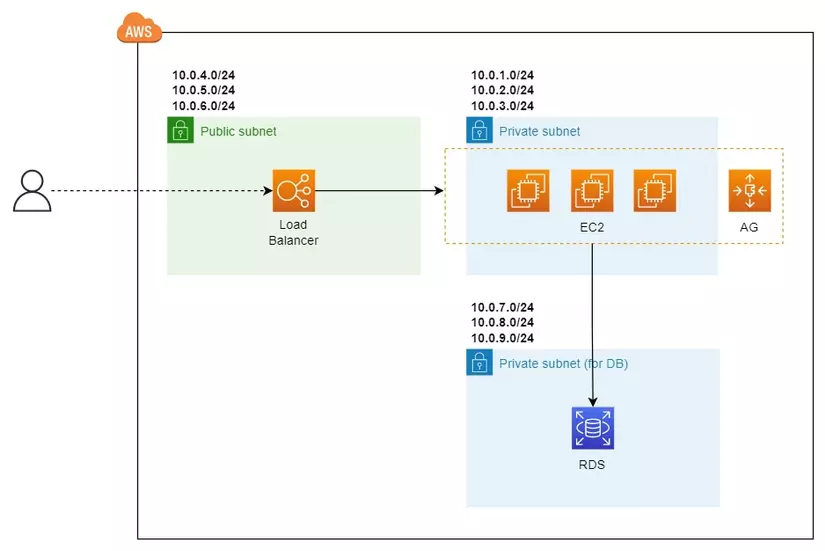
We have 3 main components in the model above: Networking, AutoScaling, and Database. Each main component is grouped into a module as follows.
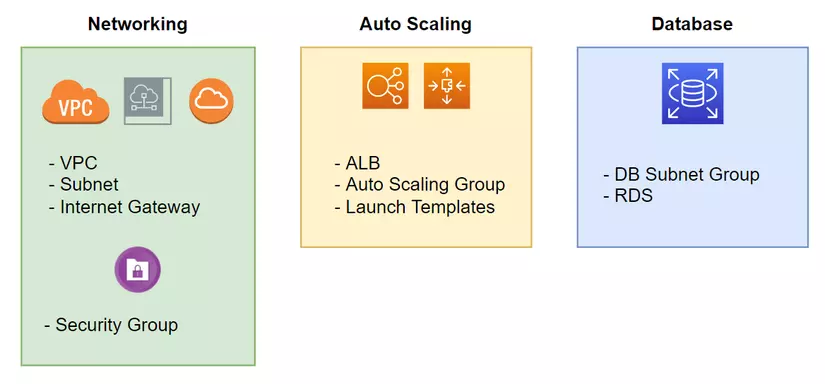
We’ll write modules for Networking, AutoScaling, and RDS. All modules are related in a tree structure, where the one at the top is called the Root Module.
Root Module
Every workspace has one thing called the Root Module. Inside that Root Module we can have one or more child modules. A module can be a Local Module, with code on our machine, or a Remote Module, a module hosted online that we download with terraform init. The tree model of relationships between modules.
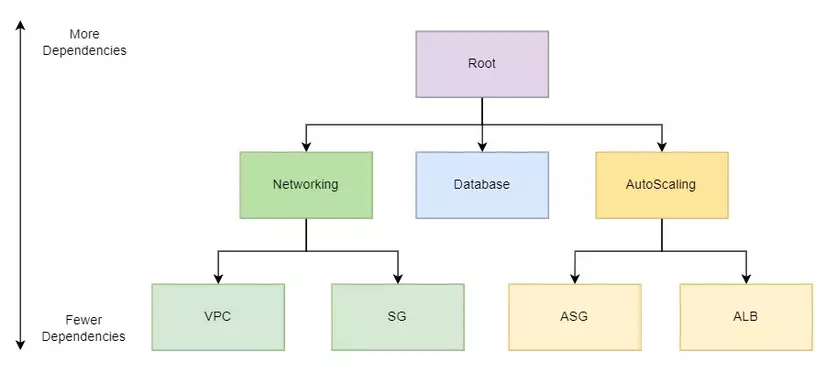
As we see in the module diagram above, Networking, AutoScaling, and RDS are child modules of the Root Module. And a module can contain one or more other modules — for example, Networking contains a VPC Module and an SG (Security Group) Module. When a module lives inside another module, we call it a Nested Module.
Writing code
Now we’ll write code. We create the following directory structure.
.
├── main.tf
└── modules
    ├── autoscaling
    │   ├── main.tf
    │   ├── outputs.tf
    │   └── variables.tf
    ├── database
    │   ├── main.tf
    │   ├── outputs.tf
    │   └── variables.tf
    └── networking
        ├── main.tf
        ├── outputs.tf
        └── variables.tf
In the Root’s main.tf file, we add the following code.
terraform {
  required_version = ">= 1.9"

  required_providers {
    aws = {
      source  = "hashicorp/aws"
      version = "~> 6.0"
    }
    random = {
      source  = "hashicorp/random"
      version = "~> 3.6"
    }
  }
}

locals {
  project = "terraform-series"
}

provider "aws" {
  region = "us-west-2"
}

module "networking" {
  source = "./modules/networking"
}

module "database" {
  source = "./modules/database"
}

module "autoscaling" {
  source = "./modules/autoscaling"
}
Networking Module
First we’ll write code for the Networking Module. When writing a module we need to define its input and output values — we can define them upfront, or once we’ve written the module and realize we need some dynamic value, we add it then; it doesn’t have to be defined from the start. Our Networking Module has the following inputs and outputs.
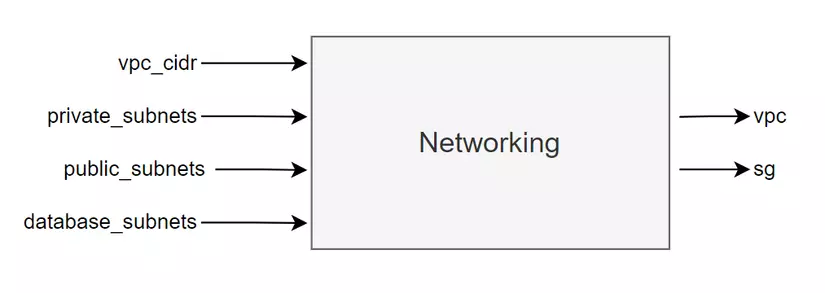
Update the module’s variables.tf file.
variable "project" {
  type    = string
}

variable "vpc_cidr" {
  type    = string
}

variable "private_subnets" {
  type    = list(string)
}

variable "public_subnets" {
  type    = list(string)
}

variable "database_subnets" {
  type    = list(string)
}
Next, update the module’s main.tf file.
data "aws_availability_zones" "available" {
  state = "available"
}

module "vpc" {
  source  = "terraform-aws-modules/vpc/aws"
  version = "~> 5.0"

  name = "${var.project}-vpc"
  cidr = var.vpc_cidr
  azs  = slice(data.aws_availability_zones.available.names, 0, 3)

  private_subnets  = var.private_subnets
  public_subnets   = var.public_subnets
  database_subnets = var.database_subnets

  create_database_subnet_group = true
  enable_nat_gateway           = true
  single_nat_gateway           = true
}
This is a Remote Module that we’ll download with terraform init; it creates the VPC for us. We look up the Availability Zones with the aws_availability_zones data source and take the first three. With the values above, our VPC when created looks like this.
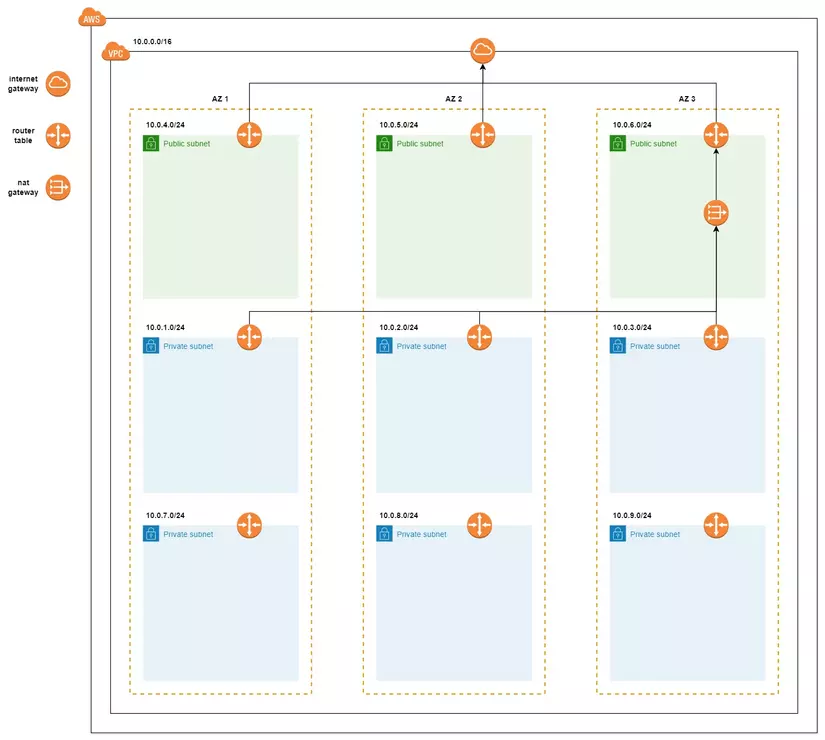
Next we’ll create Security Groups for our VPC. Our security groups must allow the following 3 things:
- Allow access to the ALB’s port 80 from anywhere
- Allow access to the EC2s’ port 80 from the ALB
- Allow access to the RDS’s port 5432 from the EC2s
We add the SG rules. We use the maintained terraform-aws-modules/security-group/aws module (the book’s terraform-in-action/sg/aws module is no longer maintained).
...
module "alb_sg" {
  source  = "terraform-aws-modules/security-group/aws"
  version = "~> 5.0"

  name   = "${var.project}-alb-sg"
  vpc_id = module.vpc.vpc_id

  ingress_with_cidr_blocks = [
    {
      from_port   = 80
      to_port     = 80
      protocol    = "tcp"
      cidr_blocks = "0.0.0.0/0"
    }
  ]
  egress_rules = ["all-all"]
}

module "web_sg" {
  source  = "terraform-aws-modules/security-group/aws"
  version = "~> 5.0"

  name   = "${var.project}-web-sg"
  vpc_id = module.vpc.vpc_id

  ingress_with_source_security_group_id = [
    {
      from_port                = 80
      to_port                  = 80
      protocol                 = "tcp"
      source_security_group_id = module.alb_sg.security_group_id
    }
  ]
  egress_rules = ["all-all"]
}

module "db_sg" {
  source  = "terraform-aws-modules/security-group/aws"
  version = "~> 5.0"

  name   = "${var.project}-db-sg"
  vpc_id = module.vpc.vpc_id

  ingress_with_source_security_group_id = [
    {
      from_port                = 5432
      to_port                  = 5432
      protocol                 = "tcp"
      source_security_group_id = module.web_sg.security_group_id
    }
  ]
  egress_rules = ["all-all"]
}
For external modules to access this module’s values, we need to define its output values. Update the outputs.tf file.
output "vpc" {
  value = module.vpc
}

output "sg" {
  value = {
    lb  = module.alb_sg.security_group_id
    web = module.web_sg.security_group_id
    db  = module.db_sg.security_group_id
  }
}
Output values
To access a module’s value, we use the syntax module.<name>.<output_value>, for example to access the lb_sg id value of the Networking Module.
module.networking.sg.lb
Remember that in module.<name>, name is the name we declared when using the module, not the module’s directory name. For example:
module "networking" {
  source = "./modules/networking"
}

module.networking.sg.lb
module "nt" {
  source = "./modules/networking"
}

module.nt.sg.lb
So we’ve finished writing the module; we use it as follows. Update the Root’s main.tf file.
locals {
  project = "terraform-series"
}

provider "aws" {
  region = "us-west-2"
}

module "networking" {
  source = "./modules/networking"

  project          = local.project
  vpc_cidr         = "10.0.0.0/16"
  private_subnets  = ["10.0.1.0/24", "10.0.2.0/24", "10.0.3.0/24"]
  public_subnets   = ["10.0.4.0/24", "10.0.5.0/24", "10.0.6.0/24"]
  database_subnets = ["10.0.7.0/24", "10.0.8.0/24", "10.0.9.0/24"]
}

module "database" {
  source = "./modules/database"
}

module "autoscaling" {
  source = "./modules/autoscaling"
}
Database Module
Next we’ll write code for the Database Module — its inputs and outputs.
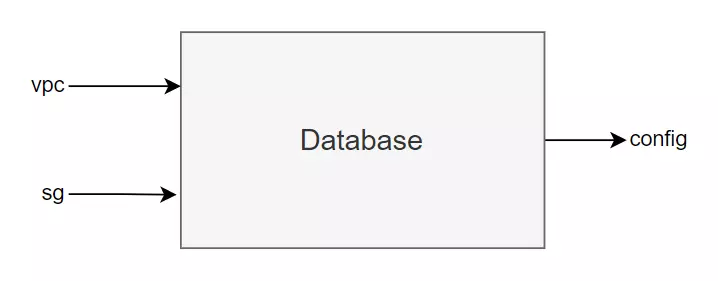
On AWS, creating an RDS requires us to have a Subnet Group first, and then the RDS is deployed onto that subnet group.
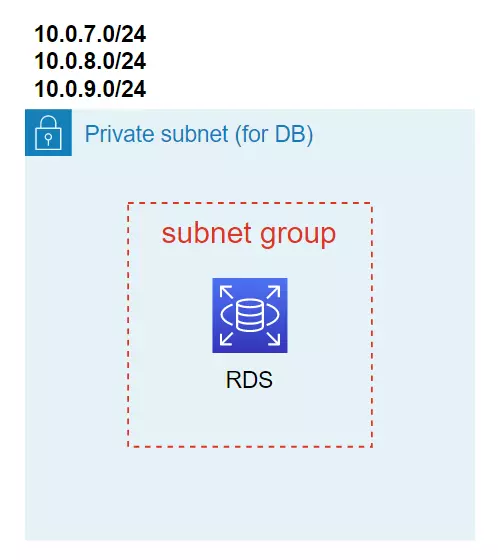
To create a subnet group with Terraform we use the aws_db_subnet_group resource, for example.
resource "aws_db_subnet_group" "default" {
  name       = "main"
  subnet_ids = [aws_subnet.frontend.id, aws_subnet.backend.id]

  tags = {
    Name = "My DB subnet group"
  }
}
Above, when we used the VPC module it already created a subnet group for us, which is why we pass the VPC into the Database Module — so we don’t have to create another subnet group. We get the subnet group value from the vpc module like so: module.networking.vpc.database_subnet_group. Now we’ll write code for the module; update the variables.tf file in the Database Module.
variable "project" {
  type = string
}

variable "vpc" {
  type = any
}

variable "sg" {
  type = any
}
The main.tf file.
resource "aws_db_instance" "database" {
  allocated_storage      = 20
  engine                 = "postgres"
  engine_version         = "16"
  instance_class         = "db.t4g.micro"
  identifier             = "${var.project}-db-instance"
  db_name                = "terraform"
  username               = "admin"
  password               = "admin"
  db_subnet_group_name   = var.vpc.database_subnet_group
  vpc_security_group_ids = [var.sg.db]
  skip_final_snapshot    = true
  storage_encrypted      = true
}
To create an RDS on AWS we use the aws_db_instance resource. Above, we specify the RDS engine we’ll use is PostgreSQL 16, with 20GB of encrypted storage, and we get the RDS’s subnet group value from the VPC variable. (Two things that trip people up on newer providers: the engine name is postgres, not postgresql, and name was renamed to db_name.) Everything looks OK, but notice that in the password field we’re currently hard-coding the value. What if we don’t want to hard-code it but want this value to be dynamic?
We’ll use another resource in Terraform that helps us generate a dynamic password, then pass this password into the database. Update the code.
resource "random_password" "password" {
  length           = 16
  special          = true
  override_special = "_%@"
}

resource "aws_db_instance" "database" {
  allocated_storage      = 20
  engine                 = "postgres"
  engine_version         = "16"
  instance_class         = "db.t4g.micro"
  identifier             = "${var.project}-db-instance"
  db_name                = "series"
  username               = "series"
  password               = random_password.password.result
  db_subnet_group_name   = var.vpc.database_subnet_group
  vpc_security_group_ids = [var.sg.db]
  skip_final_snapshot    = true
  storage_encrypted      = true
}
Note that when we use this resource, our password is stored in the state file, so anyone who can access the state file can see the password, which weakens our security. We’ll discuss the security issue in another part.
We output the RDS values so they can be accessed externally.
output "config" {
  value = {
    user     = aws_db_instance.database.username
    password = aws_db_instance.database.password
    database = aws_db_instance.database.db_name
    hostname = aws_db_instance.database.address
    port     = aws_db_instance.database.port
  }
  sensitive = true
}
We’ve finished writing the Database Module; we update the Root’s main.tf file to use the module.
locals {
  project = "terraform-series"
}

provider "aws" {
  region = "us-west-2"
}

module "networking" {
  source = "./modules/networking"

  project          = local.project
  vpc_cidr         = "10.0.0.0/16"
  private_subnets  = ["10.0.1.0/24", "10.0.2.0/24", "10.0.3.0/24"]
  public_subnets   = ["10.0.4.0/24", "10.0.5.0/24", "10.0.6.0/24"]
  database_subnets = ["10.0.7.0/24", "10.0.8.0/24", "10.0.9.0/24"]
}

module "database" {
  source = "./modules/database"

  project = local.project
  vpc     = module.networking.vpc
  sg      = module.networking.sg
}

module "autoscaling" {
  source = "./modules/autoscaling"
}
One point worth noting: in the Database Module’s variable declaration file, the two values VPC and SG are declared with the data type any.
...
variable "vpc" {
  type = any
}

variable "sg" {
  type = any
}
When we want to pass a value whose data type we don’t know, we declare its type as any.
Autoscaling Module
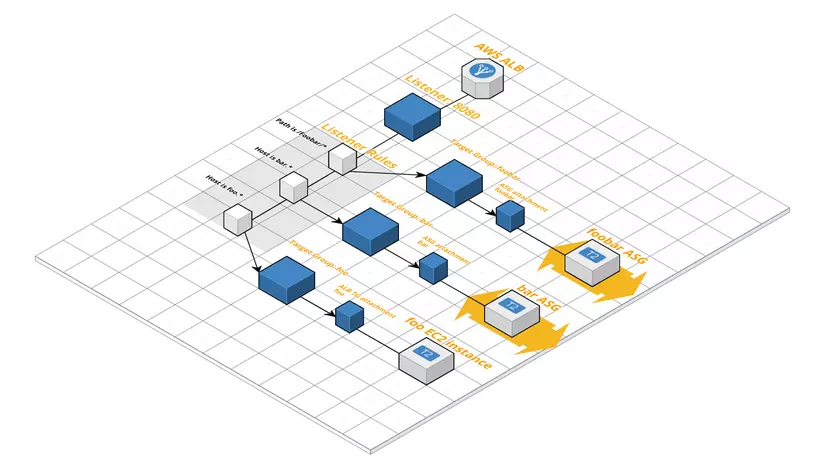
The last module we’ll write is the Autoscaling Module — a module containing quite a lot of things. To create an Autoscaling Module on AWS and make it work, we need several services created together with it, such as a Load Balancer, Launch Templates, and so on. For the Load Balancer, we also need to create 3 things: Load Balancer + Target Group + LB Listener. So to create an ASG on AWS we’ll use existing modules instead of writing code ourselves. An illustration of the Autoscaling Module.
We define the Autoscaling Module’s inputs and outputs.
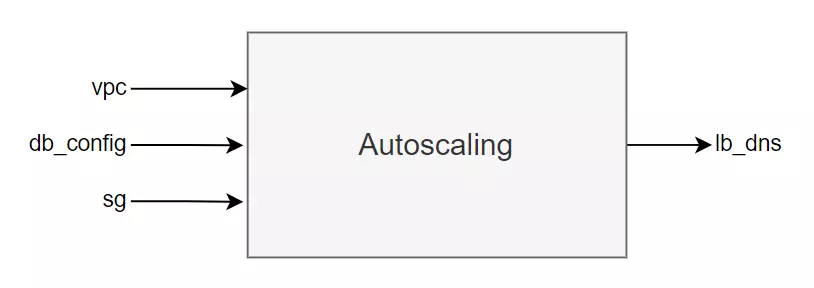
Now we’ll write code; update the Autoscaling Module’s variables.tf file.
variable "project" {
  type = string
}

variable "vpc" {
  type = any
}

variable "sg" {
  type = any
}

variable "db_config" {
  type = object(
    {
      user     = string
      password = string
      database = string
      hostname = string
      port     = number
    }
  )
}
Next we’ll declare the ASG. To create an ASG we need a Launch Template to go with it; the ASG uses this template to create EC2s.
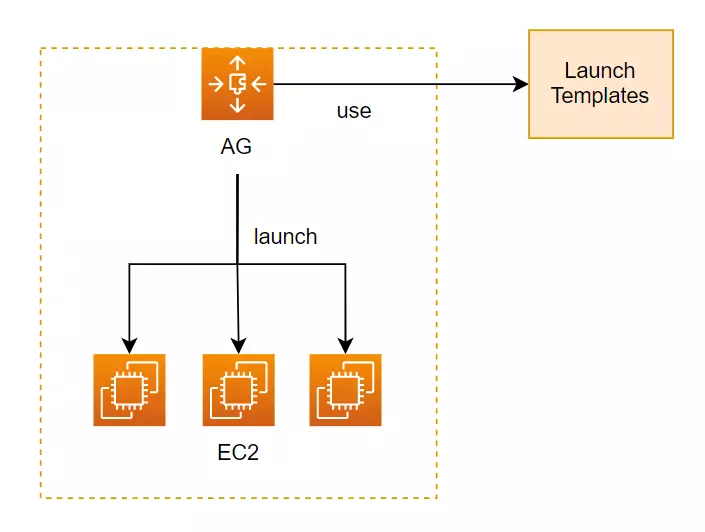
To create a Launch Template we use the aws_launch_template resource; update the Autoscaling Module’s main.tf file.
data "aws_ami" "ami" {
  most_recent = true
  owners      = ["amazon"]

  filter {
    name   = "name"
    values = ["al2023-ami-2023.*-x86_64"]
  }

  filter {
    name   = "virtualization-type"
    values = ["hvm"]
  }
}

resource "aws_launch_template" "web" {
  name_prefix   = "web-"
  image_id      = data.aws_ami.ami.id
  instance_type = "t3.micro"

  vpc_security_group_ids = [var.sg.web]

  user_data = filebase64("${path.module}/run.sh")
}
The run.sh file (Amazon Linux 2023 uses dnf).
#!/bin/bash
dnf update -y
dnf install -y httpd
systemctl start httpd
systemctl enable httpd
echo "$(curl -s http://169.254.169.254/latest/meta-data/local-ipv4)" > /var/www/html/index.html
Above we use aws_ami to filter out the Image ID of the Amazon Linux 2023 OS, then assign this ID to the Launch Template; the user_data attribute defines the code that runs when our EC2 is created. Next we attach it to the Autoscaling Group.
...
resource "aws_autoscaling_group" "web" {
  name                = "${var.project}-asg"
  min_size            = 1
  max_size            = 3
  vpc_zone_identifier = var.vpc.private_subnets

  launch_template {
    id      = aws_launch_template.web.id
    version = aws_launch_template.web.latest_version
  }
}
Next, because our RDS is created in Private mode, for the EC2 to access the DB we must attach an IAM Role to this EC2. In Terraform we can configure it through the iam_instance_profile attribute of the aws_launch_template resource. Update the code as follows.
data "aws_ami" "ami" {
  most_recent = true
  owners      = ["amazon"]

  filter {
    name   = "name"
    values = ["al2023-ami-2023.*-x86_64"]
  }

  filter {
    name   = "virtualization-type"
    values = ["hvm"]
  }
}

data "aws_iam_policy_document" "assume" {
  statement {
    actions = ["sts:AssumeRole"]

    principals {
      type        = "Service"
      identifiers = ["ec2.amazonaws.com"]
    }
  }
}

resource "aws_iam_role" "web" {
  name               = "${var.project}-web-role"
  assume_role_policy = data.aws_iam_policy_document.assume.json
}

resource "aws_iam_role_policy" "web" {
  name = "${var.project}-web-policy"
  role = aws_iam_role.web.id

  policy = jsonencode({
    Version = "2012-10-17"
    Statement = [
      {
        Effect   = "Allow"
        Action   = ["logs:*", "rds:*"]
        Resource = "*"
      }
    ]
  })
}

resource "aws_iam_instance_profile" "web" {
  name = "${var.project}-web-profile"
  role = aws_iam_role.web.name
}

resource "aws_launch_template" "web" {
  name_prefix   = "web-"
  image_id      = data.aws_ami.ami.id
  instance_type = "t3.micro"

  vpc_security_group_ids = [var.sg.web]

  user_data = filebase64("${path.module}/run.sh")

  iam_instance_profile {
    name = aws_iam_instance_profile.web.name
  }
}

resource "aws_autoscaling_group" "web" {
  name                = "${var.project}-asg"
  min_size            = 1
  max_size            = 3
  vpc_zone_identifier = var.vpc.private_subnets

  launch_template {
    id      = aws_launch_template.web.id
    version = aws_launch_template.web.latest_version
  }
}
We build an IAM role with access to logs and RDS and wrap it in an aws_iam_instance_profile, then attach it to aws_launch_template (the book’s terraform-in-action/iip/aws module no longer exists, so we use plain resources — and in production you’d scope those actions down). The next resource we need to declare is the Load Balancer, to let users access our ASG. We’ll use terraform-aws-modules/alb/aws; add the LB code to main.tf.
...
module "alb" {
  source  = "terraform-aws-modules/alb/aws"
  version = "~> 9.0"

  name    = var.project
  vpc_id  = var.vpc.vpc_id
  subnets = var.vpc.public_subnets

  create_security_group = false
  security_groups       = [var.sg.lb]

  listeners = {
    http = {
      port     = 80
      protocol = "HTTP"
      forward = {
        target_group_key = "web"
      }
    }
  }

  target_groups = {
    web = {
      name_prefix       = "web-"
      protocol          = "HTTP"
      port              = 80
      target_type       = "instance"
      create_attachment = false
    }
  }
}

resource "aws_autoscaling_group" "web" {
  name                = "${var.project}-asg"
  min_size            = 1
  max_size            = 3
  vpc_zone_identifier = var.vpc.private_subnets
  target_group_arns   = [module.alb.target_groups["web"].arn]

  launch_template {
    id      = aws_launch_template.web.id
    version = aws_launch_template.web.latest_version
  }
}
The ALB module changed a lot in v9: http_tcp_listeners and the list-style target_groups were replaced by listeners and a keyed target_groups map. After declaring the LB, we wire the target_group_arns attribute of aws_autoscaling_group to the target group created by the module. Update the module’s output values.
output "lb_dns" {
  value = module.alb.dns_name
}
We use the Autoscaling Module in the main.tf file as follows.
locals {
  project = "terraform-series"
}

provider "aws" {
  region = "us-west-2"
}

module "networking" {
  source = "./modules/networking"

  project          = local.project
  vpc_cidr         = "10.0.0.0/16"
  private_subnets  = ["10.0.1.0/24", "10.0.2.0/24", "10.0.3.0/24"]
  public_subnets   = ["10.0.4.0/24", "10.0.5.0/24", "10.0.6.0/24"]
  database_subnets = ["10.0.7.0/24", "10.0.8.0/24", "10.0.9.0/24"]
}

module "database" {
  source = "./modules/database"

  project = local.project
  vpc     = module.networking.vpc
  sg      = module.networking.sg
}

module "autoscaling" {
  source = "./modules/autoscaling"

  project   = local.project
  vpc       = module.networking.vpc
  sg        = module.networking.sg
  db_config = module.database.config
}
Finally we declare the output file for the Root Module. Create an outputs.tf file at the Root.
output "db_password" {
  value = module.database.config.password
  sensitive = true
}

output "lb_dns_name" {
  value = module.autoscaling.lb_dns
}
We’ve finished writing the code; now we run init and apply to create the infrastructure.
terraform init
terraform apply -auto-approve
...
Apply complete! Resources: 2 added, 0 changed, 0 destroyed.

Outputs:

db_password = <sensitive>
lb_dns_name = "terraform-series-1259399054.us-west-2.elb.amazonaws.com"
After Terraform finishes, we’ll see the Load Balancer’s URL printed to the terminal; we access it.
curl terraform-series-1259399054.us-west-2.elb.amazonaws.com
We’ve built the infrastructure for an Application Load Balancer + Auto Scaling Group + Relational Database Service solution.
Conclusion
So we’ve gone a bit deeper into how to use modules. As you can see, when we use modules, in the Root Module’s main.tf file we just declare a module and use it, instead of writing long code in main.tf. Using modules helps us organize code by group more easily.