Containers are ephemeral. When a container dies, its filesystem dies with it. But databases need to persist data. Logs need to survive restarts. Application code during development needs to sync from your host. That’s what volumes solve.
Code for this chapter. See 06-volumes.
The persistence problem
By default, files created inside a container disappear when the container is removed:
# Create a file inside a container
docker run --name test alpine sh -c "echo 'hello' > /data/test.txt && cat /data/test.txt"
# hello

# Remove the container
docker rm test

# Run a new container — file is gone
docker run --name test alpine cat /data/test.txt
# cat: can't open '/data/test.txt': No such file or directory
For stateful applications — databases, file uploads, caches — this is a problem.
Three types of mounts
Docker offers three ways to persist data:
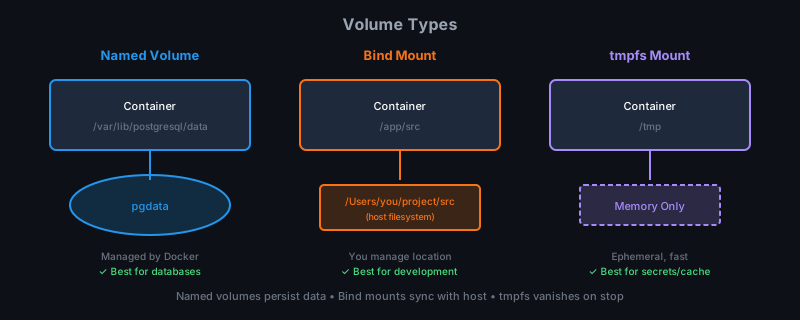
| Type | Where data lives | Managed by Docker | Use case |
|---|---|---|---|
| Volume | Docker-managed directory | Yes | Databases, persistent state |
| Bind mount | Anywhere on host | No | Development, config files |
| tmpfs | Memory only | Yes | Secrets, temporary caches |
Named volumes
Volumes are Docker’s preferred mechanism for persistence. They’re managed by Docker, portable across hosts (if using the same storage driver), and isolated from the host filesystem.
Create a volume:
docker volume create my-data
Use it:
docker run -d --name my-db \
  -v my-data:/var/lib/postgresql/data \
  postgres:16
The volume my-data maps to /var/lib/postgresql/data inside the container.
PostgreSQL writes its data files there. When you remove the container, the volume
remains:
docker rm -f my-db

# Volume still exists
docker volume ls
# DRIVER    VOLUME NAME
# local     my-data

# Start a new container with the same volume — data is still there
docker run -d --name my-db \
  -v my-data:/var/lib/postgresql/data \
  postgres:16
Where volumes live
On Linux, volumes are stored in /var/lib/docker/volumes/. Don’t access them
directly — use Docker commands.
docker volume inspect my-data
{
    "Name": "my-data",
    "Mountpoint": "/var/lib/docker/volumes/my-data/_data",
    "Driver": "local"
}
Anonymous volumes
If you don’t name a volume, Docker creates an anonymous one:
docker run -d -v /var/lib/postgresql/data postgres:16
This creates a volume with a random hash name. Hard to manage — prefer named volumes.
Bind mounts
Bind mounts map a host directory directly into the container. Changes on either side are immediately visible to the other.
# Mount current directory into /app
docker run -v $(pwd):/app my-image

# More explicit syntax
docker run --mount type=bind,source=$(pwd),target=/app my-image
Development workflow
Bind mounts are perfect for development. Edit code on your host, see changes in the container immediately:
docker run -d --name dev \
  -v $(pwd)/src:/app/src \
  -p 3000:3000 \
  node:20-alpine \
  npm run dev
Your editor’s changes to src/ appear instantly in the container. Hot reload
works across the boundary.
Read-only mounts
When the container shouldn’t modify files:
docker run -v $(pwd)/config:/app/config:ro my-app
The :ro suffix makes the mount read-only inside the container.
Common gotcha: permissions
Bind mounts inherit host permissions. If your container runs as user ID 1000 but the host files are owned by user ID 501, you’ll get permission denied errors.
Solutions:
- Match user IDs between host and container
- Run the container as the same UID as your host user:
docker run -u $(id -u):$(id -g) -v $(pwd):/app my-image - For development, just accept root inside the container and deal with host-side ownership issues
tmpfs mounts
tmpfs mounts exist only in memory. They’re fast, don’t hit disk, and vanish when the container stops. Good for secrets or temporary data you don’t want persisted.
docker run -d \
  --tmpfs /tmp \
  --tmpfs /run:size=100m \
  my-app
You can limit tmpfs size and set other options.
Volume commands
List volumes:
docker volume ls
Inspect:
docker volume inspect my-data
Remove:
docker volume rm my-data
Can’t remove a volume that’s in use. Stop containers first.
Remove all unused volumes:
docker volume prune
Be careful — this deletes data.
Practical examples
PostgreSQL with persistent data
# Create volume
docker volume create pgdata

# Run PostgreSQL
docker run -d --name postgres \
  -e POSTGRES_PASSWORD=secret \
  -e POSTGRES_DB=myapp \
  -v pgdata:/var/lib/postgresql/data \
  -p 5432:5432 \
  postgres:16-alpine
Development with live reload
# React development
docker run -d --name react-dev \
  -v $(pwd):/app \
  -v /app/node_modules \
  -p 3000:3000 \
  node:20-alpine \
  sh -c "cd /app && npm install && npm run dev"
Note the anonymous volume for node_modules — this prevents the host’s (possibly
incompatible) node_modules from being used inside the container.
Config file injection
docker run -d --name nginx \
  -v $(pwd)/nginx.conf:/etc/nginx/nginx.conf:ro \
  -v $(pwd)/html:/usr/share/nginx/html:ro \
  -p 8080:80 \
  nginx:alpine
Sharing data between containers
# Create a shared volume
docker volume create shared-data

# Writer container
docker run -d --name writer \
  -v shared-data:/data \
  alpine sh -c "while true; do date >> /data/log.txt; sleep 5; done"

# Reader container
docker run -d --name reader \
  -v shared-data:/data:ro \
  alpine tail -f /data/log.txt
Backup and restore
Volumes don’t have a built-in backup mechanism. You use containers to do it:
Backup a volume
docker run --rm \
  -v pgdata:/data:ro \
  -v $(pwd):/backup \
  alpine tar czf /backup/pgdata-backup.tar.gz -C /data .
This mounts the volume and your current directory, then tars the volume contents.
Restore a volume
docker run --rm \
  -v pgdata:/data \
  -v $(pwd):/backup:ro \
  alpine sh -c "cd /data && tar xzf /backup/pgdata-backup.tar.gz"
Database-specific backups
For databases, use their dump tools:
# PostgreSQL
docker exec postgres pg_dump -U postgres myapp > backup.sql

# Restore
docker exec -i postgres psql -U postgres myapp < backup.sql
Summary
- Volumes persist data beyond container lifecycles. Use them for databases and stateful apps.
- Bind mounts share host directories with containers. Perfect for development.
- tmpfs mounts live in memory only. Good for secrets and temp files.
- Name your volumes. Anonymous volumes are hard to manage.
- Back up volumes by mounting them into a utility container.
In the next chapter we’ll use Docker Compose to orchestrate
multi-container applications — no more running five docker run commands.