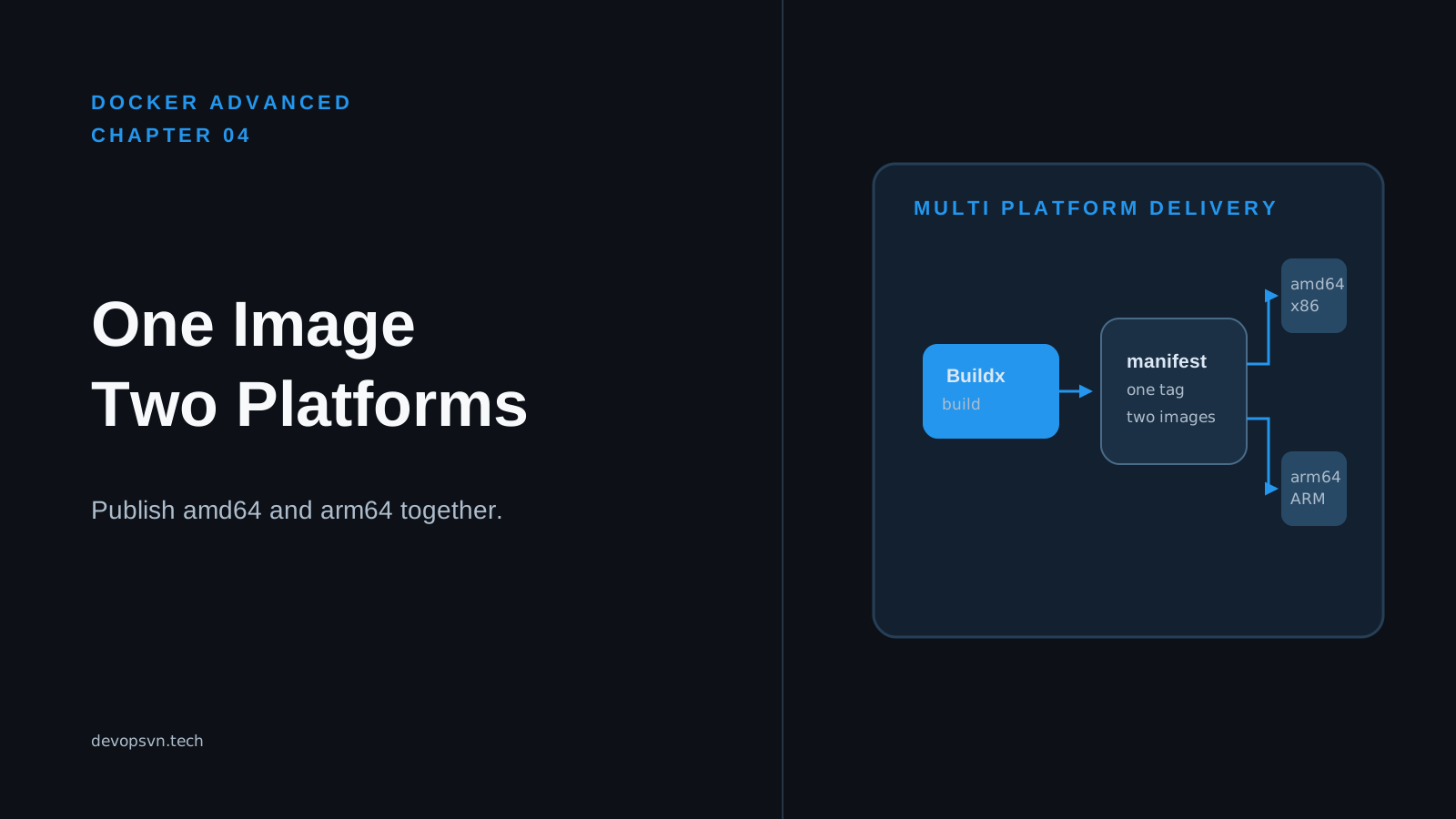
An image built for an ARM CPU fails before application startup on an x86 Linux host. Docker cannot execute one CPU architecture’s machine instructions as though they belonged to another architecture. This mismatch commonly occurs when an Apple Silicon development machine publishes an ARM64 image for an AMD64 deployment target.
This is a common Apple Silicon surprise, but the same mismatch appears with ARM cloud instances, Raspberry Pi devices, and x86 CI runners. In this chapter, you will set up a Buildx builder, use the checked-in build command to publish AMD64 and ARM64 variants, and inspect the published manifest. You will also see where emulation helps and where a native builder is the better choice.
Code for this chapter. The checked-in publication command is 04-multi-platform-images.
See the finished shape first
The goal is one image tag with more than one platform underneath it. The image name stays the same for users of the image:
ghcr.io/your-account/task-api:1.0.0
But the registry holds one variant for linux/amd64 and another for linux/arm64. When an x86 Linux host runs docker pull, Docker selects the AMD64 variant. An ARM64 Linux host selects the ARM64 variant. The person deploying the image does not need to choose a different tag.
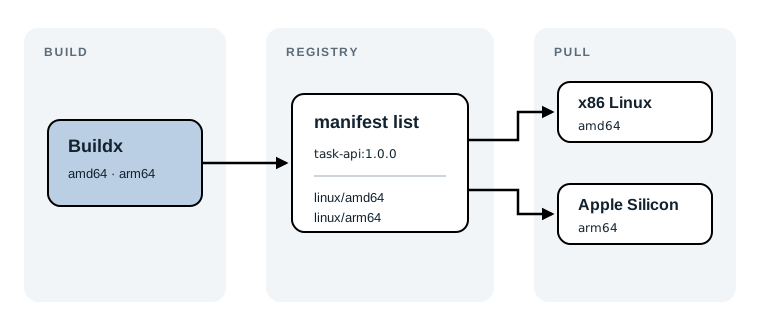
This selector is called a manifest list (Docker also calls the modern format an OCI image index). A normal image manifest describes layers and configuration for one platform. A manifest list points at several platform-specific manifests. It is metadata, not a new layer that somehow runs everywhere.
Know which CPUs you are targeting
A CPU architecture is the instruction set a processor understands. Software compiled for one architecture contains instructions for that architecture. The two names you will use here are:
amd64: 64-bit x86, used by most traditional Linux servers and Intel/AMD development machines. Docker sometimes calls itx86_64outside image platform names.arm64: 64-bit ARM, used by Apple Silicon Macs and many ARM Linux servers. Docker sometimes calls itaarch64outside image platform names.
The linux/ prefix matters. An image platform describes both the operating system and CPU architecture. linux/arm64 is an ARM64 image intended for a Linux container runtime; it is not a macOS application just because it was built on a Mac.
On an Apple Silicon Mac, Docker Desktop normally lets you build and run linux/amd64 images through emulation. That convenience can hide the mismatch until a deployment uses the opposite platform. On an x86 CI runner, the inverse can happen when you publish only AMD64 and later deploy to an ARM64 node. Building both variants before publishing makes the supported platforms part of the release artifact.
Check the architecture of the machine’s Docker engine with:
docker version --format '{{.Server.Arch}}'
Expect arm64 on a typical Apple Silicon Docker Desktop installation or amd64 on a typical x86 Linux server. This tells you what the engine runs natively. It does not tell you every platform a Buildx builder can build, so check the builder next.
Create a builder that can build both platforms
Buildx is Docker’s command-line interface for BuildKit, Docker’s modern image builder. Buildx can manage separate builders and ask them to build multiple target platforms in one command.
List the builders Docker already knows about:
docker buildx ls
The output includes a PLATFORMS column. A Docker Desktop builder commonly lists both linux/amd64 and linux/arm64. Creating a named builder keeps this chapter’s setup explicit and avoids relying on whichever default builder happens to be selected:
docker buildx create \
  --name multi-platform \
  --driver docker-container \
  --use
docker buildx inspect --bootstrap
The first command creates and selects a builder named multi-platform. --driver docker-container runs BuildKit in a managed container. This driver supports multi-platform output and registry publishing; the older default docker driver is more limited and is primarily convenient for loading a single local image.
docker buildx inspect --bootstrap starts the builder if necessary, installs or starts its platform support, and prints its configuration. Look for both of these entries in Platforms:
linux/amd64
linux/arm64
If one is absent, do not start a release build yet. On Docker Desktop, update Docker Desktop and confirm its virtualization support is enabled. On a Linux CI runner, use a runner with QEMU/binfmt emulation configured, or attach a native ARM builder. The latter is often the better production choice for large builds.
Read the checked-in publication command
The resource directory contains build.sh:
#!/usr/bin/env sh
set -eu

docker buildx build \
  --platform linux/amd64,linux/arm64 \
  --tag ghcr.io/acme/task-api:1.0.0 \
  --push .
Run the script from its own directory only after you replace the example registry name and provide the Dockerfile and application build context it should publish:
cd _resource/docker-advanced/04-multi-platform-images
sh build.sh
set -e stops the script at the first failed command. set -u catches a reference to an unset shell variable. The --platform value is a comma-separated target list, so Buildx builds one Linux image for AMD64 and one for ARM64. --tag gives the published manifest list its registry name and version. The final . is the build context: the directory whose Dockerfile and application files Buildx receives.
The checked-in resource is intentionally a publication-command example, not a complete application: it contains no Dockerfile and ghcr.io/acme is a placeholder namespace. Running it unchanged will fail with a missing Dockerfile before it can authenticate or push. That is useful to recognize during diagnosis, but it is not a release command to copy unchanged. In a real repository, put this script beside the Dockerfile it builds, replace acme with an organization you control, and choose a version that identifies the release.
Authenticate and push to a registry
Multi-platform output has to live somewhere that can store a manifest list and its variants. The local Docker image store traditionally holds one platform per tag, so a multi-platform buildx build normally uses a registry output. That is why this resource uses --push instead of --load.
For GitHub Container Registry, log in before running the build:
docker login ghcr.io
Enter your GitHub username and a personal access token that is allowed to publish packages for the destination namespace. In CI, pass the registry token through the CI platform’s secret mechanism to docker login --password-stdin; do not put it in build.sh, a Dockerfile, or a command recorded in shell history.
Then adapt the resource command to your image name and run it from the directory containing your Dockerfile:
docker buildx build \
  --platform linux/amd64,linux/arm64 \
  --tag ghcr.io/your-account/task-api:1.0.0 \
  --push .
Buildx uploads the AMD64 image, uploads the ARM64 image, then publishes a manifest list under ghcr.io/your-account/task-api:1.0.0. The build output should finish with a pushing manifest step and no error. If you omit --push, a multi-platform build may complete only in BuildKit’s cache, leaving no image available for another machine to pull. If you use --load, Buildx can load a single platform into the classic local image store, but it cannot load the combined multi-platform result that way.
Warning: A registry must support OCI/Docker manifest lists for this workflow. Current GitHub Container Registry does, but credentials and package permissions still control whether your account can push to a particular namespace. Verify those permissions before treating a
deniederror as a Buildx problem.
Inspect the manifest you published
After a successful push, inspect the registry reference rather than trusting the build log:
docker buildx imagetools inspect ghcr.io/your-account/task-api:1.0.0
The output should identify an image index or manifest list and contain descriptors for at least:
Platform: linux/amd64
Platform: linux/arm64
imagetools inspect queries the remote reference, so it confirms the registry received the platform metadata. It is stronger evidence than docker image ls, which shows only what the local image store currently has.
You can also request one variant explicitly when testing:
docker pull --platform linux/amd64 ghcr.io/your-account/task-api:1.0.0
docker image inspect ghcr.io/your-account/task-api:1.0.0 \
  --format '{{.Os}}/{{.Architecture}}'
The expected inspection output is linux/amd64. Repeat with linux/arm64 to confirm the other variant is available. The explicit --platform is a test tool. In normal deployment, omit it and let Docker choose the matching variant for the host.
Choose emulation or native builders deliberately
One builder can produce both variants in two main ways. With emulation, a builder on one CPU uses QEMU to imitate the other architecture. Docker Desktop makes this a practical local-development path: an ARM Mac can build an AMD64 variant, and an AMD64 runner can build an ARM64 variant.
Emulation has a cost. CPU-heavy package installation, compilation, and test steps can be much slower than native execution. It can also expose architecture-sensitive build scripts or native dependencies that were never tested on the target CPU. A successful emulated build proves the image was built; it does not give the same performance signal as running it on the deployment hardware.
For regular release builds, use native builders when build time or reliability matters. A Buildx builder can include one AMD64 node and one ARM64 node. Buildx sends each target to the matching node, then assembles the manifest list. That adds CI infrastructure and credentials on both nodes, but avoids long emulated builds and exercises the real CPU architecture.
Diagnose the failures that matter
The error text usually tells you which layer of the workflow failed. Start with these checks:
| Symptom | Likely cause | What to do |
|---|---|---|
failed to read dockerfile |
The build context has no Dockerfile. | Run the command from the application directory, or pass --file path/to/Dockerfile and the correct context. This is what the checked-in placeholder resource does unchanged. |
denied or unauthorized while pushing |
Docker is not authenticated or the token cannot publish to that namespace. | Run docker login ghcr.io with a token that has package-write access, then confirm the tag uses an organization or account you control. |
no match for platform |
The selected builder cannot build one requested platform. | Run docker buildx inspect --bootstrap; configure emulation or add a native node for the missing platform. |
| Build is extremely slow or a compiled dependency fails only for the other CPU | The build is using emulation, or a dependency assumes the build architecture. | Check the builder’s platforms, use a native target builder for release builds, and test the published variant on the target architecture. |
docker run reports an exec-format error |
A single-platform image reached a host with a different CPU architecture. | Inspect the remote manifest, rebuild with both platforms, and deploy the manifest-list tag rather than an architecture-specific image. |
There is no flag that makes incompatible binaries safe. The fix is to build the appropriate variant, publish both variants under one tag, and test the variant that will actually run in production.
Summary
linux/amd64andlinux/arm64are different CPU targets; Apple Silicon and many established Linux servers commonly use opposite ones.- Buildx uses BuildKit to build both variants, while a manifest list lets one image tag point to them.
- A
docker-containerbuilder anddocker buildx inspect --bootstrapmake supported platforms visible before a release starts. -
Multi-platform results should be pushed to a registry with
--push; inspect the remote manifest withdocker buildx imagetools inspect. - Emulation is useful for local coverage, but native builders are usually faster and more representative for recurring production builds.
Chapter 5 covers registries and tags: image naming, stable tag policies, and avoiding deployments whose contents changed behind a familiar tag.