Containers need to talk — to each other, to databases, to the internet. Docker networking makes this possible while keeping containers isolated. Let’s understand how it works.
Code for this chapter. See 05-networking.
Network types
Docker has several network drivers:
Bridge (default)
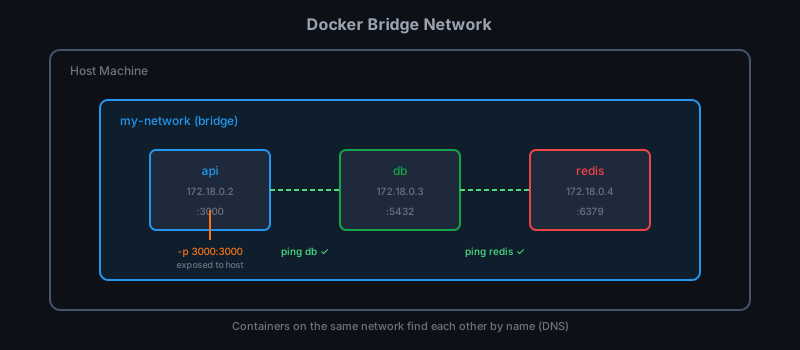
Containers on the same bridge network can communicate. This is what you use for most single-host applications.
# The default bridge
docker network ls
NETWORK ID     NAME      DRIVER    SCOPE
abc123         bridge    bridge    local
def456         host      host      local
ghi789         none      null      local
Host
Container uses the host’s network directly — no isolation, no port mapping needed. Fastest but least isolated.
docker run --network host nginx
Now nginx listens on port 80 of your host directly.
None
No networking at all. The container is completely isolated.
docker run --network none my-app
Overlay
Multi-host networking for Docker Swarm. Containers on different hosts can communicate as if they’re on the same network. We won’t cover Swarm in this series, but know it exists.
The default bridge problem
When you run a container without specifying a network, it joins the default bridge
network:
docker run -d --name web nginx
docker run -d --name api my-api
Both containers are on bridge. Can they talk? Sort of. You can use IP addresses:
docker inspect web -f '{{.NetworkSettings.IPAddress}}'
# 172.17.0.2
But IP addresses change when containers restart. And the default bridge doesn’t
provide DNS — you can’t ping web from api.
The solution: create your own network.
Custom bridge networks
Create a network:
docker network create my-network
Run containers on it:
docker run -d --name web --network my-network nginx
docker run -d --name api --network my-network my-api
Now magic happens. From api, you can reach web by name:
docker exec api ping web
# PING web (172.18.0.2): 56 data bytes
# 64 bytes from 172.18.0.2: seq=0 ttl=64 time=0.089 ms
Docker’s embedded DNS resolves web to its IP address. When the container restarts
with a new IP, DNS updates automatically.
Connecting existing containers
Already running? Connect it to a network:
docker network connect my-network existing-container
Disconnect:
docker network disconnect my-network existing-container
A container can be on multiple networks — useful for gateways that bridge different network segments.
Port publishing
Containers are isolated. To expose a service to your host (or the internet), publish ports:
docker run -d -p 8080:80 nginx
This maps host port 8080 to container port 80. Requests to localhost:8080 reach
nginx inside the container.
Variations:
# Bind to specific host interface
docker run -d -p 127.0.0.1:8080:80 nginx

# Random host port
docker run -d -p 80 nginx
docker ps  # Shows which host port was assigned

# Publish all exposed ports
docker run -d -P nginx

# UDP port
docker run -d -p 5353:53/udp dns-server
Container to container communication
Here’s a common pattern — a web app talking to Redis:
# Create a network
docker network create app-net

# Run Redis
docker run -d --name redis --network app-net redis:7-alpine

# Run your app
docker run -d --name app --network app-net \
  -e REDIS_HOST=redis \
  -p 8080:8080 \
  my-app
Inside my-app, connect to redis:6379. Docker DNS handles the rest.
The app container publishes port 8080 to the host, but Redis doesn’t publish any
ports — it’s only reachable from other containers on app-net.
Inspecting networks
See network details:
docker network inspect my-network
{
    "Name": "my-network",
    "Driver": "bridge",
    "Containers": {
        "abc123": {
            "Name": "web",
            "IPv4Address": "172.18.0.2/16"
        },
        "def456": {
            "Name": "api",
            "IPv4Address": "172.18.0.3/16"
        }
    }
}
Network aliases
Give a container multiple DNS names:
docker run -d --name my-postgres \
  --network my-network \
  --network-alias db \
  --network-alias postgres \
  postgres:16
Now other containers can reach it as my-postgres, db, or postgres.
Practical example: API + PostgreSQL + Redis
Let’s wire up a real application:
# Create network
docker network create task-net

# PostgreSQL with persistent volume
docker run -d --name db \
  --network task-net \
  -e POSTGRES_DB=taskdb \
  -e POSTGRES_USER=taskuser \
  -e POSTGRES_PASSWORD=taskpass \
  -v pgdata:/var/lib/postgresql/data \
  postgres:16-alpine

# Redis
docker run -d --name redis \
  --network task-net \
  redis:7-alpine

# Wait for services to be ready...
sleep 5

# API connecting to both
docker run -d --name api \
  --network task-net \
  -e DB_HOST=db \
  -e DB_PORT=5432 \
  -e DB_NAME=taskdb \
  -e DB_USER=taskuser \
  -e DB_PASSWORD=taskpass \
  -e REDIS_HOST=redis \
  -p 3000:3000 \
  task-api:v1
Only the API publishes a port. Database and Redis are internal services, reachable
only by name within task-net.
Debugging network issues
Check container IP
docker inspect -f '{{range .NetworkSettings.Networks}}{{.IPAddress}}{{end}}' my-app
Test connectivity from inside a container
docker exec my-app ping db
docker exec my-app curl http://api:8080/health
Check what networks a container is on
docker inspect -f '' my-app
Check DNS resolution
docker exec my-app nslookup db
Network troubleshooting container
Don’t have curl or ping? Use a debug container:
docker run -it --rm --network my-network nicolaka/netshoot
This image has all the network debugging tools. Use it to poke around.
Cleanup
# Remove network (must disconnect all containers first)
docker network rm my-network

# Remove all unused networks
docker network prune
Summary
- Default bridge network works but lacks DNS. Create custom networks.
- Custom bridge networks provide automatic DNS resolution by container name.
- Publish ports with
-p HOST:CONTAINERto expose services. - Containers on the same network communicate directly, no port publishing needed.
- Use
docker network connect/disconnectto manage running containers.
In the next chapter we’ll tackle data persistence with volumes and bind mounts.