You know how to run containers. Now let’s learn to manage them — view logs, debug issues, control resources, and keep things running reliably.
Code for this chapter. See 04-containers.
Container lifecycle
A container moves through these states:
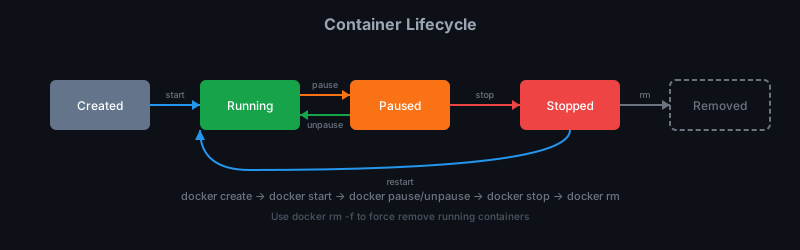
Commands to control state:
# Create without starting
docker create --name my-app my-image:v1

# Start a created/stopped container
docker start my-app

# Pause (freeze processes, don't stop)
docker pause my-app
docker unpause my-app

# Stop gracefully (SIGTERM, then SIGKILL after 10s)
docker stop my-app

# Stop immediately (SIGKILL)
docker kill my-app

# Remove a stopped container
docker rm my-app

# Remove a running container (force)
docker rm -f my-app
Viewing logs
docker logs is your first debugging tool:
# View all logs
docker logs my-app

# Follow logs in real-time
docker logs -f my-app

# Last 100 lines
docker logs --tail 100 my-app

# Since a timestamp
docker logs --since 2024-01-15T10:00:00 my-app

# With timestamps
docker logs -t my-app
Logs are stdout and stderr from the container’s main process. If your app logs to files, you won’t see them here — log to stdout in containers.
Executing commands inside containers
docker exec runs a command in a running container:
# Run a single command
docker exec my-app cat /etc/hosts

# Interactive shell
docker exec -it my-app bash

# As a specific user
docker exec -u root my-app whoami

# Set environment variables
docker exec -e DEBUG=true my-app ./script.sh
The -it flags are interactive + TTY — you need both for an interactive shell.
Common debugging patterns:
# Check what's running
docker exec my-app ps aux

# Check network configuration
docker exec my-app cat /etc/resolv.conf

# Check environment variables
docker exec my-app env

# Install debug tools (in development)
docker exec -u root my-app apt-get update && apt-get install -y curl
docker exec my-app curl http://localhost:8080/health
Copying files
Move files between your host and containers:
# Copy to container
docker cp config.json my-app:/app/config.json

# Copy from container
docker cp my-app:/app/logs/error.log ./error.log

# Copy entire directory
docker cp my-app:/app/data ./backup/
Inspecting containers
docker inspect dumps everything about a container:
docker inspect my-app
That’s a lot of JSON. Query specific fields:
# Get IP address
docker inspect -f '{{.NetworkSettings.IPAddress}}' my-app

# Get environment variables
docker inspect -f '{{.Config.Env}}' my-app

# Get mounted volumes
docker inspect -f '{{.Mounts}}' my-app

# Get restart count
docker inspect -f '{{.RestartCount}}' my-app
Resource limits
By default, a container can use unlimited CPU and memory. In production, that’s dangerous — one runaway container can starve everything else.
Memory limits
# Hard limit — container killed if exceeded
docker run -d --memory=512m my-app

# Soft limit (memory reservation)
docker run -d --memory=1g --memory-reservation=512m my-app
When a container exceeds its memory limit, the kernel OOM-kills it. You’ll see exit code 137 (128 + 9, killed by SIGKILL).
CPU limits
# Limit to 0.5 CPUs
docker run -d --cpus=0.5 my-app

# Limit to specific CPU cores
docker run -d --cpuset-cpus="0,1" my-app

# CPU shares (relative weight, default 1024)
docker run -d --cpu-shares=512 my-app
View resource usage
docker stats
CONTAINER ID   NAME      CPU %    MEM USAGE / LIMIT   MEM %    NET I/O          BLOCK I/O
a1b2c3d4e5f6   my-app    0.50%    128MiB / 512MiB     25.00%   1.5MB / 500KB    10MB / 0B
This is real-time. Add --no-stream for a snapshot.
Restart policies
Containers die. Restart policies bring them back:
# Never restart (default)
docker run -d --restart=no my-app

# Always restart
docker run -d --restart=always my-app

# Restart unless manually stopped
docker run -d --restart=unless-stopped my-app

# Restart on failure, max 3 times
docker run -d --restart=on-failure:3 my-app
Which to use:
- Development:
no— you want to see failures - Production services:
unless-stopped— survives reboots, respects manual stops - One-time jobs:
on-failure:3— retry transient failures, give up on real errors
Health checks
Docker can monitor your container’s health:
docker run -d \
  --health-cmd="curl -f http://localhost:8080/health || exit 1" \
  --health-interval=30s \
  --health-timeout=10s \
  --health-retries=3 \
  my-app
Or define in Dockerfile:
HEALTHCHECK --interval=30s --timeout=10s --retries=3 \
  CMD curl -f http://localhost:8080/health || exit 1
Health status appears in docker ps:
CONTAINER ID   IMAGE     STATUS
a1b2c3d4e5f6   my-app    Up 5 minutes (healthy)
Unhealthy containers can trigger alerts or orchestrator restarts.
Container cleanup
Containers and images pile up:
# Remove all stopped containers
docker container prune

# Remove containers older than 24h
docker container prune --filter "until=24h"

# Remove unused images
docker image prune

# Remove all unused images (not just dangling)
docker image prune -a

# Nuclear option — remove everything unused
docker system prune -a --volumes
Check disk usage:
docker system df
TYPE            TOTAL     ACTIVE    SIZE      RECLAIMABLE
Images          15        5         5.2GB     3.1GB (59%)
Containers      8         3         500MB     200MB (40%)
Local Volumes   10        2         2GB       1.5GB (75%)
Build Cache     50                  1GB       1GB
Container patterns
Run and remove
For one-time tasks, auto-remove the container when it exits:
docker run --rm my-tool process-data
Run in background with logs
# Start
docker run -d --name my-app -p 8080:8080 my-image:v1

# Check logs
docker logs -f my-app

# Stop when done
docker stop my-app && docker rm my-app
Debug a failing container
Container keeps crashing? Override the entrypoint:
docker run -it --entrypoint bash my-app
Now you’re inside the container before it tries to start. Poke around, check permissions, verify files exist.
Summary
- Container lifecycle: create → start → pause/unpause → stop → remove
docker logs -ffor real-time logsdocker exec -itto get a shell inside- Set memory (
--memory) and CPU (--cpus) limits in production - Use restart policies (
--restart=unless-stopped) for reliability - Health checks let Docker monitor your app
- Clean up regularly with
docker system prune
In the next chapter we’ll connect containers together with Docker networking.