Time to get our hands dirty. In this chapter we’ll install Docker, run our first container, and learn the core CLI commands. By the end, you’ll have a working Docker setup and the muscle memory for the commands you’ll reach for constantly.
Code for this chapter. See 01-first-container.
Installing Docker
The easiest path is Docker Desktop — it bundles the Docker engine, CLI, and a GUI for macOS, Windows, and Linux.
macOS:
brew install --cask docker
Or download directly from docker.com/products/docker-desktop.
Windows:
Download Docker Desktop from the same link. It uses WSL2 under the hood — make sure that’s enabled in Windows Features.
Linux:
You can use Docker Desktop, or install the engine directly. For Ubuntu:
# Add Docker's official GPG key and repository
sudo apt-get update
sudo apt-get install ca-certificates curl
sudo install -m 0755 -d /etc/apt/keyrings
sudo curl -fsSL https://download.docker.com/linux/ubuntu/gpg -o /etc/apt/keyrings/docker.asc
sudo chmod a+r /etc/apt/keyrings/docker.asc

echo \
  "deb [arch=$(dpkg --print-architecture) signed-by=/etc/apt/keyrings/docker.asc] https://download.docker.com/linux/ubuntu \
  $(. /etc/os-release && echo "$VERSION_CODENAME") stable" | \
  sudo tee /etc/apt/sources.list.d/docker.list > /dev/null

sudo apt-get update
sudo apt-get install docker-ce docker-ce-cli containerd.io docker-compose-plugin
After installation, verify Docker is running:
docker version
Client:
 Version:           27.0.3
 API version:       1.46
 ...

Server:
 Engine:
  Version:          27.0.3
  ...
If you see both Client and Server sections, you’re ready to go.
Running your first container
Let’s start with the classic:
docker run hello-world
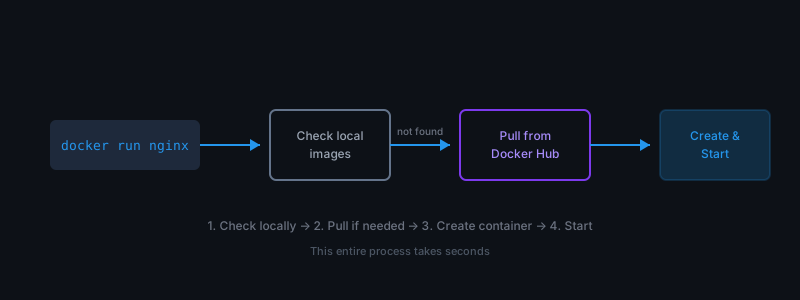
Docker does several things:
- Looks for the
hello-worldimage locally — doesn’t find it - Pulls the image from Docker Hub (the default registry)
- Creates a container from that image
- Runs the container, which prints a message and exits
Unable to find image 'hello-world:latest' locally
latest: Pulling from library/hello-world
...
Hello from Docker!
This message shows that your installation appears to be working correctly.
...
That’s it — you just ran your first container. It started in milliseconds, printed output, and exited. No VM to boot, no OS to configure.
Running a real application
hello-world is a toy. Let’s run something useful — nginx, a production web server:
docker run -d -p 8080:80 nginx
What do those flags mean?
-d— Run in detached mode (background). Without this, your terminal would be attached to the container’s output.-p 8080:80— Publish port 80 inside the container to port 8080 on your host.
Now open http://localhost:8080 in your browser. You’ll see nginx’s welcome page — served from a container.
The core commands
Here are the commands you’ll use every day. Learn these and you can do most things.
List running containers
docker ps
CONTAINER ID   IMAGE   COMMAND                  STATUS          PORTS                  NAMES
a1b2c3d4e5f6   nginx   "/docker-entrypoint.…"   Up 2 minutes    0.0.0.0:8080->80/tcp   relaxed_darwin
Each container gets a random name (like relaxed_darwin) unless you specify one.
List all containers (including stopped)
docker ps -a
You’ll see the hello-world container here — it ran, printed output, and exited.
Stop a container
docker stop a1b2c3d4e5f6
Use the container ID or name. The container stops gracefully (SIGTERM, then SIGKILL after timeout).
Remove a container
docker rm a1b2c3d4e5f6
Stopped containers stick around until you remove them. To stop and remove in one step:
docker rm -f a1b2c3d4e5f6
View container logs
docker logs a1b2c3d4e5f6
Add -f to follow (like tail -f):
docker logs -f a1b2c3d4e5f6
Run a command inside a running container
docker exec -it a1b2c3d4e5f6 bash
-i— Interactive (keep STDIN open)-t— Allocate a TTY
This drops you into a shell inside the container. You can poke around, check files, debug
issues. Type exit to leave.
List images
docker images
REPOSITORY    TAG       IMAGE ID       CREATED        SIZE
nginx         latest    a1b2c3d4e5f6   2 weeks ago    187MB
hello-world   latest    feb5d9fea6a5   2 years ago    13.3kB
Pull an image (without running)
docker pull redis
Useful when you want to download images ahead of time.
Remove an image
docker rmi nginx
You can’t remove an image if containers (even stopped ones) are using it.
Running an interactive container
Sometimes you want to jump into a container, run some commands, and throw it away:
docker run -it ubuntu bash
You’re now inside a fresh Ubuntu container. Install something, test a script, break things
— it’s all isolated. When you exit, the container stops. Add --rm to auto-remove it:
docker run -it --rm ubuntu bash
Naming your containers
Random names are cute but annoying. Give containers explicit names:
docker run -d --name my-nginx -p 8080:80 nginx
Now you can reference it by name:
docker logs my-nginx
docker stop my-nginx
docker rm my-nginx
Quick cleanup
After experimenting, you’ll have stopped containers and unused images lying around.
Remove all stopped containers:
docker container prune
Remove all unused images:
docker image prune -a
Remove everything unused (containers, images, networks, volumes):
docker system prune -a
Be careful with that last one in production.
Summary
- Install Docker Desktop or the Docker engine directly.
docker runpulls an image (if needed) and starts a container.-dfor background,-pfor port mapping,--nameto name your container.docker ps,docker logs,docker exec,docker stop,docker rm— the daily essentials.- Use
docker system pruneto clean up.
In the next chapter we’ll explore Docker images — where they come from, how they’re built, and what’s inside them.