An application container can work perfectly on a laptop and still be expensive to move through a delivery pipeline. A large image takes longer to push to a registry, pull onto a new server, and scan in CI. It often carries things production does not need: compilers, test tools, source files, package caches, and development dependencies.
An image is a packaged filesystem and startup configuration that Docker uses to create containers. The goal is not to win a size contest. It is to make the runtime image contain only what the service needs to start. In this chapter, you will build a small Node.js service in a temporary build stage, copy its output into a fresh runtime stage, then inspect the two images to see the boundary Docker created.
Code for this chapter. The complete runnable example is in 02-image-optimization.
Build a working runtime image first
Start with the working result. From the repository root, enter the chapter directory and build the final stage:
cd _resource/docker-advanced/02-image-optimization
docker build -t task-api-optimized:local .
The final . is the build context: the directory of files Docker may copy while it builds. Docker reads the Dockerfile, runs both stages, and tags the final stage as task-api-optimized:local. The output should finish without errors. Run the image next:
docker run --rm task-api-optimized:local
The container should print:
Optimized task API started
--rm removes the short-lived container after it exits. The output confirms that the final image has the built application and a Node.js runtime. The next sections identify which build-time files the runtime image excludes.
Understand layers before optimizing them
A Docker image is made of layers. A layer is one saved filesystem change made while Docker builds an image. Each Dockerfile instruction that changes the filesystem, such as COPY or RUN, normally creates a reusable layer. Docker can reuse a layer when the instruction and the files it depends on have not changed.
Layer order matters. This Dockerfile copies package.json and package-lock.json before copying the application source:
WORKDIR /app
COPY package*.json ./
RUN npm ci
COPY . .
RUN npm run build
npm ci installs the exact package versions from the lockfile. Because the dependency files are copied first, changing src/index.js does not force Docker to reinstall dependencies. Docker can reuse the npm ci layer and rerun only the later COPY and build steps.
The example’s .dockerignore reinforces that boundary:
node_modules
dist
Those paths are excluded from the build context, the files Docker sends to the builder. Excluding local node_modules prevents host-installed modules from replacing the Linux modules installed inside the image. Excluding dist means the build always produces a fresh output instead of copying an old local artifact.
Tip: Put files that change rarely, such as dependency manifests, before files that change often. It is one of the simplest ways to preserve useful Docker layer caching.
Draw a line between building and running
The complete Dockerfile has two stages:
FROM node:22-alpine AS build
WORKDIR /app
COPY package*.json ./
RUN npm ci
COPY . .
RUN npm run build

FROM node:22-alpine
WORKDIR /app
ENV NODE_ENV=production
COPY package*.json ./
RUN npm ci --omit=dev
COPY --from=build /app/dist ./dist
USER node
CMD ["node", "dist/index.js"]
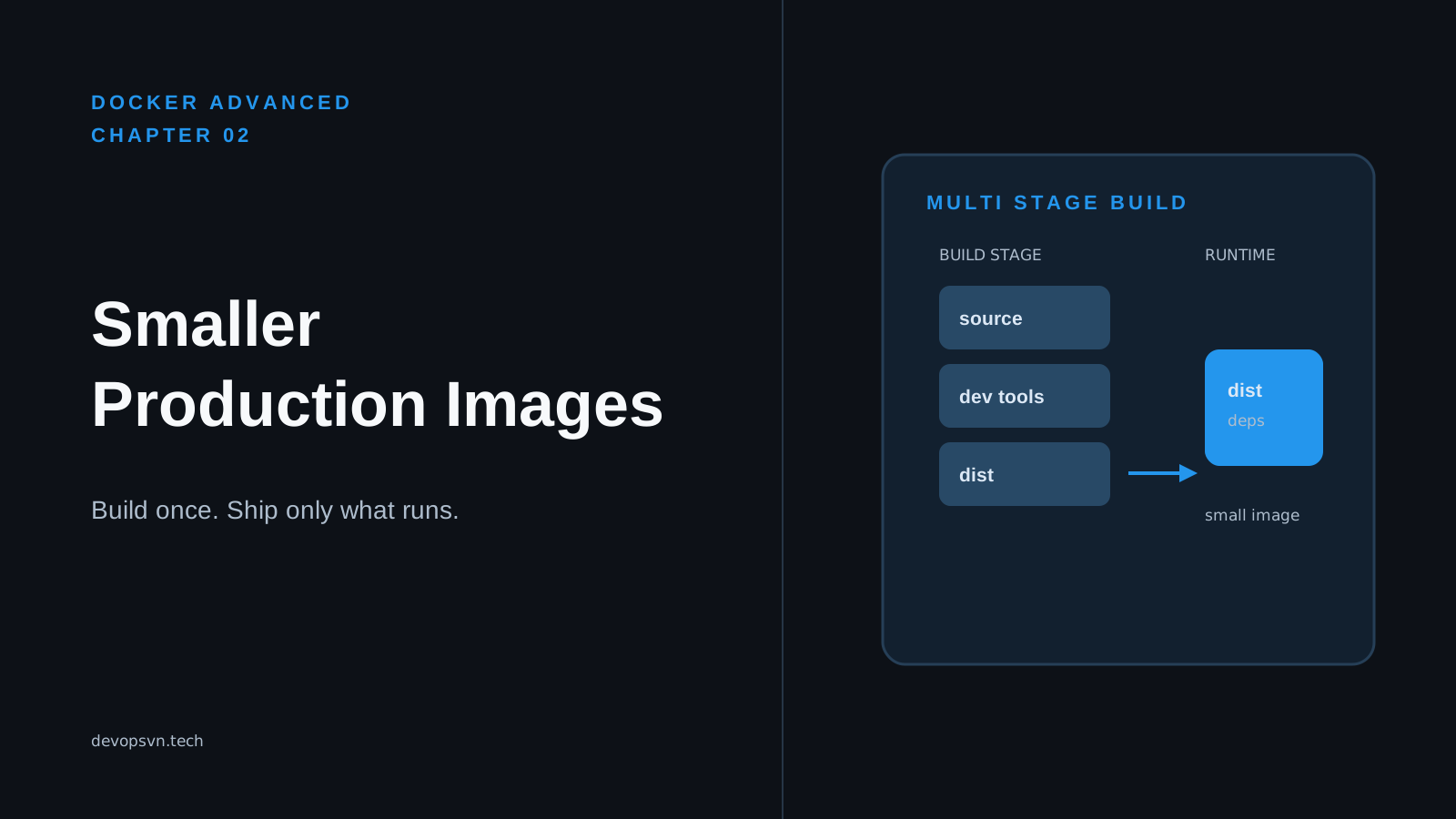
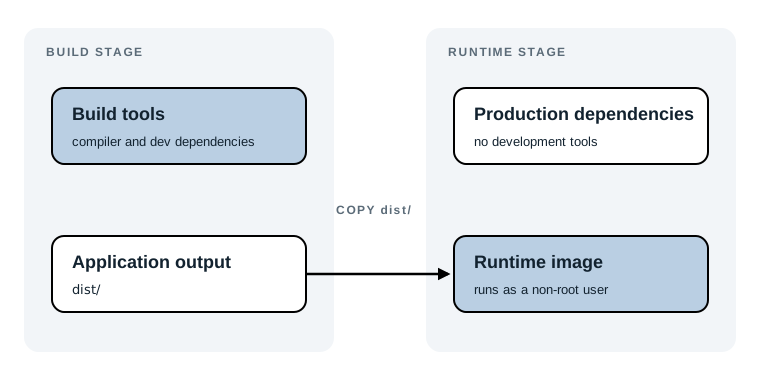
The first FROM starts the build stage, a temporary environment used to turn source files into a deployable output. It has everything needed to create the dist directory. In a real application, TypeScript, a frontend bundler, native build tools, and development dependencies belong in this stage.
The second FROM starts the runtime stage, the final environment that becomes the image Docker runs. It starts from a new node:22-alpine base image. This creates a multi-stage boundary: files from build do not cross it unless a later instruction explicitly copies them. The line below is the only artifact copied from the build stage:
COPY --from=build /app/dist ./dist
--from=build names the earlier stage. Docker copies /app/dist from that stage into /app/dist in the final stage. Source files, package caches, and any build-only tools stay behind.
The final stage repeats the package manifest copy and runs:
ENV NODE_ENV=production
RUN npm ci --omit=dev
NODE_ENV=production tells the running service which environment it is in. npm ci --omit=dev installs only production dependencies, so development-only packages do not enter the runtime image. Finally, USER node drops root privileges before CMD starts node dist/index.js.
This example has no dependencies, so its byte-size reduction may be small on your machine. The important result is still visible: the final stage has no application source directory because it copies only dist. In a service with a compiler or a large development dependency tree, that structural difference usually becomes a much larger size and security difference.
Compare the build and runtime stages
Docker can build a named intermediate stage directly. Build the build stage as a separate local image, then list both images:
docker build --target build -t task-api-build-stage:local .
docker image ls --filter 'reference=task-api-*:*'
The first command stops after the stage named build. The second command shows the image IDs and sizes. Do not expect a dramatic number from this deliberately tiny project. Use it to establish the habit of comparing the thing that builds your application with the thing that runs it.
Next, inspect the files visible in each image:
docker run --rm --entrypoint sh task-api-build-stage:local -c 'find /app -maxdepth 2 -type f | sort'
docker run --rm --entrypoint sh task-api-optimized:local -c 'find /app -maxdepth 2 -type f | sort'
The build-stage output includes src/index.js and dist/index.js. The runtime-stage output includes dist/index.js and the package files, but not src/index.js. That is the multi-stage boundary doing useful work: the runtime container cannot accidentally execute an uncompiled source path that was never copied into it.
For a layer-level view, run:
docker history task-api-optimized:local
You should see instructions corresponding to the final stage, including the production npm ci and the copy from build. The history does not make an image secure by itself, but it is a quick way to ask whether a surprising instruction or large layer made it into the image.
Avoid the tempting single-stage Dockerfile
It is easy to write this instead:
FROM node:22-alpine
WORKDIR /app
COPY . .
RUN npm ci
RUN npm run build
CMD ["node", "dist/index.js"]
This works locally. It also puts the source tree and all dependencies installed by npm ci in the final image. On a real project, that can include TypeScript, test runners, linters, and build tooling that production will never use. It increases pull time and increases the number of packages a vulnerability scanner has to evaluate.
The multi-stage version pays for a second dependency install in the final stage. That is a real tradeoff. For a tiny project, it can make the build slightly slower while saving almost no space. For a production service, the final stage needs its own production dependency set because it must run independently of the build stage. When repeated dependency installs become a build-time problem, configure your Docker builder to cache downloaded packages between builds.
There is another failure worth watching for. A build may pass but the runtime image may crash with Cannot find module when dist does not include a file required at runtime. The final stage only receives what COPY --from=build names. Diagnose it by running the final image locally and listing /app as above. Then decide whether the missing file belongs in the build output, should be copied explicitly, or should be available through a production dependency. Do not fix it by copying the entire build directory; that removes the boundary you were trying to create.
Choose what to optimize
Image size affects delivery because every new node must pull the layers it does not already have. It affects security because each included package, binary, and configuration file is another thing to patch, scan, or accidentally expose. But smaller is not automatically better.
For example, Alpine-based images are compact, and this example uses node:22-alpine. Some Node.js packages depend on native modules that expect the GNU C library used by Debian-based images. A switch to Alpine can turn a previously simple npm ci into a native compilation problem. Test the same image you deploy, and choose the base image that your dependencies support. A slightly larger supported base is better than a small image that fails under production traffic.
Also keep debugging practical. A stripped runtime image may not contain curl, a shell, or package-management tools. That is good for the service surface, but it changes how you investigate incidents. Plan to use logs, metrics, an ephemeral debug container, or a separate debug image instead of reinstalling tools into the production image during an outage.
Summary
- Docker layers make file order in a Dockerfile important for both rebuild speed and final contents.
- A multi-stage build creates a clear boundary between tools needed to build the application and files needed to run it.
COPY --from=build /app/dist ./disttransfers only the built artifact into the runtime stage.- Compare a named build stage and the final image with
docker image ls, filesystem inspection, anddocker history. - Optimize for a small, supported runtime image, not for the smallest number shown by an image-size command.
Chapter 3 moves from reducing what is inside an image to securing what remains: base-image choice, dependency updates, and checks that catch known vulnerabilities before deployment.