Code that calls AWS is hard to test. A unit test with a mocked boto3 client passes, then the same code fails on AWS because the real API returns a different error code or normalizes a value the mock passed through. Testing against a real account fixes that, but it brings its own problems: every developer needs credentials, CI needs a secret or an OIDC role, tests leave resources behind, and two pipelines that run at the same time can step on each other’s buckets.
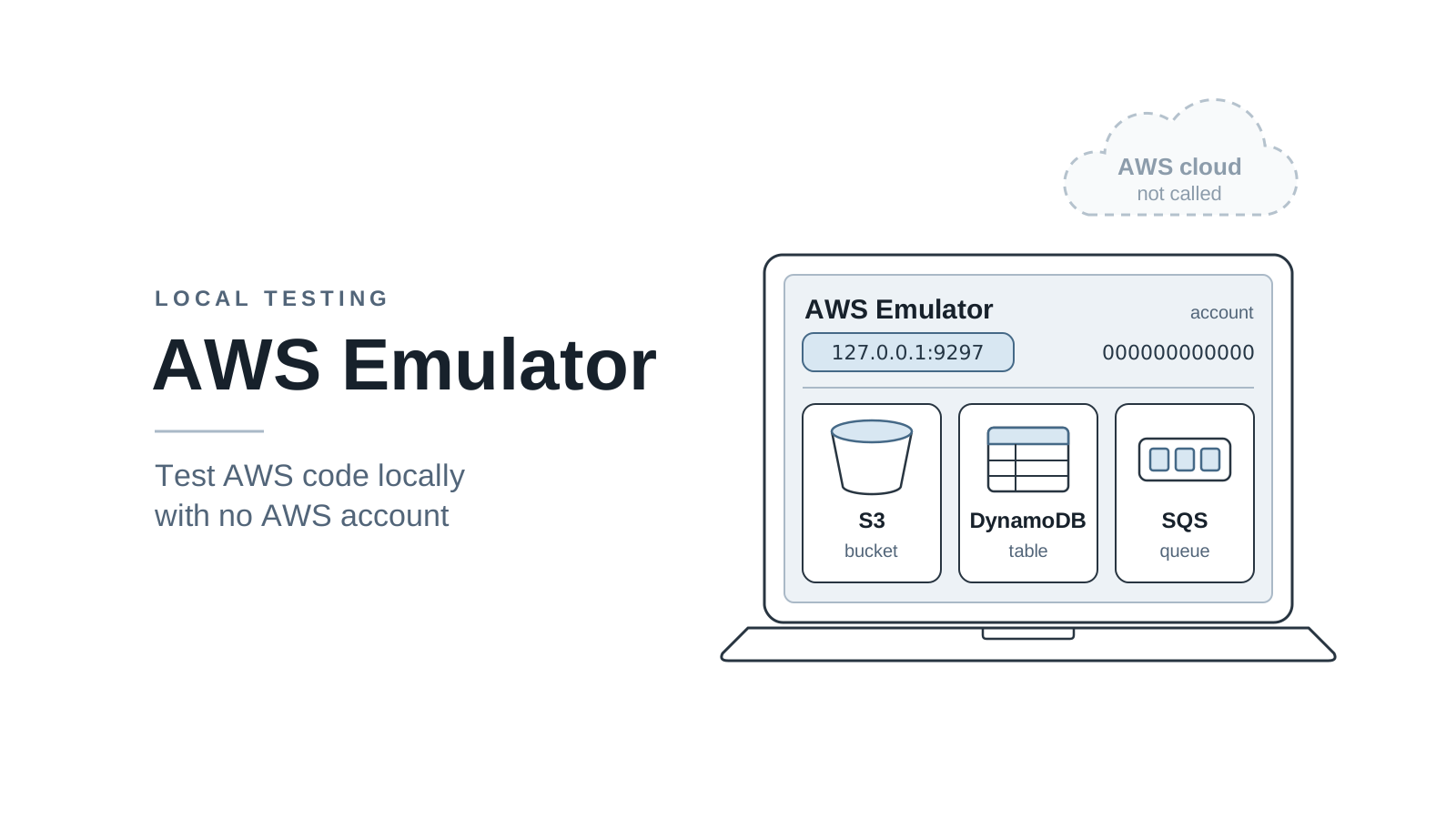
AWS Emulator removes the account from that picture. It is a local program, published by AWS,
that serves the AWS APIs on https://127.0.0.1:9297. The AWS CLI and the AWS SDKs send their
requests to it instead of to AWS, and it keeps the resources you create in memory. You don’t
need an AWS account, and it has no service fee.
This post sets it up and uses it for three jobs:
- Learning the AWS CLI without touching a real account.
- Testing application code that uses DynamoDB, S3, and SQS on your own machine.
- Running the same tests in GitHub Actions with no AWS secrets.
Each case needs only the setup in Start the Emulator. If you only care about CI, read that section and then skip to Case 3.
Code for this post. Everything is in _resource/aws-emulator. I tested it with AWS Emulator 1.0.338, AWS CLI 2.37.7, and boto3 1.44.2, on macOS through Docker and on Ubuntu 24.04 with the native package. Command output in this post comes from those runs.
How AWS Emulator Works
AWS Emulator is one process that serves every AWS service it supports on one HTTPS endpoint. It has no web console. You talk to it with the same tools you use for AWS, and the three cases in this post all reach it the same way:
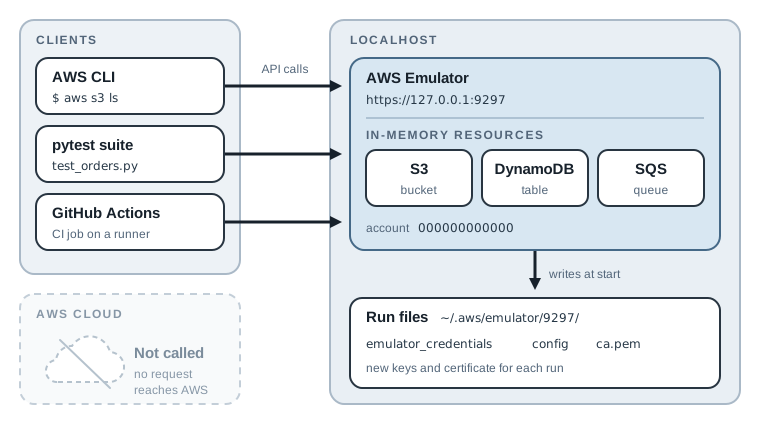
Three details explain most of its behavior.
- It uses one endpoint for every service. The SDKs and the CLI read the
AWS_ENDPOINT_URLenvironment variable. When it points at the emulator, an S3 call and a DynamoDB call both go tohttps://127.0.0.1:9297, and the emulator works out the target service from the request. Your code does not change. - It has its own credentials for each run. By default the emulator checks request signatures
the way AWS does (SigV4, the AWS request-signing scheme). Each time it starts, it generates
a new access key pair and writes it, a config file, and a self-signed certificate to
~/.aws/emulator/<port>/. The keys work only with that run. The emulator rejects real AWS keys. - State lives in memory. Buckets, tables, and queues exist until the process stops. A restart gives you an empty account. There is no reset API, so a restart is the reset.
Every resource belongs to one fake account, 000000000000. That number is the quickest way
to check where your requests go, and the scripts in this post use it as a safety check.
You can run the emulator three ways:
| Mode | Platform | When to use it |
|---|---|---|
Native package (.rpm or .deb) |
Linux x86_64 and aarch64 | Linux laptops and CI runners |
| Docker image you build | macOS, Windows, Linux | macOS and Windows, because there is no native package |
| Embedded mode | Rust tests only | Rust projects that want one emulator per test, in-process |
AWS does not publish a prebuilt container image. You build one from a short Dockerfile, shown in the next section. Embedded mode compiles the whole emulator into your Rust test binary, and the README asks for about 100 GB of disk for that build, so this post skips it.
What the emulator does not do
Know the limits before you build a workflow on it. These come from the AWS Emulator user guide:
- It does not test security. It does not evaluate IAM policies, bucket policies, or KMS key policies the way AWS does. A request signed with the emulator’s own key is never denied, so a test that passes on the emulator says nothing about your permissions.
- One emulator is one account and one Region. It accepts any Region in a request but doesn’t keep resources apart by Region. To test two Regions, run two emulators on two ports.
- Fidelity varies by service. AWS calls how closely the emulator matches AWS its
fidelity. It is closest for control plane calls, the ones that create, describe, and
delete resources. Support for data plane calls (reading and writing the data inside a
resource) and for CloudFormation, Terraform, and CDK varies by service. An operation that
isn’t implemented yet returns HTTP 501
NotImplemented. - It is built for test runs, not long-running use. AWS hasn’t tested it for load testing or for staying up for days.
The repository tracks every known gap as a Markdown file under
issues/things-that-do-not-work/.
When I looked, many of them were cross-service integrations, for example an EventBridge rule
that never invokes its Lambda target. Single-service calls to S3, DynamoDB, and SQS, which this
post uses, worked as expected. Each release also publishes per-service fidelity scores on the
releases page.
Start the Emulator
On Linux, you can install the .deb or .rpm package and run aws-emulator directly. Case 3
shows the install commands for Ubuntu. On macOS and Windows, build a container image. This is
the Dockerfile from the user guide, with one build argument added so the same file works on
Intel and Arm machines:
FROM public.ecr.aws/amazonlinux/amazonlinux:2023-minimal

ARG EMULATOR_ARCH=x86_64
ADD https://downloads.aws.com/aws-emulator/packages/aws-emulator/LTS/latest/aws-emulator-${EMULATOR_ARCH}.rpm /tmp/aws-emulator.rpm

RUN rpm -i /tmp/aws-emulator.rpm && rm /tmp/aws-emulator.rpm \
    && mkdir -p /home/emulator && chown 1000 /home/emulator

USER 1000
ENV HOME=/home/emulator
EXPOSE 9297

# -b 0.0.0.0 lets Docker forward the port. Publish it on 127.0.0.1 only.
ENTRYPOINT ["aws-emulator", "-b", "0.0.0.0"]
The image installs the latest LTS package at build time, so rebuild it when you want a newer
emulator. Build it and check the version. On Apple silicon, pass the Arm package name; on an
Intel or AMD machine, drop the --build-arg:
docker build --build-arg EMULATOR_ARCH=aarch64 -t aws-emulator .
docker run --rm aws-emulator -v
Version: 1.0.338
Release date: 2026.11.12
Commit: 32b3cf39b49b34d906693dfa43539d42886b562b
Note: If the build fails with
403 Forbiddenfrompublic.ecr.aws, Docker is sending an expired login for that registry. Rundocker logout public.ecr.awsand build again. The base image is public and needs no login.
Start the container with scripts/start-emulator.sh in its own terminal. It runs in the
foreground, and Ctrl+C stops it and deletes everything it holds. (On Windows, run the script
from WSL.) The important part is the docker run line:
mkdir -p "$HOME/.aws/emulator"

docker run --rm \
  --memory=2g --memory-swap=2g \
  -p "127.0.0.1:9297:9297" \
  -e HOME="$HOME" -v "$HOME/.aws/emulator:$HOME/.aws/emulator" \
  aws-emulator -p 9297 --telemetry off
Each option has a reason:
-p 127.0.0.1:9297:9297publishes the port on your machine only. The short form-p 9297:9297opens the emulator to your whole network.-vand-e HOMEshare~/.aws/emulatorwith the container at the same path, so the credentials and certificate the emulator writes are readable on your machine. On Linux the script also passes--userwith your UID and GID, so those files belong to you and not to UID 1000.--memory=2gcaps memory. The emulator idles at about 160 MiB and grows as tests create resources. If it reaches the limit, the container exits with code 137 and the resources are gone.--telemetry offturns off the anonymous usage data the emulator sends by default.
The emulator logs JSON lines. The one to look for is the startup line, which gives the endpoint, the health check URL, and the paths of the files it just wrote:
{"message":"emulator server information","endpoint_url":"https://127.0.0.1:9297",
 "health_check_url":"https://127.0.0.1:9297/__admin/health",
 "config_file":"/Users/you/.aws/emulator/9297/config",
 "ca_file":"/Users/you/.aws/emulator/9297/ca.pem", ...}
It also prints a warning that it listens on 0.0.0.0. Inside the container that is expected:
Docker needs it to forward the port, and the 127.0.0.1 in -p keeps the port private.
Point your shell at the emulator
The emulator is running, but your shell still talks to AWS. Source
scripts/emulator-env.sh in a second terminal:
source scripts/emulator-env.sh
The script changes only the current shell. It removes variables that hold real credentials and sets these (shown for the default port 9297):
unset AWS_ACCESS_KEY_ID AWS_SECRET_ACCESS_KEY AWS_SESSION_TOKEN AWS_PROFILE AWS_BEARER_TOKEN_BEDROCK

export AWS_ENDPOINT_URL="https://127.0.0.1:9297"
export AWS_SHARED_CREDENTIALS_FILE="$HOME/.aws/emulator/9297/emulator_credentials"
export AWS_CONFIG_FILE="$HOME/.aws/emulator/9297/config"
export AWS_CA_BUNDLE="$HOME/.aws/emulator/9297/ca.pem"
export AWS_EC2_METADATA_DISABLED=true
export AWS_DISABLE_HOST_PREFIX_INJECTION=true
export AWS_REGION=us-east-1
export AWS_DEFAULT_REGION=us-east-1
export AWS_PAGER=""
export NODE_EXTRA_CA_CERTS="$AWS_CA_BUNDLE"
What the important ones do:
AWS_ENDPOINT_URLsends every service call to the emulator.AWS_SHARED_CREDENTIALS_FILEandAWS_CONFIG_FILEload the keys and profile for this run. SettingAWS_CONFIG_FILEhides your own~/.aws/configfor this shell only.AWS_CA_BUNDLEmakes the CLI, boto3, and the Go SDK trust the emulator’s self-signed certificate. The Node.js SDK ignores it and readsNODE_EXTRA_CA_CERTSinstead, so the script sets that to the same file.AWS_EC2_METADATA_DISABLEDstops the SDK from asking an EC2 instance for real credentials when you run tests on EC2.AWS_DISABLE_HOST_PREFIX_INJECTIONstops the SDK from adding prefixes such asdata-to the host name for some operations. A request todata-127.0.0.1never reaches the emulator.AWS_PAGER=""stops the CLI from piping output throughless, which matters in scripts.
Keep 127.0.0.1 in the endpoint, not localhost. With an IP address, the SDKs put the S3
bucket name in the URL path. With localhost, the JavaScript, Java, and Go SDKs put it in the
host name, and the emulator rejects those requests.
Case 1: Learn the AWS CLI Without an Account
Learning the AWS CLI on a real account has a cost even on the free tier: you need an IAM user, you worry about a typo that creates something expensive, and you clean up by hand. Against the emulator, the worst outcome of a mistake is a restart.
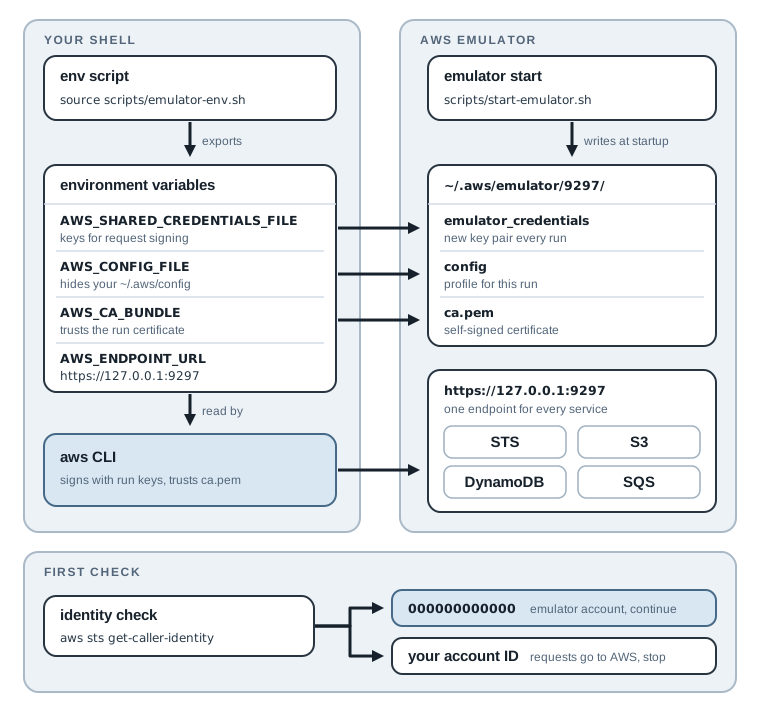
The diagram shows why sourcing the env script is enough: the CLI finds everything it needs in the files the emulator wrote for this run. Run the commands below in the shell where you sourced it. Start every session with the identity check:
aws sts get-caller-identity
{
    "UserId": "AIDAH5I7GEMO7ADXNFAZU",
    "Account": "000000000000",
    "Arn": "arn:aws:iam::000000000000:user/emulator"
}
If you see your own account ID, your requests are going to AWS. Stop and source the env script again.
S3
Create a bucket, upload a file, list the bucket, and print the file:
echo "hello from the emulator" > hello.txt
aws s3 mb s3://devopsvn-lab
aws s3 cp hello.txt s3://devopsvn-lab/notes/hello.txt
aws s3 ls s3://devopsvn-lab --recursive
aws s3 cp s3://devopsvn-lab/notes/hello.txt -
make_bucket: devopsvn-lab
upload: ./hello.txt to s3://devopsvn-lab/notes/hello.txt
2026-11-13 13:08:21         24 notes/hello.txt
hello from the emulator
The emulator also validates input. S3 bucket names can’t contain uppercase letters or underscores, so this fails:
aws s3 mb s3://Bad_Bucket
make_bucket failed: s3://Bad_Bucket An error occurred (InvalidBucketName) when calling the CreateBucket operation: The specified bucket is not valid.
This is the same error code AWS returns, so you learn the rule from the error you would see in production.
DynamoDB
Create a table with order_id as its partition key, and wait for it to become active:
aws dynamodb create-table --table-name orders \
  --attribute-definitions AttributeName=order_id,AttributeType=S \
  --key-schema AttributeName=order_id,KeyType=HASH \
  --billing-mode PAY_PER_REQUEST \
  --query 'TableDescription.{Name:TableName,Status:TableStatus}'
aws dynamodb wait table-exists --table-name orders
{
    "Name": "orders",
    "Status": "CREATING"
}
The table starts in CREATING, as it does on AWS. A script that writes immediately after
create-table fails on AWS, so practise the wait command here too.
Write an item, then try to write a second order with the same ID. The condition expression makes the second write fail instead of overwriting the first:
aws dynamodb put-item --table-name orders \
  --item '{"order_id":{"S":"ord-001"},"customer":{"S":"alice"},"total":{"N":"42"}}'

aws dynamodb put-item --table-name orders \
  --item '{"order_id":{"S":"ord-001"},"customer":{"S":"bob"},"total":{"N":"1"}}' \
  --condition-expression 'attribute_not_exists(order_id)'
An error occurred (ConditionalCheckFailedException) when calling the PutItem operation: The conditional request failed
The first put-item prints nothing on success. The second one fails, and alice’s order is
still the one in the table. Case 2 uses the same condition in application code.
SQS
Create a queue, send a message, and receive it:
queue_url=$(aws sqs create-queue --queue-name order-events --query QueueUrl --output text)
echo "$queue_url"
aws sqs send-message --queue-url "$queue_url" --message-body '{"order_id":"ord-001"}'
aws sqs receive-message --queue-url "$queue_url" --wait-time-seconds 1 --query 'Messages[].Body'
https://sqs.us-east-1.amazonaws.com/000000000000/order-events
...
[
    "{\"order_id\":\"ord-001\"}"
]
The queue URL looks like a real AWS URL. That is fine: the CLI sends the request to
AWS_ENDPOINT_URL and passes the queue URL as a parameter, so nothing reaches
sqs.us-east-1.amazonaws.com.
cli/learn-aws-cli.sh in the sample runs all of these commands. It checks the account ID
first and exits if it isn’t 000000000000. It uses fixed names, so a second run fails on
resources that already exist. To start over, press Ctrl+C in the emulator terminal and start
it again. After the restart, aws s3api list-buckets returns no buckets.
Case 2: Test Your Software Locally
The second job is the one most teams need: an integration test for code that calls AWS, which runs on a laptop in seconds.
The sample application is a small order service in app/orders.py. place_order does three
things, and each one touches a different service (abbreviated):
class OrderService:
    # ...
    def place_order(self, customer_id, items, order_id=None):
        if not items:
            raise ValueError("an order needs at least one item")

        order_id = order_id or f"ord-{uuid.uuid4().hex[:12]}"
        total = sum(Decimal(str(i["price"])) * i["quantity"] for i in items)

        # 1. Save the order. The condition rejects a reused order ID.
        try:
            self._table.put_item(
                Item={"order_id": order_id, "customer_id": customer_id,
                      "items": items, "total": total, "status": "PLACED"},
                ConditionExpression="attribute_not_exists(order_id)",
            )
        except ClientError as err:
            if err.response["Error"]["Code"] == "ConditionalCheckFailedException":
                raise DuplicateOrderError(order_id) from err
            raise

        # 2. Store a receipt in S3.
        self._s3.put_object(Bucket=self.bucket, Key=f"receipts/{order_id}.json",
                            Body=json.dumps({"order_id": order_id, "total": str(total)}))

        # 3. Publish an event for other services.
        self._sqs.send_message(QueueUrl=self.queue_url,
                               MessageBody=json.dumps({"type": "order_placed", "order_id": order_id}))
        return order_id
The code has no emulator setting. It builds its clients with plain boto3.client("s3") and
boto3.resource("dynamodb") calls, and boto3 reads the endpoint, credentials, and certificate
from the environment. The same file runs against the emulator in tests and against AWS in
production.
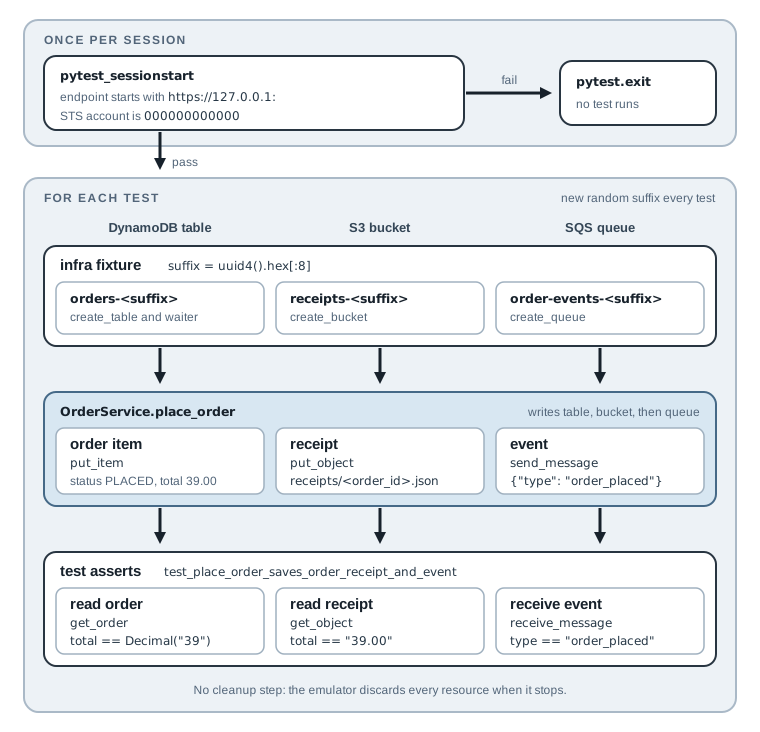
A test for this method has to check three things: the order is in the table, the receipt is in the bucket, and the event is on the queue. The diagram shows how the tests are set up to do that.
Give every test its own resources
The emulator has no reset route, and restarting it between tests is slow. The fixture in
app/tests/conftest.py creates a new table, bucket, and queue for each test instead, with a
random suffix in each name:
@pytest.fixture
def infra():
    suffix = uuid.uuid4().hex[:8]
    table_name = f"orders-{suffix}"
    bucket = f"receipts-{suffix}"

    dynamodb = boto3.client("dynamodb")
    dynamodb.create_table(
        TableName=table_name,
        AttributeDefinitions=[{"AttributeName": "order_id", "AttributeType": "S"}],
        KeySchema=[{"AttributeName": "order_id", "KeyType": "HASH"}],
        BillingMode="PAY_PER_REQUEST",
    )
    dynamodb.get_waiter("table_exists").wait(TableName=table_name)

    boto3.client("s3").create_bucket(Bucket=bucket)
    queue_url = boto3.client("sqs").create_queue(QueueName=f"order-events-{suffix}")["QueueUrl"]

    return {"table_name": table_name, "bucket": bucket, "queue_url": queue_url}
Tests never share state, so they can run in any order, and a failed test leaves nothing that breaks the next one. The fixture doesn’t delete anything. The emulator throws everything away when it stops.
Refuse to run against real AWS
The worst failure with a local emulator is a test run that silently goes to AWS. If
AWS_ENDPOINT_URL is missing, boto3 calls AWS with whatever credentials it finds. The user
guide warns about exactly this. So conftest.py checks before any test runs:
def pytest_sessionstart(session):
    endpoint = os.environ.get("AWS_ENDPOINT_URL", "")
    if not endpoint.startswith("https://127.0.0.1:"):
        pytest.exit("AWS_ENDPOINT_URL does not point at a local emulator. "
                    "Run: source scripts/emulator-env.sh", returncode=2)
    account = boto3.client("sts").get_caller_identity()["Account"]
    if account != "000000000000":
        pytest.exit(f"Requests reach account {account}, not the emulator.", returncode=2)
Run the tests from a fresh shell without sourcing the env script, and pytest stops before any AWS call:
Exit: AWS_ENDPOINT_URL does not point at a local emulator. Run: source scripts/emulator-env.sh
Run the tests
With the emulator running, run these from the sample directory:
source scripts/emulator-env.sh
python3 -m venv .venv && . .venv/bin/activate
pip install -r app/requirements.txt
pytest app/tests -v
app/tests/test_orders.py::test_place_order_saves_order_receipt_and_event PASSED [ 33%]
app/tests/test_orders.py::test_duplicate_order_is_rejected PASSED        [ 66%]
app/tests/test_orders.py::test_empty_order_is_rejected_before_any_aws_call PASSED [100%]

============================== 3 passed in 9.34s ===============================
The first test covers the normal path through all three services. The second checks that a
reused order ID raises DuplicateOrderError and leaves the first order alone. The third
checks that an empty order fails before the code calls AWS at all.
pytest --durations=0 shows where the time goes: each test spends about 3 seconds in setup, waiting for its new table, and under 0.1 seconds in the test itself. If your suite grows, create the table
once per session and use a unique partition key per test instead.
The test that the emulator caught
The first version of my test did not pass. It checked the stored total as a string:
assert str(order["total"]) == "39.00"
E AssertionError: assert '39' == '39.00'
Two books at 19.50 come to Decimal("39.00"), and that is what the code wrote. DynamoDB
stores numbers in a normalized form and drops trailing zeros, so the item comes back as 39.
Real DynamoDB does the same, and the emulator reproduced it. A mocked client would have handed
back the 39.00 I put in, and the test would have passed until the first run against AWS.
The fix was in the test, not the code. Compare numbers as numbers:
# DynamoDB normalizes numbers: 39.00 is stored and returned as 39.
assert order["total"] == Decimal("39")
That is the main reason to prefer an emulator over mocks. A mock returns whatever you told it to return, so it can’t catch a wrong assumption about how AWS behaves.
(The receipt in S3 still says "39.00", because the code writes str(total) into a JSON
string. The test checks that too.)
Case 3: Run Integration Tests in CI
The third job moves the same tests into a pipeline. Without an emulator, an integration test job needs an AWS account, an OIDC role or an access key in the repository secrets, cleanup logic, and unique names so two pull requests don’t collide. With the emulator, every job starts its own emulator with an empty account on the runner, and the job has no AWS secrets to leak.
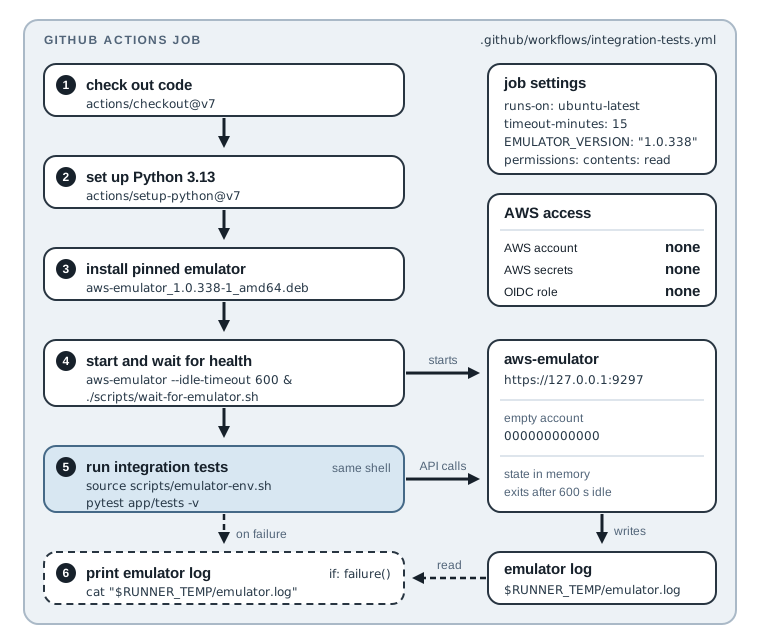
GitHub-hosted Ubuntu runners are Linux, so the workflow installs the .deb package and skips
Docker. It assumes the scripts/ and app/ directories from the sample sit at the root of
your repository. (The copy in ci/github-actions.yml also sets working-directory, because
in this blog’s repository the sample lives under _resource/aws-emulator.)
name: integration-tests

on:
  push:
    branches: [main]
  pull_request:

permissions:
  contents: read

jobs:
  test:
    runs-on: ubuntu-latest
    timeout-minutes: 15
    env:
      EMULATOR_VERSION: "1.0.338"
    steps:
      - uses: actions/checkout@v7

      - uses: actions/setup-python@v7
        with:
          python-version: "3.13"

      - name: Install AWS Emulator
        run: |
          curl -fsSLo /tmp/aws-emulator.deb \
            "https://downloads.aws.com/aws-emulator/packages/aws-emulator/LTS/aws-emulator_${EMULATOR_VERSION}-1_amd64.deb"
          sudo apt-get install -y /tmp/aws-emulator.deb
          aws-emulator -v

      - name: Start AWS Emulator
        run: |
          nohup aws-emulator --telemetry off --idle-timeout 600 > "$RUNNER_TEMP/emulator.log" 2>&1 &
          ./scripts/wait-for-emulator.sh

      - name: Run integration tests
        run: |
          source scripts/emulator-env.sh
          pip install -r app/requirements.txt
          pytest app/tests -v

      - name: Show emulator log
        if: failure()
        run: cat "$RUNNER_TEMP/emulator.log"
The decisions in this workflow:
- Pin the version. The emulator often ships several releases a day (six on one day in the week I wrote this). A release can change a
response to match AWS more closely, and a test that relied on the old response starts to
fail. With
EMULATOR_VERSIONpinned, that happens only when you change the number in a pull request. Published versions are inversions.json. It lists1.0.338.1, but the package file name uses1.0.338-1, so the variable is1.0.338. - Wait for the health check.
wait-for-emulator.shcallsGET /__admin/healthonce a second for up to 30 seconds. Starting tests before the emulator is ready gives connection errors that look like real failures. - Set an idle timeout.
--idle-timeout 600stops the emulator after ten minutes without a call. On a hosted runner the VM is thrown away anyway, but on a self-hosted runner a forgotten emulator keeps its port. - Source the env script in the same step as pytest. Each
runstep is a new shell. Exported variables from an earlier step are gone, and the tests would run without an endpoint. Theconftest.pyguard catches that, but it’s better not to need it. - Print the log when a step fails. The emulator writes to a file in
$RUNNER_TEMP, and the last step prints it only on failure. It doesn’t log every request, but it shows whether the emulator started, on which port, and with which file paths, plus any warnings and some operations such asCreateTable. Only the startup line has a stable format, so read the log but don’t write tooling that parses the rest.
I ran these steps in an ubuntu:24.04 container with the arm64 package, and the three tests
passed. I haven’t run the workflow on GitHub-hosted runners for this post. The main difference
there is the amd64 package, so treat the file as a starting point and check the first run.
If you run a self-hosted runner on macOS or Windows, use the Docker steps from the first section instead of the package.
When Requests Don’t Reach the Emulator
In my runs, most problems came from the shell, not the emulator.
Real credentials in the environment
Environment variables win over the credentials file. If AWS_ACCESS_KEY_ID is still set, the
CLI signs with your real key and the emulator refuses it:
An error occurred (AccessDenied) when calling the ListBuckets operation: Sign the request with the emulator credentials
Unset the variable, or source the env script, which does it for you.
No endpoint at all
This one gives no error. Without AWS_ENDPOINT_URL, the request goes to AWS, and if you have
credentials, it succeeds there. The identity check (000000000000) and the pytest guard are
the defence.
Stale keys after a restart
Each run writes new keys and a new certificate. If you copied the keys into environment variables, that shell keeps the old ones and every call fails after a restart. The env script avoids this by pointing at the file paths, which the next run overwrites.
Port already in use
Two emulators can’t share 9297. Start the second one on another port, and use the same
EMULATOR_PORT in the shell that talks to it:
EMULATOR_PORT=9300 ./scripts/start-emulator.sh
# in the other terminal
export EMULATOR_PORT=9300
source scripts/emulator-env.sh
The start script uses the port on both sides of Docker’s -p and in the emulator’s own -p.
Keep all three equal if you write your own docker run. The emulator puts its port into the
endpoint and the directory name it writes, so a mismatch sends the env script to files that
don’t exist.
NotImplemented (HTTP 501)
The operation isn’t implemented yet. Check the issues/things-that-do-not-work/ directory and
the fidelity scores for your release. For that call, keep a mock or a test against AWS.
What Still Belongs on Real AWS
The emulator replaces the slow, account-bound part of testing, not all of it. It’s a good fit for application logic that creates, reads, and writes resources, for validation errors, and for the integration tests that run on every pull request.
Keep these for a real AWS account, usually a sandbox account in a later pipeline stage:
- IAM, bucket, and KMS policies, and anything else about who is allowed to do what.
- Cross-account and cross-Region behavior.
- Integrations between services that the issues directory lists as gaps for your release.
- Performance, quotas, and throttling.
- The infrastructure code itself, when CloudFormation, Terraform, or CDK support for your services is incomplete.
A reasonable split is the emulator on every commit and a smaller suite on AWS before release. The emulator suite runs in seconds with no secrets, so it can run on forks and on pull requests from outside contributors, which a real-account suite usually can’t.
Summary
- AWS Emulator serves the AWS APIs on
https://127.0.0.1:9297. The CLI and SDKs reach it throughAWS_ENDPOINT_URLand the files it writes to~/.aws/emulator/<port>/, so your code doesn’t change. - Use it to learn the AWS CLI with real errors and no account. Check for account
000000000000first, and restart the emulator for a clean slate. - For local integration tests, create fresh resources per test with unique names, and make the test suite refuse to run if the endpoint isn’t local.
- In CI, install a pinned package, wait for
/__admin/health, and source the env script in the same step as the tests. The job needs no AWS secrets. - Don’t use it to test IAM or other security settings. Run those, and the integrations the emulator doesn’t support yet, against a real AWS account before release.
The next step is to point one of your own test suites at the emulator. Start with the module that has the most mocked boto3 calls, and see which assertions turn out to be wrong.