An Application Load Balancer (ALB) handles most HTTP routing on AWS. It can’t run your own code on a request, though. Teams that need that, for example an API key check written in code, often run Envoy instead. Envoy is an open source proxy. It handles each request in a chain of steps called filters, and you can add your own filters as small Lua scripts or WebAssembly (Wasm) modules.
The catch is that these teams then run Envoy themselves. Someone sizes the servers, patches the operating system, upgrades Envoy, and handles the urgent patch when an Envoy security bug comes out.
On November 25, 2026, AWS released ELB for Envoy. You give it your Envoy configuration file, and AWS operates Envoy for you the same way it operates an ALB.
By the end of this post you will know:
- what ELB for Envoy is, in plain terms;
- when to pick it, and when an ALB is still the better choice;
- how to create one, add custom logic to it, and see what it does;
- what to check before you move a real Envoy setup onto it.
Note: the code for this post is in _resource/aws-elb-envoy. The scripts do the AWS work, so you run one script per step. Both Envoy configs ran on my laptop on Envoy 1.40.2, the version line AWS runs, and those outputs are real. I checked every AWS command against AWS CLI 2.42.4 and the documentation, but I did not run them in an AWS account, because a proxy costs money. When the post says “you should see” after an AWS command, that comes from the documentation.
ELB for Envoy in One Minute
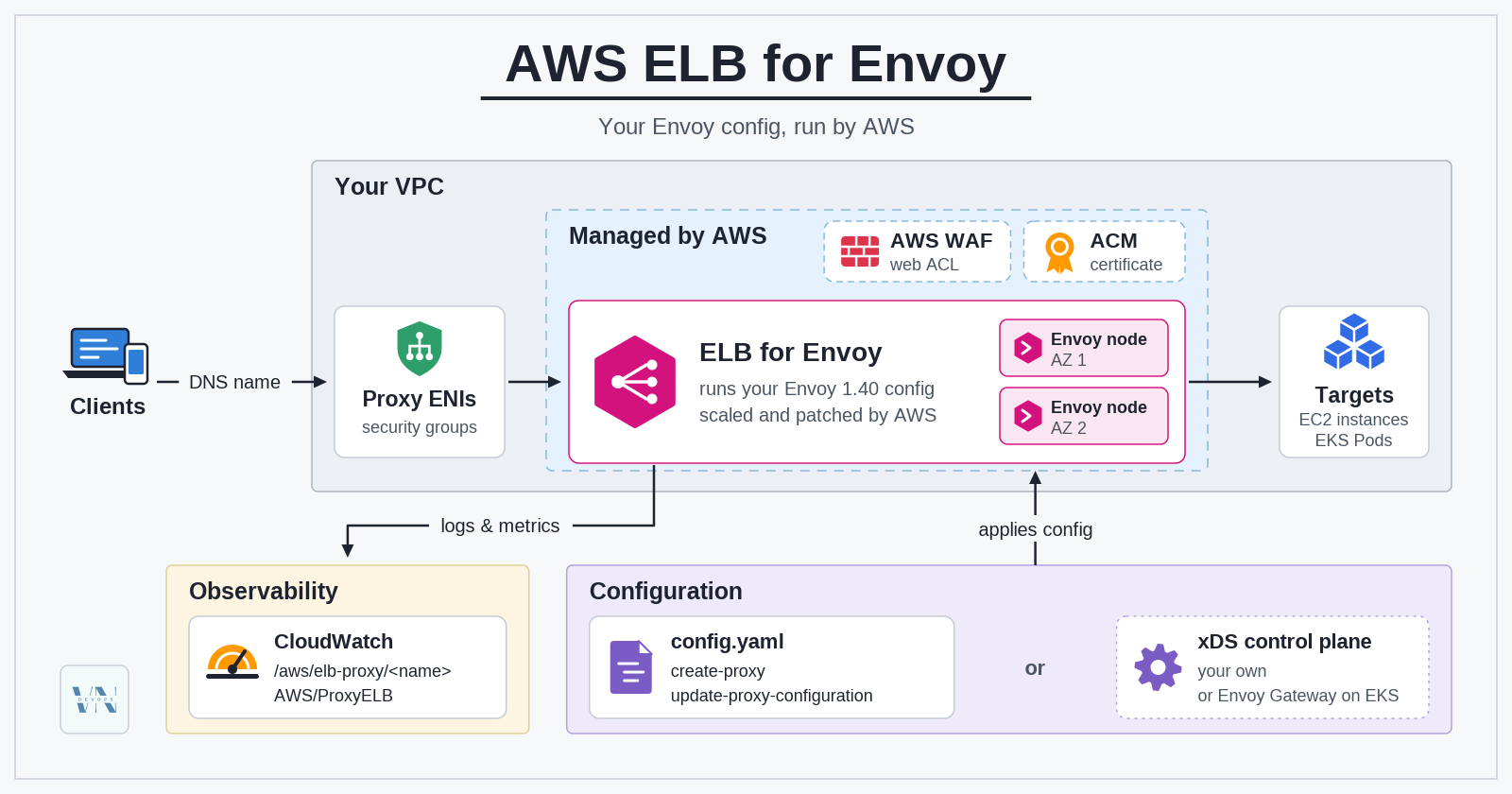
ELB for Envoy is a new load balancer type, next to the ALB and the Network Load Balancer (NLB). The thing you create is called a proxy.
You give the proxy three things:
- An Envoy configuration file. Envoy calls it the bootstrap file: the YAML file it reads at startup. It lists the listeners (the ports Envoy accepts traffic on), the routes, and the filters.
- A network: two subnets in different Availability Zones and a security group. The proxy lives inside your VPC.
- An IAM role. The proxy uses it to write its logs to CloudWatch.
AWS gives you back a DNS name. Clients send requests to that name. Behind it, AWS runs several copies of Envoy, called nodes, across the Availability Zones, and each node handles requests with your configuration.
The split of work looks like this:
| You | AWS |
|---|---|
| Write the Envoy configuration | Run Envoy across Availability Zones |
| Tune it and test changes | Scale it with traffic |
| Watch logs and metrics | Patch Envoy and the operating system |
| Respond to Envoy security bugs |
A few facts to keep in mind from the start:
- Only Envoy 1.40 is available at launch. AWS applies the patch releases within it.
- Lua and Wasm filters work, with some limits covered later.
- TLS certificates from ACM and AWS WAF attach directly.
- It runs in 14 Regions. The closest to Vietnam are Singapore, Malaysia, Thailand, and Hong Kong.
- You manage it from the EC2 console (“Proxies”), CloudFormation, the SDKs, or the
aws elb-proxycommands in AWS CLI 2.42.4 and later.
When to Pick It
Start with the simplest option that does the job.
| You need | Pick |
|---|---|
| Host and path routing, header rules, weighted targets, OIDC login | ALB. There is no Envoy config to write or learn. |
| Plain TCP or UDP load balancing | NLB |
| Code on each request (Lua, Wasm), Envoy filters, or an existing Envoy config | ELB for Envoy |
| Envoy features ELB for Envoy doesn’t support, or a version other than 1.40 | Run Envoy yourself |
An example shows where the choice matters. A platform team runs the public entry point for about twenty internal APIs. They need to:
- check an API key in code and find the customer it belongs to;
- limit how many requests each client can send;
- send some customers to a new version of a service;
- use TLS certificates from ACM and put AWS WAF in front.
An ALB can’t run the key check, so today they run Envoy on six EC2 instances behind an NLB, with a Lua filter. It works, but it costs time every month. The team rebuilds server images and tests each new Envoy version, and a security patch can arrive at any time.
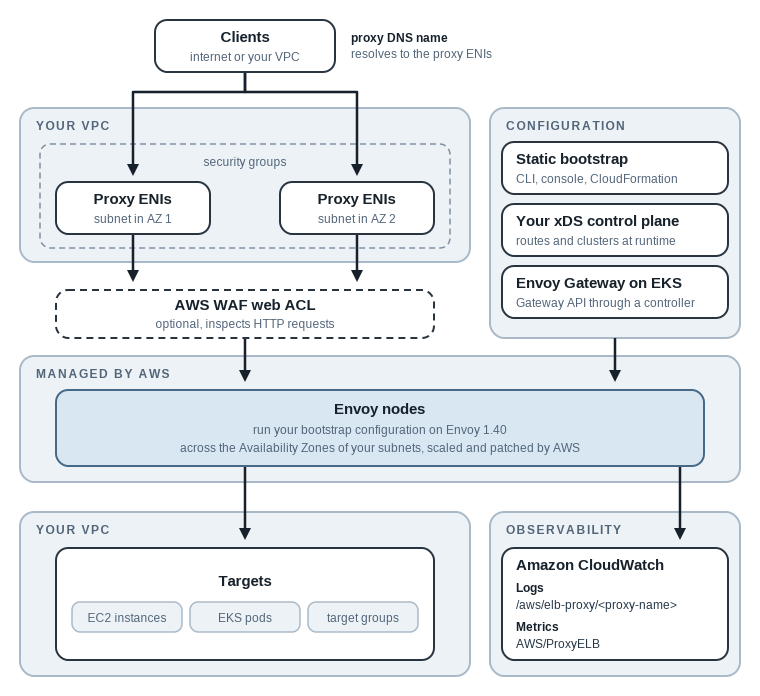
With ELB for Envoy, they keep their Envoy configuration and hand the servers to AWS:
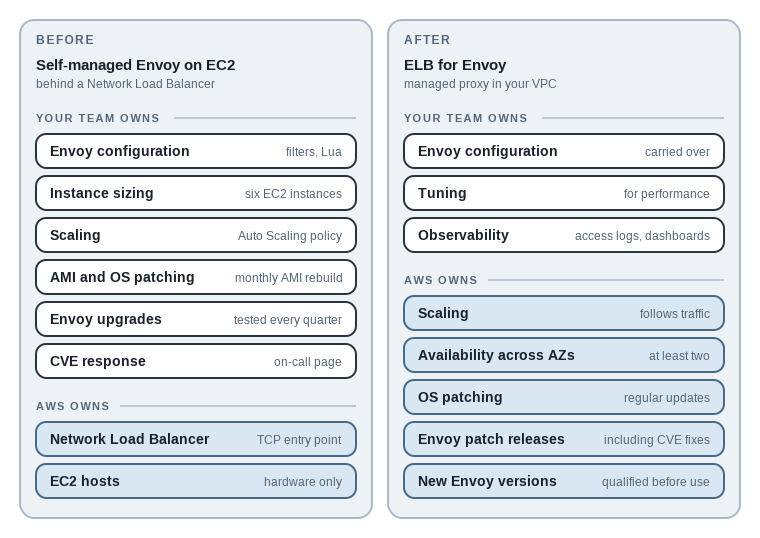
Their move needs two changes, and most teams will hit the same two. Both are covered in Before You Move a Real Envoy Setup.
How a Configuration Change Works
Before you try the service, it helps to know what happens when you send it a configuration, and what happens when that configuration is wrong.
When you send a new configuration, AWS checks it twice:
- When you call the API, AWS checks the file against the Envoy 1.40 format. A typo or an unknown field fails the command right away, with an error that names the field.
- Before Envoy starts the file, AWS runs
envoy --mode validate, Envoy’s own check. This catches things the format check can’t see, such as a feature the service doesn’t support.
If the second check fails, AWS does not apply the new configuration, and the old one keeps serving traffic. So a bad change gives you a failed update, but your clients see no outage.
If both checks pass, Envoy restarts without dropping the listener. A new Envoy process takes over, and the old one gets 60 seconds to finish its open requests. So wait at least 60 seconds between two updates. A second update during that window stops the old process early, and its open connections drop.
Try It: Five Steps
You’ll create a proxy that answers “Your proxy is running”, then update it to add an API key check and a rate limit. The whole run takes well under an hour, so you pay for about one hour of proxy time. (Prices are in the cost section near the end.)
Steps 1 to 4 each run one script with the same number, and step 5 reads the results. Step 0 is optional and free: it tests the configuration on your laptop first.
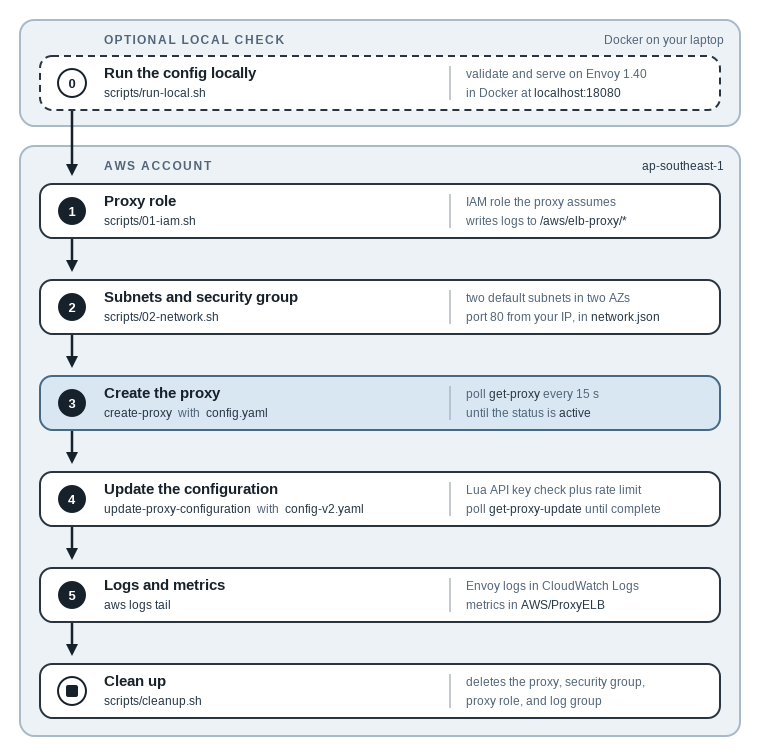
You need:
- AWS CLI 2.42.4 or later (older versions don’t have
aws elb-proxy); - AWS credentials that can create IAM roles, security groups, and proxies;
- a default VPC in the Region (the scripts use it);
- Docker, for step 0.
Get the code and set the Region. This walkthrough uses Singapore:
git clone https://github.com/VersusControl/devops-vn-blog.git
cd devops-vn-blog/_resource/aws-elb-envoy
export AWS_REGION=ap-southeast-1
source scripts/env.sh
env.sh prints your account ID and default VPC. Each script saves the IDs it creates in a
.state file, so if you open a new terminal later, run source scripts/env.sh again and carry on.
Step 0: Test the configuration on your laptop (optional)
AWS runs envoy --mode validate before it starts your configuration. You can run the same check
in Docker on the same Envoy version:
scripts/run-local.sh envoy/config.yaml
configuration '/envoy/config.yaml' OK
Serving envoy/config.yaml on http://localhost:18080/
The first line means Envoy accepts the file. The script then starts Envoy on
localhost:18080; in a second terminal, curl localhost:18080/ prints Your proxy is running.
Press Ctrl+C to stop it.
The file is AWS’s own sample: one listener on port 80 that answers every request with that fixed
message. Open envoy/config.yaml if you want to read it; it’s about 30 lines.
Step 1: Create the proxy role
scripts/01-iam.sh
The script creates an IAM role that the proxy uses to send Envoy’s logs to CloudWatch. The role
can write only to log groups under /aws/elb-proxy/. You need one role per account and Region,
and every proxy can share it. The two policy files are in iam/ if you want to read them.
Step 2: Choose the network
scripts/02-network.sh
The script picks two default subnets in different Availability Zones and creates a security
group that allows port 80 only from your current public IP. It writes these choices to
network.json and prints the subnet IDs, the security group ID, and your IP.
One thing to remember for later: the Envoy listener and the security group are separate. The config decides which port Envoy listens on; the security group decides who can reach it. If you add a listener on 443, open 443 in the security group too.
Step 3: Create the proxy
scripts/03-create-proxy.sh
The script runs one command and then waits for the proxy to be ready. This is the command:
aws elb-proxy create-proxy \
  --name "$NAME" \
  --type envoy \
  --proxy-version 1.40 \
  --role-arn "$ROLE_ARN" \
  --network-configuration file://network.json \
  --configuration 'configurationFile={configurationBytes@=fileb://envoy/config.yaml}'
Read it as: create an Envoy 1.40 proxy, with this role, in this network, running this file.
Warning: use
fileb://for the config file, notfile://. The AWS documentation showsfile://, but AWS CLI v2 then expects base64 and stops withInvalid base64. Either usefileb://as above, or add--cli-binary-format raw-in-base64-out.
The proxy starts in create-in-progress. The script checks it every 15 seconds and prints the
status. You should see it end like this:
<time> create-in-progress
<time> active
Proxy is active: http://<dns-name>/
AWS doesn’t publish how long this takes; its getting-started guide estimates about 20 minutes for the full tutorial.
If the status becomes action-required instead, the script stops and prints the reason. The
usual reasons are:
| Reason | Meaning |
|---|---|
InvalidCustomerConfigurationContents |
Envoy rejected the config. |
InsufficientFreeAddressesInSubnet |
A subnet has no free IP addresses. |
Gateway.NotAttached |
The VPC has no internet gateway. |
Fix the cause, then run scripts/03-create-proxy.sh again. The proxy leaves action-required
on its own once the cause is fixed, and the script sees the proxy it already created, so it waits
for that one instead of creating a second. If the status is create-failed, the documentation
describes no recovery, so run scripts/cleanup.sh and start again from step 1.
When the proxy is active, call it:
source scripts/env.sh     # loads DNS_NAME
curl "http://$DNS_NAME/"
You should see Your proxy is running. That answer comes from your config.yaml, running on
Envoy nodes that AWS manages.
Step 4: Add custom logic
Now add the part an ALB can’t do. The second config, envoy/config-v2.yaml, adds two filters
to the chain. Envoy runs the filters on every request, in the order they are listed.
http_filters:
# 1. Lua: reject requests without the demo API key (except /healthz).
- name: envoy.filters.http.lua
  typed_config:
    "@type": type.googleapis.com/envoy.extensions.filters.http.lua.v3.Lua
    default_source_code:
      inline_string: |
        function envoy_on_request(request_handle)
          if request_handle:headers():get(":path") == "/healthz" then
            return
          end
          if request_handle:headers():get("x-api-key") ~= "demo-key" then
            request_handle:respond({[":status"] = "401"}, "missing or wrong x-api-key\n")
          end
        end
# 2. Rate limit: 5 requests per 10 seconds.
- name: envoy.filters.http.local_ratelimit
  typed_config:
    "@type": type.googleapis.com/envoy.extensions.filters.http.local_ratelimit.v3.LocalRateLimit
    stat_prefix: http_local_rate_limiter
    token_bucket: { max_tokens: 5, tokens_per_fill: 5, fill_interval: 10s }
    filter_enabled:
      default_value: { numerator: 100, denominator: HUNDRED }
    filter_enforced:
      default_value: { numerator: 100, denominator: HUNDRED }
# 3. The router always goes last: it sends the request on.
- name: envoy.filters.http.router
  typed_config:
    "@type": type.googleapis.com/envoy.extensions.filters.http.router.v3.Router
The file also adds a /healthz route that answers ok, and changes the / answer to
Hello from version 2.
Try it on your laptop first. These are real results from Envoy 1.40.2:
scripts/run-local.sh envoy/config-v2.yaml
# in a second terminal:
curl -i localhost:18080/                     # no key
curl localhost:18080/healthz                 # health check
for i in $(seq 7); do curl -s -o /dev/null -w "%{http_code} " -H 'x-api-key: demo-key' localhost:18080/; done; echo
HTTP/1.1 401 Unauthorized
...
missing or wrong x-api-key
ok
200 200 200 200 429 429 429
Reading it line by line:
- No key gives
401: the Lua filter stopped the request. /healthzgivesok: the Lua filter lets it through.- Seven requests with the key give four
200s, then429 Too Many Requests.
Why four, when the limit is five? The /healthz call used one of the five. It passed the Lua
filter, so it reached the rate limiter. (The 401 request didn’t count, because Lua stopped it
before the limiter.) In production, a monitor that calls /healthz every few seconds would eat
part of every client’s budget, so keep health checks out of the rate limit.
Now send the same file to the proxy:
scripts/04-update-config.sh
The script runs aws elb-proxy update-proxy-configuration, then checks the update every 10
seconds and prints two statuses:
validation: did the config pass the checks (validorinvalid)?propagation: has it reached every Envoy node (in-progress, thencomplete)?
It ends with Version 2 is live when propagation is complete. Run the same three curl checks
against http://$DNS_NAME/. You should get the 401 and the ok.
The rate limit line may look different on AWS. The limit counts per Envoy process, and the proxy
runs several Envoy nodes. Each node has its own budget of five requests per 10 seconds. So you may
see more than four 200s, or no 429 at all. (AWS doesn’t document how it spreads requests across
nodes, so I can’t tell you which.) This kind of limit protects you from a flood of requests, but it
can’t enforce an exact quota per client.
Note: the API key is plain text in the config, which is fine for a demo. For real authentication, use Envoy’s
jwt_authnfilter (checks JSON Web Tokens) orext_authzfilter (asks your own authorization service).
Step 5: Check the logs
The proxy writes Envoy’s logs to CloudWatch Logs:
aws logs tail "/aws/elb-proxy/$NAME" --since 15m
A healthy proxy logs little, because the default level is warn. You can’t pass Envoy
command-line flags to a managed proxy, so to see more you set an attribute instead of
--log-level debug:
aws elb-proxy update-proxy-attributes --proxy-identifier "$PROXY_ARN" \
  --attributes key=envoy.log_level,value=debug
Set it back to warn when you’re done; debug logs on a busy proxy add to the CloudWatch bill.
Metrics are in CloudWatch under the AWS/ProxyELB namespace, and appear only while requests flow.
Envoy uses downstream for the client side and upstream for the backend side. Start with these
metrics:
RequestCount;HTTPCode_Downstream_4XX_Count, where our401s and429s land;HTTPCode_Upstream_5XX_Count;UpstreamResponseTime.
If you copy a dashboard from an ALB, note that UpstreamResponseTime is in milliseconds, while the
ALB’s TargetResponseTime is in seconds.
Clean up
scripts/cleanup.sh
The script deletes the proxy, then the security group, the role, and the log group. Deleting the security group can take a few minutes, because AWS releases the proxy’s network interfaces slowly; the script retries. Billing stops when you ask for the deletion.
Break It: A Config That Works Locally but Not on AWS
Many teams log every request to stdout, because that’s the normal habit in containers. Add that
to the first config and you get envoy/config-stdout-log.yaml:
access_log:
- name: envoy.access_loggers.stdout
  typed_config:
    "@type": type.googleapis.com/envoy.extensions.access_loggers.stream.v3.StdoutAccessLog
Normal Envoy accepts it:
scripts/run-local.sh envoy/config-stdout-log.yaml
configuration '/envoy/config-stdout-log.yaml' OK
ELB for Envoy does not. Its documentation lists stdout, stderr, and file access logs as
unsupported. If you send this file as an update, it should fail the second check, and the proxy
should keep serving version 2. (I haven’t run this against a real proxy. The documentation doesn’t
say whether the failure shows on the update status or the proxy status, so check both.)
So a local OK tells you Envoy can read the file. It doesn’t tell you ELB for Envoy supports
everything in it. For that, read the unsupported features list in the next section.
Before You Move a Real Envoy Setup
Go through this list with your current Envoy config before you plan a migration.
Things that need a change
- Access logs: the service rejects file,
stdout, andstderrloggers. Send logs over the network instead, for example with the OpenTelemetry access logger. - Rate limits: a per-process limit becomes “limit × number of Envoy nodes”, and the number of nodes grows with traffic. If you need an exact per-client quota, test your design first. The documentation for self-configured proxies doesn’t say whether a global rate limit service works.
- Envoy command-line flags: you can’t set them. The log level, for example, is a proxy attribute, as in step 5.
Things that aren’t supported
- dynamic modules;
- Wasm runtimes other than V8 (the engine Chrome uses);
- network namespace settings;
- Envoy versions other than 1.40;
- Lua’s
io,require, andload. Theoslibrary offers onlyclock,date,difftime, andtime.
A decision you can’t change later
Choose internet-facing or internal carefully. The IP addressing can’t change after creation. Changing it means a new proxy with a new DNS name. (Subnets and security groups can change.)
Limits to know
- Idle TCP connections close after 4,000 seconds and UDP streams after 60 seconds when they pass through security group connection tracking. Setting a longer idle timeout in Envoy doesn’t change this.
- You can have 25 proxies per Region (you can ask for more), a configuration file of up to 128 KB, and 25 ACM certificates per proxy.
Going further, when you need it
- HTTPS: attach an ACM certificate with
aws elb-proxy associate-certificate, then refer to its ARN in your listener’s TLS settings. The private key never appears in your config. - Dynamic config: instead of a fixed file, point the proxy at your own xDS control plane. xDS is the API Envoy uses to receive routes and backend lists while it runs; a control plane is the server that sends them.
- Kubernetes: Envoy Gateway is a project that configures Envoy from Kubernetes Gateway API
resources. If you run it on EKS, the
elb-envoy-remote-infra-providercontroller creates one proxy per Gateway, so you keep your Gateway API resources. It’s still in early development (v1alpha1). See Use ELB for Envoy with Kubernetes.
What It Costs
You pay for each hour the proxy runs (a proxy-hour), plus Load Balancer Capacity Units (LCUs). An LCU measures how much work the proxy does. AWS converts each of the four measures below into LCUs, and you pay for whichever one is highest:
| Measure | 1 LCU equals |
|---|---|
| Data processed | 1 GB per hour |
| Flows (TCP connections or recent sessions) | 3,000 per minute |
| CPU your config uses | 0.05 vCPU |
| Memory your config uses | 0.1 GiB |
CPU and memory are new compared with an ALB. They’re there because your config decides how much work each request takes. A heavy Wasm filter can make CPU the biggest cost even with little traffic.
AWS’s examples for US East (Ohio), at $0.0275 per proxy-hour and $0.01 per LCU-hour:
- a light HTTP service: about $27.58 per month;
- a Wasm filter on every request: about $63.00 per month.
Prices differ by Region; check the ELB pricing page for Singapore. Data transfer and the public IPv4 address charge apply as usual.
Summary
- ELB for Envoy runs your own Envoy 1.40 configuration as a managed load balancer. You write the config, and AWS operates the Envoy nodes.
- Pick it when you need code on each request or an existing Envoy config. For standard routing, an ALB is still simpler.
- Every change is checked twice, and a failed change leaves the old config serving. Leave 60 seconds between updates.
- Before migrating, check access logs, per-process rate limits, and the unsupported features
list. A local
envoy --mode validatepass is not enough. - With AWS CLI v2, pass the config with
fileb://.
Next step: take one listener from your own Envoy config, run it through scripts/run-local.sh
and the checklist above, then create a test proxy for it in a non-production account.
Resources
- Elastic Load Balancing for Envoy is now generally available, AWS What’s New, November 25, 2026
- What is ELB for Envoy?, the user guide
- How the proxy runs Envoy and Envoy configuration limits and unsupported features
- Use ELB for Envoy with Kubernetes and the elb-envoy-remote-infra-provider project
- Elastic Load Balancing pricing
- Quotas for ELB for Envoy