When you set up a CI/CD pipeline on AWS, the pipeline needs to do things for you — copy files to S3, deploy to an EC2 server, run database updates, and so on. To do that, it needs permission and passwords. The mistake many people make is putting those secrets directly inside the pipeline file.
It looks harmless. The pipeline runs, everything works, so it feels fine. But it’s one of the most common — and most dangerous — security mistakes in DevOps. In this post I’ll show the mistakes with a simple example, explain why each one is risky, and show the safe way to do it.
A pipeline file that looks fine (but isn’t)
Here is an AWS CodeBuild buildspec.yaml — the file that tells CodeBuild what to
do. See if you can spot the problems:
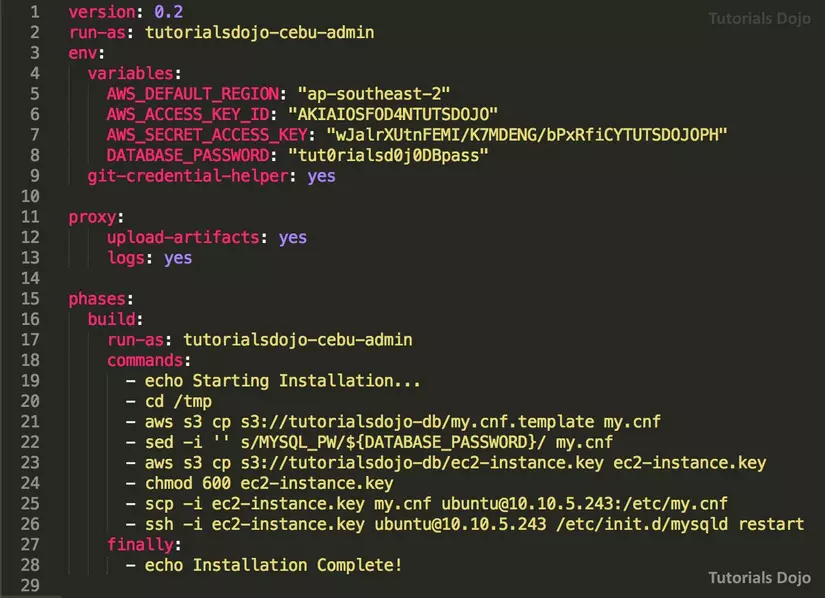
At first glance it works. But there are four serious problems hidden in it:
- The AWS access key is written right in the file.
- The database username and password are in plain text.
- It copies a file with the DB password over the internet using
scp. - The server’s SSH key, IP address, and user are all exposed.
These are easy mistakes to make when you’re starting out. Let’s go through why each one is dangerous, and what to do instead.
Why this is dangerous
Think of your AWS access key like the master key to your house. If you write it inside a file, then anyone who can see that file has the master key.
And a lot of people can see it:
- Your pipeline file usually lives in Git. Everyone with access to the repo can read it — and if the repo ever becomes public by accident, the whole world can.
- The values often get printed in the build logs, which teammates can view.
- A leaked AWS key can be used to spin up expensive servers (crypto mining is a common attack) or to delete your data. People have received huge AWS bills from a single leaked key.
The same logic applies to the database password and the server SSH key. Once a secret is written into a file, you’ve lost control of who can see it.
The safe way to do it
The golden rule is simple: secrets should never be written inside your pipeline file. Here’s how to fix each mistake.
1. Don’t hardcode the AWS key — use an IAM Role
Instead of giving CodeBuild a key, give it an IAM Role. A role is like a temporary badge: AWS hands CodeBuild short-lived credentials automatically, and they expire on their own. Nothing is written down anywhere.
You attach the role once when you create the CodeBuild project, then your
buildspec.yaml just uses the AWS CLI normally — no keys needed:
# No AWS_ACCESS_KEY_ID / AWS_SECRET_ACCESS_KEY anywhere.
# CodeBuild already has permission through its IAM Role.
phases:
  build:
    commands:
      - aws s3 cp ./build s3://my-bucket/ --recursive
If you use GitLab CI, Jenkins, or GitHub Actions (which run outside AWS), don’t paste a long-lived key there either. Use short-lived credentials instead:
- GitHub Actions and GitLab CI can log in to AWS with OIDC — AWS trusts the CI provider and hands back temporary credentials for each run.
- Or call AWS STS to assume a role and get temporary keys that expire in an hour:
aws sts assume-role \
  --role-arn arn:aws:iam::<ACCOUNT_ID>:role/ci-deploy \
  --role-session-name my-pipeline
Either way, there’s no permanent key to leak.
2. Don’t store the DB password in plain text — use Parameter Store or Secrets Manager
AWS gives you two safe places to keep secrets:
- AWS Systems Manager Parameter Store — free, great for config values and secrets.
- AWS Secrets Manager — paid, adds features like automatic password rotation.
You store the password once, and the pipeline pulls it out at run time. It’s never written in the file:
# Store it once (do this from your machine, not in the pipeline)
aws ssm put-parameter \
  --name "/myapp/db_password" \
  --type SecureString \
  --value "super-secret"

# Read it inside the pipeline when you need it
DB_PASSWORD=$(aws ssm get-parameter \
  --name "/myapp/db_password" \
  --with-decryption \
  --query Parameter.Value --output text)
Because CodeBuild uses an IAM Role (from step 1), you can control exactly which pipeline is allowed to read which secret.
3 & 4. Don’t scp / ssh into servers — use AWS Systems Manager
Copying files and running commands with scp and ssh forces you to keep the
server’s SSH key and IP in the pipeline. That’s the mistake in points 3 and 4.
The safer approach is AWS Systems Manager (SSM). With SSM you can run commands on your EC2 servers without any SSH key, without opening port 22, and without knowing the server’s IP — you only need the instance ID. AWS handles the connection and records who ran what.
# Run a command on an EC2 instance — no SSH key, no open ports
aws ssm send-command \
  --instance-ids "i-0123456789abcdef0" \
  --document-name "AWS-RunShellScript" \
  --parameters 'commands=["systemctl restart myapp"]'
If you need an interactive shell, SSM Session Manager gives you one straight from the console or CLI — again, no SSH key and no open port 22. That’s a big security win on its own.
Quick checklist
Before you commit a pipeline file, ask yourself:
- Are there any AWS keys in the file? → Remove them, use an IAM Role or OIDC.
- Are there passwords or tokens in the file? → Move them to Parameter Store or Secrets Manager.
- Are there SSH keys or server IPs in the file? → Switch to SSM Run Command / Session Manager.
- Would you be comfortable if this file were public? If not, something is still wrong.
Wrapping up
None of these fixes are hard, and AWS gives you all the tools for free (or nearly free). The mindset to build is simple: treat every pipeline file as if a stranger might read it one day. Keep the secrets out, let IAM Roles and Systems Manager do the heavy lifting, and your CI/CD will be far safer — without making your life any harder.