A guide to backing up and restoring ArgoCD.
The Problem
The question is: why do we need to back up and restore ArgoCD? ArgoCD doesn’t interact directly with a database to store data — it only uses Redis as a cache. All application configuration is stored in Git, and the applications run on the Kubernetes cluster. ArgoCD is only responsible for syncing the configuration of the applications running on the cluster to match the configuration stored in Git. Even if you delete ArgoCD, your applications keep running. So why do we need backup and restore?
The answer is that although ArgoCD doesn’t store anything related to application configuration or the applications running on Kubernetes, it does store the information needed to connect to private Git or Helm repositories and to connect to the Kubernetes cluster. It also stores the application sync state. If your ArgoCD dies and can’t be recovered, recreating all those connections from scratch is extremely time-consuming.
The Solution
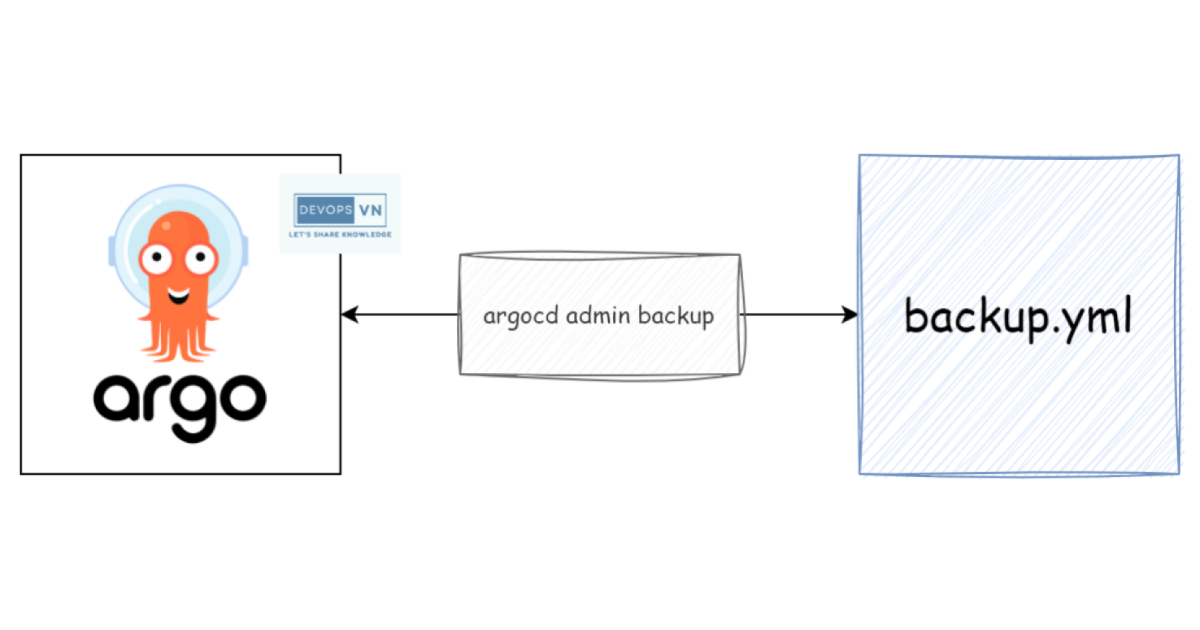
We can back up and restore to avoid this risk. To do it, we just use the
argocd admin command:
$ argocd admin -h

Usage:
  argocd admin [flags]
  argocd admin [command]

Available Commands:
  app         Manage applications configuration
  cluster     Manage clusters configuration
  dashboard   Starts Argo CD Web UI locally
  export      Export all Argo CD data to stdout (default) or a file
  import      Import Argo CD data from stdin (specify '-') or a file
  proj        Manage projects configuration
  repo        Manage repositories configuration
  settings    Provides set of commands for settings validation and troubleshooting
Perform a backup:
argocd admin export -n argocd > argocd-backup-$(date +"%Y-%m-%d-%H:%M").yml
After creating the backup file, you should upload it to AWS S3 or GCP Cloud Storage for storage, then download it when you need it. Perform a restore:
argocd admin import - < argocd-backup-2023-07-07-14:00.yml
...
/ConfigMap argocd-cm created
/ConfigMap argocd-rbac-cm created
/ConfigMap argocd-ssh-known-hosts-cm created
/ConfigMap argocd-tls-certs-cm created
/Secret argocd-secret created
/Secret autopilot-secret created
argoproj.io/AppProject default created
argoproj.io/AppProject testing created
argoproj.io/Application argo-cd created
...
Conclusion
Using the argocd admin command makes it easy to back up and restore. In real
projects, you should automate this task with a cron job or similar.