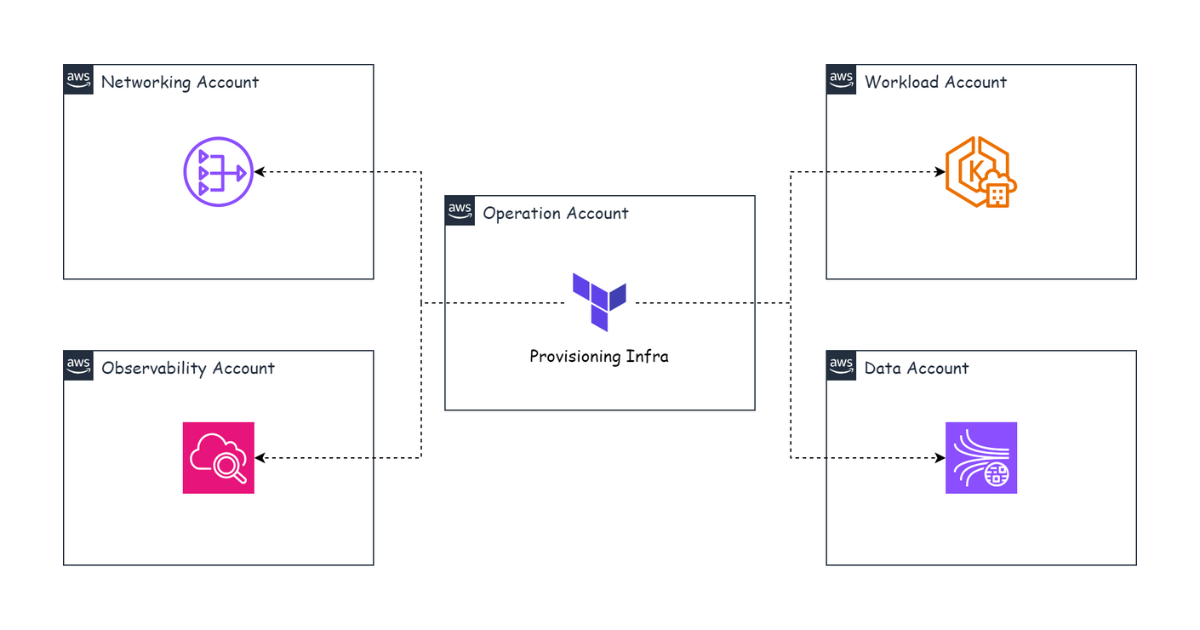
Most teams on AWS keep their data in Amazon S3, because it’s cheap, durable, and most AWS
analytics and ML services read it directly. Then a tool shows up that only understands files: a
Python library that opens paths, a legacy batch job that edits a CSV in place, an AI agent that
runs grep and sed. S3 objects can’t be edited in place, so the team copies the data onto a
file system, runs the tool, and copies the results back. Now there are two copies, a sync job,
and the question of which copy is current.
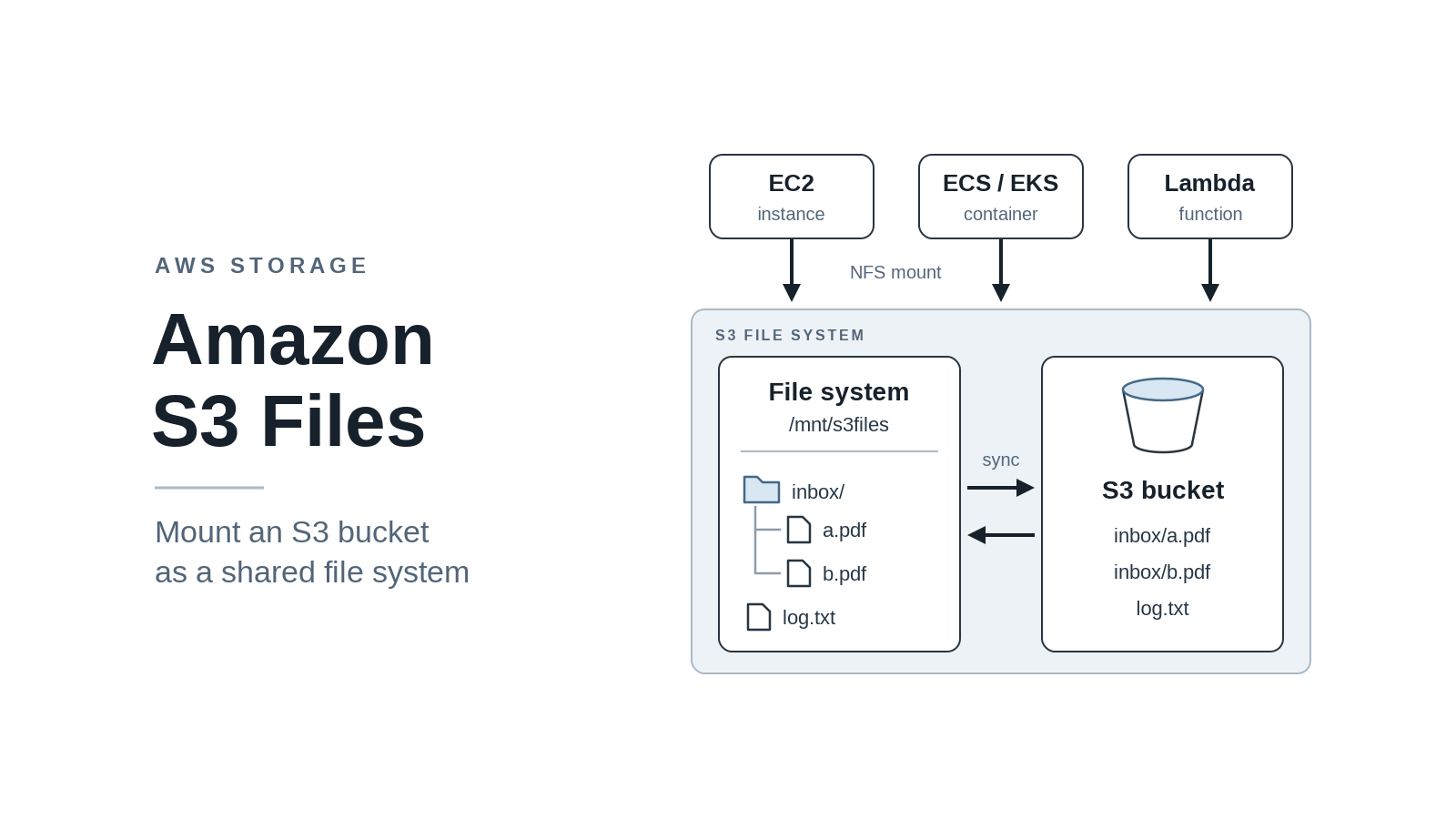
In April 2026 AWS launched Amazon S3 Files to remove that copy. It presents an S3 bucket, or a prefix in it, as a shared NFS file system. You mount it on EC2, ECS, EKS, or Lambda, read and write files with normal tools, and S3 Files keeps the bucket in sync in both directions.
This post covers:
- What AWS released, and why.
- How S3 Files works under the hood, and the rules that follow from its design.
- A concrete use case, compared with the other options: EBS copies, EFS with a sync job, Mountpoint for Amazon S3, and FSx for Lustre.
- When not to use it.
- A full setup with the AWS CLI: bucket, IAM roles, file system, mount target, EC2, and mount.
If you already know what S3 Files is and only want the commands, skip to Set It Up with the AWS CLI.
Code for this post. The CLI scripts and IAM policies are in _resource/aws-s3-files. I checked every
aws s3filescommand against the AWS CLI 2.37.7 command model (parameter validation passes) and against the S3 Files documentation. I have not run the setup in an AWS account for this post, because it creates billable resources. The only command output shown is from AWS’s launch post, and it’s labeled. Where the post says “you should see”, it describes what the documentation says will happen, not output I captured.
What AWS Released
On April 7, 2026, AWS announced S3 Files in the post Launching S3 Files, making S3 buckets accessible as file systems. It’s available in all commercial AWS Regions.
The short version:
- It’s a file system linked to a bucket. You create an S3 file system for a general purpose bucket (the standard S3 bucket type, as opposed to S3 Express One Zone directory buckets), or for one prefix in it. Objects appear as files, and key prefixes appear as directories.
- Clients connect over NFS (Network File System) versions 4.1 and 4.2. They mount it with
mount -t s3files, using the mount helper from theamazon-efs-utilspackage, and then use normal file operations: create, read, update in place, rename, delete, lock,chmod. - Sync runs both ways. Changes made through the file system are written back to the bucket, and objects that other applications put into the bucket appear in the file system.
- Many EC2 instances, containers, and Lambda functions can mount the same file system at once. They get NFS close-to-open consistency: after one client closes a file, any client that opens it next sees the changes.
- It’s built on Amazon EFS. AWS quotes about 1 ms latency for active data.
The data stays in S3. The file system holds only the part you’re actively using, which matters for both speed and cost, as the section on how it works shows.
Why AWS Built It
For years the advice was simple: S3 is object storage, not a file system. An object is like a book in a library. You can read any page, but to change one page you replace the whole book. A file system lets you change a page in place, and many programs depend on that.
So teams had to choose. S3 gave them low cost, durability, and native integration with Athena, SageMaker, EMR, Glue, and almost every other AWS data service. A file system gave them in-place edits, renames, locks, and permissions that ordinary programs expect. Data that needed both lived in both places.
AWS’s announcement points at the workloads that made this painful:
- Production tools that already work with file systems and can’t be rewritten to call the S3 API.
- Agentic AI systems. Agents use Python libraries, shell commands, and CLI tools that read and write files. Pointing them at S3 means custom tooling; pointing them at a copy means stale data.
- ML training and data preparation, where many workers read and modify a shared dataset.
S3 Files is AWS’s answer: keep S3 as the single place for data, and add a real file system interface on top of it instead of next to it.
How S3 Files Works
An S3 file system has two storage layers:
- High-performance storage: a low-latency layer, built on EFS, that holds file metadata and the data of files you’ve used recently. This is the part you pay file system storage for.
- The S3 bucket: it holds all the data and is always the authoritative copy.
S3 Files copies data between the two in the background. The docs call copying from the bucket into the file system import, and copying file system changes back to the bucket export.
Clients reach the file system over NFS through a mount target, a network endpoint for the file system in one Availability Zone of your VPC. The diagram shows where each read and write goes from there.
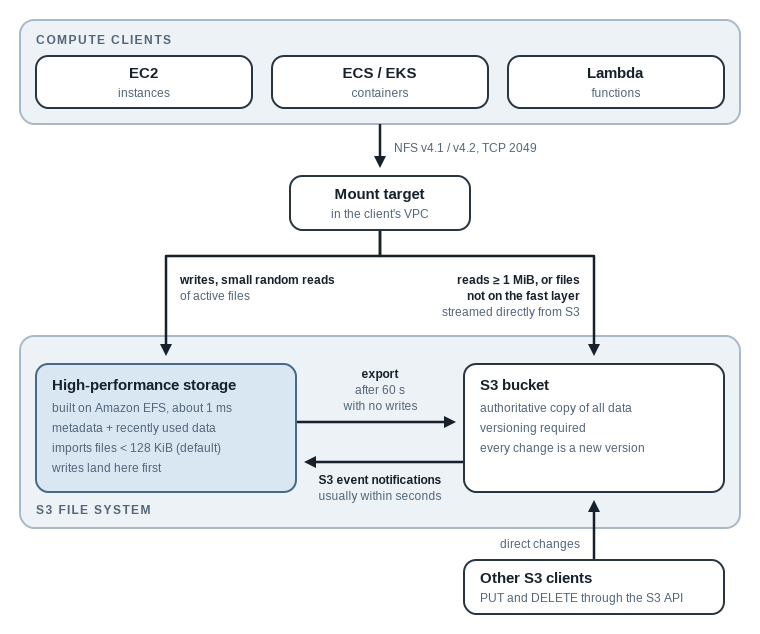
The table lists the routing rules behind the diagram:
| Operation | What happens |
|---|---|
| First access to a directory (listing it or opening a file in it) | Imports metadata for every file in it, plus the data of files under 128 KiB (configurable). On a large directory this can take several seconds; later operations are fast. |
| Small, random reads of active files | Served from high-performance storage, at sub-millisecond to single-digit millisecond latency. |
| Reads of 1 MiB or more, or of files not on the high-performance storage | Streamed directly from S3, at S3 throughput. Only the requested byte range is fetched. |
| Writes | Land on high-performance storage, durable immediately. |
| Export to S3 | Starts after 60 seconds with no writes to the file. Many quick writes become one S3 PUT. |
| Changes made directly in the bucket | Picked up through S3 event notifications, usually within seconds, sometimes a minute or longer. A file whose data has expired from the file system gets the new version on its next read. |
| Data not read for 30 days (configurable, 1 to 365) | Removed from high-performance storage once its changes are exported. It stays in S3, and the metadata stays, so the file still lists. |
Three rules follow from this design, and they shape how you use it.
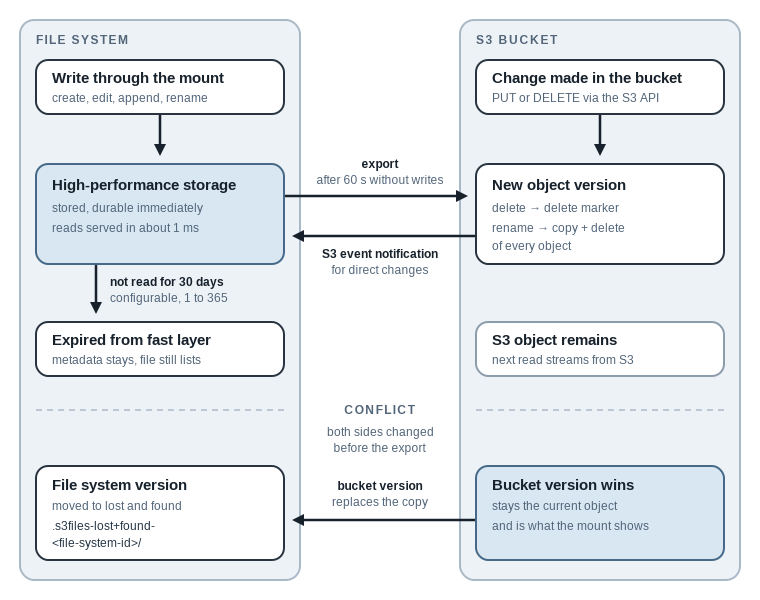
- The bucket must have versioning enabled. Every exported file change becomes a new object version, and a deleted file becomes a delete marker, the placeholder S3 adds when you delete an object in a versioned bucket.
- The bucket wins conflicts. If a file is changed through the file system and the same object is
changed in S3 before the export, S3 Files keeps the S3 version and moves your file to a
.s3files-lost+found-<file-system-id>directory at the root of the file system. Files stay there until you delete them, and they count toward file system storage. - A rename is a copy and a delete in S3. S3 has no real directories and no atomic rename. A rename finishes instantly on the file system, but S3 Files then copies and deletes every object under the old prefix. Until it finishes, the bucket holds objects under both prefixes. Renaming a directory with millions of files costs millions of requests.
The next diagram follows one file through these paths: an export, a change arriving from the bucket, a conflict, and expiry.
A Concrete Use Case: One Dataset, Two Kinds of Users
Take a team that processes invoices:
- An upload service writes scanned PDFs to
s3://invoices/inbox/. - Analysts query the extracted data with Athena, which reads from S3.
- The extraction itself is an in-house Python tool that runs on three EC2 workers. It opens PDFs by
path, writes JSON next to them, appends to a shared
processed.log, moves finished files frominbox/todone/, and takes a file lock so two workers don’t process the same invoice.
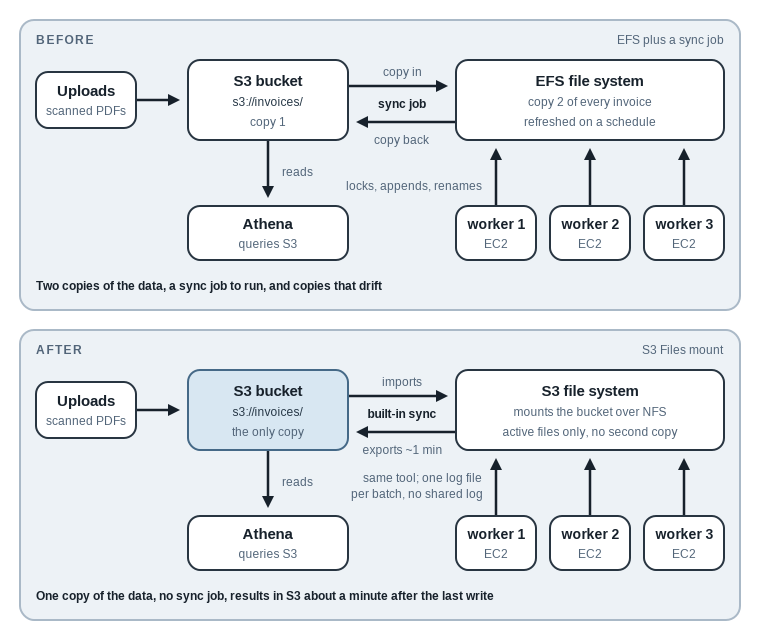
The tool needs a real file system shared by three machines, with appends, renames, and locks. Athena needs S3. The diagram shows the usual workaround next to the S3 Files version, and the table after it compares all the common options.
| Option | What happens | The catch |
|---|---|---|
Copy to each worker’s EBS volume (aws s3 sync) |
Each worker processes its own copy. | Nothing is shared, so the lock and the shared log don’t work across workers, and results need a sync back. |
| EFS plus a sync job | Workers share EFS, a scheduled job copies inbox/ in and results out. |
Two copies of every file, a sync job to own and monitor, and Athena sees results only after the next sync. |
| Mountpoint for Amazon S3 | Workers mount the bucket directly. | Mountpoint is built for large sequential reads and for writing new files sequentially. On a general purpose bucket it can’t modify or append to an existing file, can’t rename files or directories, and doesn’t support POSIX file locks. The tool breaks. |
| FSx for Lustre linked to S3 | A Lustre file system imports from and exports to the bucket. | AWS positions it for HPC and GPU cluster storage. It’s a separate high-performance file system to size, pay for, and run, which is a lot of system for three workers. |
| S3 Files | Workers mount the bucket over NFS and run the tool unchanged. | Renames cost an S3 copy and delete each, results reach S3 about a minute after the last write, and the shared log needs a small change (below). |
With S3 Files there is one copy of the data, no sync job, and no change to the tool’s logic. Results land in S3 as normal objects about a minute after each file’s last write, and Athena reads them there. You pay file system storage only for what the workers are actively using: the files they’ve written recently and small files they’ve read. PDFs larger than 128 KiB aren’t copied onto the file system at all; reads of them stream from S3.
The shared processed.log is the one part to rethink. S3 Files exports a file only after 60
seconds with no writes to it. AWS’s own example: a file appended to every 30 seconds for 5
minutes starts exporting at minute 6. If at least one of the three workers appends to the log
every minute, it doesn’t reach S3 until the workers go quiet. The workers still see the current
log through the mount, but anything reading it from S3 doesn’t. If Athena or another S3 reader
needs that log, have each worker write one log file per batch instead of appending to a single
shared file.
The same shape fits other workloads: an AI agent that explores a document repository with shell tools, an ML job that reads thousands of small files over many epochs, or a team share of config files and notebooks that also needs to be visible to S3-based services.
When Not to Use It
S3 Files makes a different set of tradeoffs than a plain file system. Check these before you commit:
- Versioning costs storage. Every exported change is a new object version, and so is every
chmodorchown, because S3 Files stores POSIX permissions as object metadata. A file rewritten every few minutes leaves many versions behind. Add an S3 lifecycle rule that expires noncurrent versions. - Large directory renames are expensive and slow, because each object is copied and deleted.
S3 Files returns an error if you create a file system scoped to a prefix so large that a rename
could take up to about 4 hours (roughly 12 million objects). You can override it with
--accept-bucket-warning, but AWS’s advice is to scope the file system to the smallest prefix your workload needs. - Writes reach S3 after about a minute, not instantly. Anything that reads the bucket directly sees file system changes only after the export, and a file that keeps getting written to isn’t exported until the writes pause for 60 seconds.
- The bucket wins conflicts. Don’t have one system edit a file through the mount while another overwrites the same object through the S3 API. AWS recommends choosing one primary writer per path: the file system or S3.
- It works inside one VPC. Clients must run in the same VPC as the file system and connect to a mount target over NFS on TCP port 2049. A file system has one VPC and at most one mount target per Availability Zone.
- Not every object is reachable. Objects in S3 Glacier Flexible Retrieval, Glacier Deep Archive,
or the Intelligent-Tiering archive tiers must be restored first. Hard links aren’t supported,
keys that aren’t valid POSIX paths (
a//b,a/../b) can’t be accessed, and S3 ACLs aren’t preserved once a file changes through the file system. - Some NFS features are missing, for example Kerberos, NFS ACLs, mandatory locks (all locks are
advisory), and the
nconnectmount option. - Lift-and-shift from an on-premises NAS is still FSx territory. AWS itself points NAS migrations and Windows or NetApp features to Amazon FSx, and HPC and GPU cluster storage to FSx for Lustre.
Set It Up with the AWS CLI
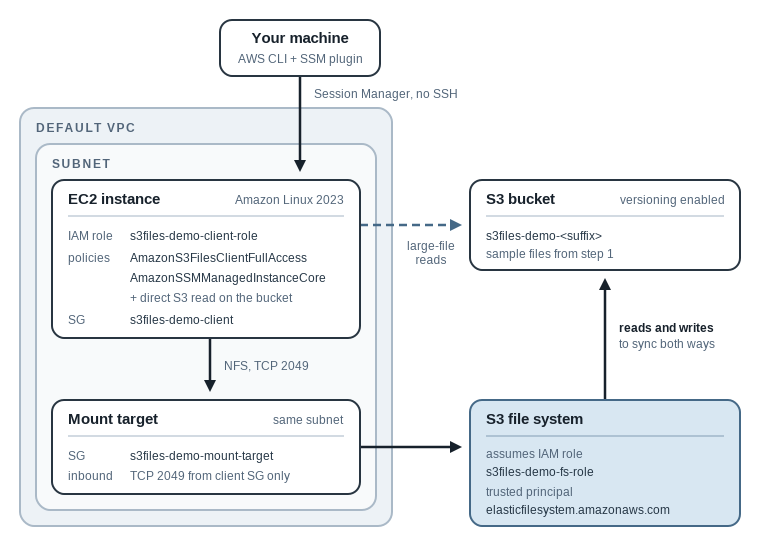
The demo creates everything from scratch in your default VPC: a versioned bucket, the two IAM roles S3 Files needs, the file system, a mount target, and an EC2 instance that mounts it. The diagram shows how those pieces connect once the scripts finish.
You need three things:
- The AWS CLI v2 with the
s3filescommands. I validated against 2.37.7. - Credentials for an account where you can create IAM roles, EC2 instances, and S3 buckets.
- The Session Manager plugin for the AWS CLI, to connect to the instance without SSH.
Check that your CLI has the commands:
aws s3files help | grep -E "create-file-system|create-mount-target"
It should print lines for both create-file-system and create-mount-target. If it prints
nothing, or the CLI says s3files is an invalid choice, update the CLI.
Get the code and set your bucket name. Bucket names are global across all AWS accounts, so add a suffix of your own:
git clone https://github.com/VersusControl/devops-vn-blog.git
cd devops-vn-blog/_resource/aws-s3-files
export BUCKET=s3files-demo-<your-unique-suffix>
source scripts/env.sh
env.sh sets the Region (us-east-1 unless you export AWS_REGION first), reads your account
ID, the default VPC, and its first default subnet, and loads any IDs that earlier steps saved in a
.state file. It prints one line with those values. If the VPC or subnet shows None, the
Region has no default VPC, and the scripts won’t work as written.
Every step below is one script. Each script sources env.sh itself and appends the IDs it
creates to .state, so later steps and the cleanup can find them. The text shows the commands
that matter in each.
Step 1: A versioned bucket
./scripts/01-bucket.sh
The important line is versioning. S3 Files won’t sync without it:
aws s3api put-bucket-versioning --bucket "$BUCKET" \
  --versioning-configuration Status=Enabled
The script also uploads two sample files, README.txt and reports/ratings.csv, and ends by
listing the bucket, so you should see those two keys. The bucket also needs SSE-S3 or SSE-KMS
encryption. New buckets use SSE-S3 by default, so the script doesn’t set it.
Step 2: Two IAM roles
S3 Files needs two different identities, and they are easy to mix up:
| Role | Used by | Allows |
|---|---|---|
s3files-demo-fs-role |
The S3 Files service | Reading and writing the bucket to sync, and managing the EventBridge rules it uses to see bucket changes. |
s3files-demo-client-role |
The EC2 instance | Mounting and writing to the file system, and reading objects directly from the bucket. |
./scripts/02-iam.sh
The file system role trusts elasticfilesystem.amazonaws.com, the service principal S3 Files
uses, and only for file systems in your account. This is the core of
iam/s3files-trust-policy.json (excerpt; the script fills in ACCOUNT_ID and REGION):
"Principal": { "Service": "elasticfilesystem.amazonaws.com" },
"Action": "sts:AssumeRole",
"Condition": {
  "StringEquals": { "aws:SourceAccount": "ACCOUNT_ID" },
  "ArnLike": { "aws:SourceArn": "arn:aws:s3files:REGION:ACCOUNT_ID:file-system/*" }
}
Its permissions (iam/s3files-bucket-access-policy.json) come straight from the S3 Files
documentation: list and version-aware object actions on the bucket, KMS use through S3, and
EventBridge rules named DO-NOT-DELETE-S3-Files*.
The client role gets two AWS managed policies and one inline policy:
AmazonS3FilesClientFullAccess: lets the instance mount, write, and act as root on the file system (s3files:ClientMount,ClientWrite,ClientRootAccess). UseAmazonS3FilesClientReadWriteAccessto drop root access, orAmazonS3FilesClientReadOnlyAccess.AmazonSSMManagedInstanceCore: lets you connect with Session Manager instead of SSH.- An inline
s3:GetObjectpolicy on the bucket. With it, the instance reads large files directly from S3, which AWS documents as faster for large reads. Those direct reads follow IAM and bucket policies, not POSIX permissions.
The instance role matters at mount time. When you run mount, the mount helper takes credentials
from the instance profile and opens a TLS connection to the mount target. S3 Files always mounts
with TLS and IAM authentication, and you can’t turn either off. Check also that your bucket
policy, if you have one, doesn’t deny the instance’s role.
The script waits until the instance profile exists, then sleeps 10 seconds, because a new role takes a few seconds before other services can use it.
Step 3: The file system and a mount target
./scripts/03-file-system.sh
First the file system. --bucket takes the bucket’s ARN, and --role-arn the role from step 2:
aws s3files create-file-system \
  --bucket "arn:aws:s3:::$BUCKET" \
  --role-arn "$FS_ROLE_ARN" \
  --tags key=Name,value=s3files-demo \
  --query fileSystemId --output text
The command prints the new file system ID, and the script saves it as FS_ID. Add
--prefix reports/ to expose one prefix instead of the whole bucket. The script then polls
aws s3files get-file-system --file-system-id "$FS_ID" --query status every 15 seconds until
the status is available. If the status turns to error, it prints the full file system
description and stops.
A file system isn’t reachable until it has a mount target, the network endpoint described earlier. You create it in one subnet, and it needs a security group that accepts NFS (TCP 2049) from the clients. The script creates two groups, one for the instance and one for the mount target, and allows 2049 into the mount target only from the instance’s group:
aws ec2 authorize-security-group-ingress --group-id "$MT_SG" \
  --protocol tcp --port 2049 --source-group "$CLIENT_SG"

aws s3files create-mount-target \
  --file-system-id "$FS_ID" \
  --subnet-id "$SUBNET_ID" \
  --security-groups "$MT_SG" \
  --query mountTargetId --output text
The instance’s group also needs outbound TCP 2049 to the mount target. A new security group allows all outbound traffic, so the script doesn’t add a rule for that.
A mount target takes up to about 5 minutes to become available, and the script waits for it the same way. The getting-started guide asks for the mount target in the same Availability Zone as the instance, which is why the demo puts both in one subnet. You can have one mount target per zone. For real workloads, create one in every zone your clients run in. AWS recommends this because it keeps NFS traffic inside the zone, which cuts cross-AZ data transfer cost and latency and gives each client a local path to the file system. (The console creates one per zone for you; the CLI makes it explicit.)
Step 4: An EC2 instance to mount it
./scripts/04-ec2.sh
The script launches a t3.small Amazon Linux 2023 instance in the same subnet, with the client
role and the client security group. It has no SSH key and no inbound rule; you connect through
Session Manager. Its user data installs amazon-efs-utils, the package that contains the mount
helper for both EFS and S3 Files. S3 Files needs version 3.0.0 or later:
dnf -y install amazon-efs-utils
AWS’s launch post says the package comes preinstalled on AWS-provided AMIs. The user data keeps the step explicit, and you check the version after you connect.
The script waits for the instance to pass its status checks, which takes a few minutes, then
prints the commands for the next step, including the mount command with your file system ID.
Step 5: Mount and use it
The scripts ran in their own processes, so your shell doesn’t have the IDs they saved yet.
Source env.sh again to load them from .state, then connect with Session Manager:
source scripts/env.sh
aws ssm start-session --target "$INSTANCE_ID"
On the instance, check the mount helper version, then mount the file system. Use the mount
command that 04-ec2.sh printed; it has your file system ID where this example has
fs-0123456789abcdef0:
rpm -q amazon-efs-utils
sudo mkdir -p /mnt/s3files
sudo mount -t s3files fs-0123456789abcdef0:/ /mnt/s3files
df -h /mnt/s3files
ls -la /mnt/s3files /mnt/s3files/reports
What each line should tell you:
rpm -qshould report version 3.0.0 or later. If it’s older, runsudo dnf -y upgrade amazon-efs-utilsbefore you mount.mountprints nothing when it succeeds. If it hangs or times out, check the security group rule from step 3 first.dfshould list a file system mounted on/mnt/s3files. (AWS’s documentation shows its size as8.0E.)lsshould showREADME.txtandreports/ratings.csv, the objects from step 1. The first listing of each directory can take a few seconds while S3 Files imports its metadata.
Now test both directions. Write a new file through the file system, append to an existing one, and rename one. Mountpoint for Amazon S3 can’t do the last two on a general purpose bucket:
echo "Hello S3 Files" | sudo tee /mnt/s3files/hello.txt
echo "1,Hamlet,4" | sudo tee -a /mnt/s3files/reports/ratings.csv
sudo mv /mnt/s3files/README.txt /mnt/s3files/NOTES.txt
Wait about a minute, because the export starts only after 60 seconds without writes. Then check
the bucket from your own machine, in the shell where you sourced env.sh:
aws s3 ls --recursive "s3://$BUCKET/"
aws s3 cp "s3://$BUCKET/reports/ratings.csv" -
aws s3api list-object-versions --bucket "$BUCKET" --prefix reports/ratings.csv \
  --query 'Versions[].[VersionId,IsLatest]' --output table
hello.txt and NOTES.txt should be there, and README.txt should be gone from the listing (in
the version history it now has a delete marker). ratings.csv should end with the new line, and
the version table should show two versions: the original, and the edited one marked as latest.
If the changes aren’t there yet, wait another minute; a busy file system can queue exports.
Then the other direction. Upload an object with the S3 API and read it through the mount:
# on your machine
echo "uploaded through the S3 API" | aws s3 cp - "s3://$BUCKET/inbox/new.txt"
# on the instance, a few seconds later
cat /mnt/s3files/inbox/new.txt
cat should print the line you uploaded. The change usually arrives within seconds, but AWS
says it can sometimes take a minute or longer.
AWS’s launch post shows the first half of this round trip. This is its output, unchanged, run
from the home directory with the file system mounted at ~/s3files:
# Create a file on the EC2 file system
echo "Hello S3 Files" > s3files/hello.txt

# and verify it's here
ls -al s3files/hello.txt
 -rw-r--r--. 1 ec2-user ec2-user 15 Oct 22 13:03 s3files/hello.txt

# See? the file is also on S3
aws s3 ls s3://s3files-aws-news-blog/hello.txt
2025-10-22 13:04:04 15 hello.txt
The file shows 13:03 and the S3 object 13:04:04, which fits the 60-second export window.
Optional: Tune what lives on the fast layer
By default, S3 Files imports the data of files under 128 KiB the first time a directory is
accessed, and drops data that hasn’t been read for 30 days. You can change both per prefix with a
synchronization configuration. scripts/05-sync-config.sh keeps small report files fast and
treats everything else as metadata only:
aws s3files put-synchronization-configuration \
  --file-system-id "$FS_ID" \
  --import-data-rules \
      'prefix="",trigger=ON_FILE_ACCESS,sizeLessThan=0' \
      'prefix=reports/,trigger=ON_DIRECTORY_FIRST_ACCESS,sizeLessThan=1048576' \
  --expiration-data-rules daysAfterLastAccess=7
- The rule for
""(the whole file system) imports no file data (sizeLessThan=0). Listings stay fast because metadata is still imported, and reads stream from S3. (Changes not yet exported are always served from the file system.) AWS suggests this setting for AI agents that browse many files but rarely reread one. - The rule for
reports/imports files under 1 MiB as soon as the directory is opened, so repeated reads are fast. - Data not read for 7 days leaves the fast layer.
When a file matches more than one rule, the rule with the most specific prefix wins. You need
exactly one rule for the root (""), and a file system can have at most 10 import rules. The
script prints the stored configuration with get-synchronization-configuration, so you can
check that S3 Files accepted both rules.
Importing more data lowers read latency but raises storage and write charges, because every import is metered as a write. For a training job that rereads the same small files every epoch, AWS suggests the opposite of this example: a high threshold and a short expiration.
Keep an Eye on Synchronization
Exports run in the background, after the write has already returned, so an export failure doesn’t reach the application that wrote the file. When synchronization falls behind or fails, the mount keeps working and the bucket quietly stops matching it. S3 Files publishes CloudWatch metrics for this, and AWS’s best-practices page suggests watching these:
PendingExportscounts changes waiting to be copied to S3. If it keeps growing, the workload writes faster than S3 Files can export (up to 3,500 files per second per file system).ExportFailuresandImportFailurescount files that couldn’t be synchronized. AWS lists permission problems, encryption key problems, and path length limits as causes. Put alarms on both.
Leave two things alone: the IAM role S3 Files assumes, and the EventBridge rule it creates with
the DO-NOT-DELETE-S3-Files prefix. Changing the role can break synchronization. Without the
rule, S3 Files stops seeing changes made in the bucket, and the file system goes stale.
Finally, check the lost and found directory now and then. Conflicting files stay there until you delete them, and they’re billed as file system storage.
What It Costs
You pay for three things:
- Storage on the high-performance layer, only for the data that’s there (small files you’ve read and files you’ve written, until they expire), with a 10 KiB minimum per file.
- File system access: reads and writes on the high-performance layer, metered per operation with a minimum size (32 KiB for data, 4 KiB for metadata). Imports count as writes, exports as reads.
- S3 requests for synchronization and for direct reads, at normal S3 request prices, plus normal S3 storage, including old object versions.
Large files that stream from S3 cost only S3 GET requests and a small metadata read. For the
demo, add the hourly cost of the EC2 instance. Check the
Amazon S3 pricing page for your Region’s S3 Files rates.
Clean Up
On the instance, unmount first:
sudo umount /mnt/s3files
Then, on your machine:
./scripts/cleanup.sh
It terminates the instance, deletes the mount target, waits until the file system has no mount
targets left, then deletes the file system, the security groups, and the IAM roles.
delete-file-system refuses to run while changes are still waiting to be exported to S3, so you
can’t lose recent writes by accident; --force-delete overrides that. Give the last export time
to finish: wait at least a minute after your last write before you run the script. If the delete
is refused anyway, the script stops before touching the IAM roles, because S3 Files still needs
its role to finish the export. It keeps .state, so you can run it again a minute later.
The script keeps the bucket. Deleting a versioned bucket means deleting every object version and delete marker first, and that’s a decision worth making on purpose. Until you do, the bucket’s storage, old versions included, stays on your bill.
Summary
- S3 Files, launched in April 2026, mounts a general purpose S3 bucket (or a prefix) as a shared NFS file system on EC2, ECS, EKS, and Lambda, and keeps the bucket in sync in both directions.
- It’s built on EFS: small, recently used files are served from a fast layer at about 1 ms, while large reads stream straight from S3. You pay file system rates only for the active part.
- It removes the copy-and-sync step for tools that need real file semantics (in-place edits, renames, locks, shared access) on data that S3-based services also use.
- Know the rules before you adopt it: versioning is required, the bucket wins conflicts, renames cost a copy and delete per object, and a file is exported only after 60 seconds without writes.
- Setup is a file system role, a client role,
create-file-system,create-mount-target, a security group rule for TCP 2049, andmount -t s3files. The scripts in_resource/aws-s3-filesdo it end to end. In production, alarm onPendingExports,ExportFailures, andImportFailures.
A good first step is one tool that works on a copy of S3 data today. Create a file system scoped to that tool’s prefix, point the tool at the mount, and remove the sync job once its results show up in the bucket.